How to email exif data along with photos from iphone6

I rarely take "important" photos with my phone6. When I do, I sometimes email them to myself for storage on my windows10 computer. In the past (as far as I know) the exif has always gone along with the photo.


However, that didn't happen with my latest emailed photo. Photoshop shows only image size and resolution. Flickr also shows JFIFVersion 1.02


I select the image from Photos and choose email. When given the choices for file size, I almost always pick the largest size. File size seems to be the only variable, but still no exif.


Could I have inadvertently reset something in the phone settings?


iPhone 6, iOS 12

Posted on Jul 31, 2020 1:46 PM

Reply
Question marked as Top-ranking reply

Posted on Aug 3, 2020 4:46 PM

Lakota4572,


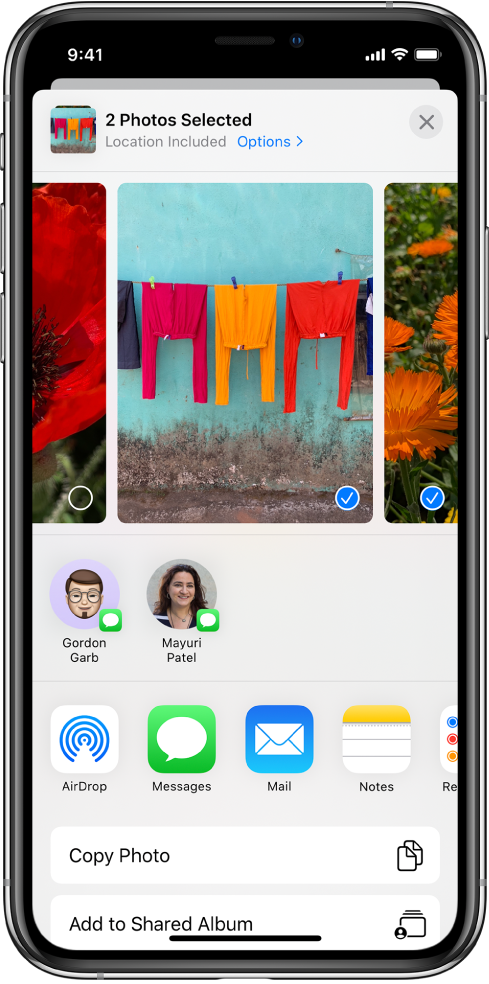
Yes, there are options available to enable/disable metadata on the photo prior to sending it by tapping on the photo in the Photo app that you want to send, tapping on the Share button, and then tapping on "Options".


Here you'll see an option under "Include" that says "All Photos Data" which may have gotten disabled before you emailed this photo to yourself. Be sure you're including "All Photos Data" in order to ensure that all the metadata is shared.


For more info on using Mail to share photos on iOS, check out: Share photos and videos on iPhone


We hope this information helps out.


Thanks for using Apple Support Communities!

Similar questions

9 replies
Question marked as Top-ranking reply

Aug 3, 2020 4:46 PM in response to Lakota4572

Lakota4572,


Yes, there are options available to enable/disable metadata on the photo prior to sending it by tapping on the photo in the Photo app that you want to send, tapping on the Share button, and then tapping on "Options".


Here you'll see an option under "Include" that says "All Photos Data" which may have gotten disabled before you emailed this photo to yourself. Be sure you're including "All Photos Data" in order to ensure that all the metadata is shared.


For more info on using Mail to share photos on iOS, check out: Share photos and videos on iPhone


We hope this information helps out.


Thanks for using Apple Support Communities!

Aug 4, 2020 9:30 AM in response to Lakota4572

Lakota4572,


In order to see the view you'd like to in the Photos app, you'll need to tap on the Photos tab at the bottom of the page. It sounds like you're currently looking at the "For You" or "Albums" tabs.


Also, you don't have to be in the "Months" view of the Photos tab in order to get the share options shown in the screenshot. Tap on the "All Photos" view within this tab and then tap on the photo you'd like to share. Tap on the Share button and then you'll see what's shown in the screenshot.


Once here, you can then tap on "Options" at the top of the page in order to designate whether you'd like to include all of the metadata for the photo or not.


Thanks for using Apple Support Communities!


Aug 3, 2020 7:03 PM in response to Leanne_68

Thanks, Leanne_68


I don't see an "Options" button.  Here's what I saw tonight when emailing the same photo again, which previously was sent w/o metadata.


1.     Tapped photo in Photo app.


2.     Tapped "Share" icon.


3.     Tapped "Mail" icon


a.      "Message", "Mail". "..." icons shown


b.     This is the 1st time I've noticed the "...".  Maybe it was there before, but I don't remember seeing it.


4.     That took me to email (to/from/subject, etc)


a.      Photo was inserted "inline" (in body of email), not attachment.


5.     "Send" sent without metadata.


Then I tried following the "..." to see where that led.


1.     It scrolled right to more icons


a.      "Outlook", "Shared Albums", "add to Notes", "Save PDF to Books", "...".


2.     I tapped "Outlook" (or long tapped), and moved it left to show with "Message" & "Mail" with nothing indicating that there were more choices which were not shown.

3.     That took me to email (to/from/subject, etc)


a.      Photo was an attachment.


4.     "Send" sent with metadata.

Aug 3, 2020 1:00 PM in response to Lakota4572

Hey Lakota4572,


We understand that exif metadata isn't appearing for your photo that you emailed to yourself. To clarify, if you take a new photo currently, does the metadata appear as you'd expect it to? We'd like to determine whether this was an isolated incident or if this is happening with all new photos you take.


Keep in mind that if you weren't online at the time that the photo was taken, location data may not be available for it.


Also, if instead of emailing the photo over to yourself, you export the photo to your PC manually, do you continue to notice the same behavior? Here's a great resource to assist with this:


Transfer photos and videos from your iPhone, iPad, or iPod touch


Specifically, you'll want to be sure to review the "Import to PC" section.


Cheers!

Aug 4, 2020 6:53 AM in response to Lakota4572

Lakota4572,


If you're not seeing the "Options" button when selecting photos to send, you'll see a screenshot displaying to you exactly where this button is located at the resource provided in our last response. If you look under the "Share photos and videos" section, you'll see the button we're referring to in the screenshot. In it, you can see that this button is located at the very top of the page under where it tells you how many photos you've selected to send.


This would be the only way to adjust what data is included when sending a photo, so it'll be imperative that you locate it. You'll also complete this step directly after tapping on the "Share" icon.


Lastly, based on the info you just provided, it sounds like as long as you send as an attachment instead of embedding in the body of the email, it's including the metadata as you expect.


Cheers!

Aug 3, 2020 2:31 PM in response to rose_10

Thanks Rose for your reply.


Previously, metadata was being transferred via email, but for my latest photo metadata was not sent. As I said, I rarely take "important" photos with my phone. I haven't transferred any photos via email since my posting. Photography is my hobby so I usually use my DSLR. The best camera is always "the one you have with you".


"Keep in mind that if you weren't online at the time that the photo was taken, location data may not be available for it."

I don't understand most of the features of my phone. I thought iphones were "online" all the time. At the time I took the photo (that was emailed with metadata) I was walking in my neighborhood. I had an app running at the time to measure the time, distance, etc. My latest photo (that did not email with metadata) was taken in my yard . . . no apps running (that I was aware of). I thought tapping "camera", etc was all I had to do.


What do I need to do to "go online"?


Emailing seems much more logical & efficient and can be done anywhere/anytime that I have my phone. No need to connect cords, etc. I know that email attachment have size limits, etc.


Again, "Could I have inadvertently reset something in the phone settings?" Are there settings to always capture metadata?


Aug 4, 2020 8:45 AM in response to karina184

Before my original post, when I tapped the "Photos" app, I could see & scroll back through all of the photos I had taken on my phone (in reverse order; last taken back through 1st taken). I "think" it showed choices for the last photo or "all photos" (or similar). "All photos" showed thumbnails of all my photos together in one group. Now the best I can do is see photos in small groups and labeled by date & place. It's hard & time consuming to hunt through to locate photo(s) that I want. Even more than my original request, at this point I'd like to just get back to where I started.


That said, nowhere have I seen the screen shot shown in Share photos and videos on iPhone


I assume you were refering to this:

  • Share multiple photos or videos in Months: While viewing events in the Months tab, tap , then tap Share Photos to send all the photos from that event.

I don't have a Months tab.


If the above cut/paste worked, and I'm able to get back to my original Photos app screens, maybe I can/will post screen shot(s) showing what I'm seeing on my phone.

Aug 4, 2020 11:16 AM in response to chris_g1

This is too just much of a hassle. Trying to capture screens on my phone, email them to my computer where I do my "real work" and send them to you doesn't work either. Bottom line is that I STILL can't reliably send metadata with photos.


In Photos app, when I tap the Photos tab, it shows what I have

described (photos in small

groups and labeled by date & place):


The Albums tab

is what I have been seeing & will want to normally see when I go to the

Photos app.  At least, I've learned how

to get back to that view. As I said, it's a pain (& not at all user

friendly) to have to hunt back through the Photos tab view.

"Also, you don't have to be in the "Months"

view of the Photos tab in order to get the share options shown in the

screenshot. Tap on the "All Photos" view within this tab and then tap

on the photo you'd like to share. Tap on the Share button and then you'll see

what's shown in the screenshot."

Nope!   Here's what I

see when I tap the Share button (there

ain't no "options"):


This thread has been closed by the system or the community team. You may vote for any posts you find helpful, or search the Community for additional answers.

How to email exif data along with photos from iphone6

Welcome to Apple Support Community
A forum where Apple customers help each other with their products. Get started with your Apple Account.