Reduce File Size using Quartz Filter on Preview

Hi everyone,


Thanks in advance for helping out! I've been trying to reduce my PDF files using Export > Quartz Filter > Reduce File Size. However, it won't work or it will only reduce it by a little.


Any ideas on how to fix this?

Thanks!

MacBook Pro 16″, macOS 10.15

Posted on Aug 3, 2020 8:39 PM

Reply
Question marked as Top-ranking reply

Posted on Aug 4, 2020 12:00 PM

Launch ColorSync Utility and clic on the Filters button.


There you can edit any existing filter or crested a new one by clicking on the "+" button at the bottom left of the window.


2 replies

Aug 4, 2020 11:43 AM in response to gilbertfromsurrey

I used what you tried yesterday to reduce a text-only file scanned to PDF at 150DPI. Size reduction was quite good, 6.1 MB to 268 KB. But the quality was poor -- fuzzy text . I did a bit of searching regarding the Quartz filters and found something that worked for me. That involves using ColorSync to modify a copy of the given filter. That filter also appears then in Preview. In my case the file went to 840 KB with good enough text clarity. If you started with a low DPI, then results may not be as good.


In fact I came to Discussions now to ask about this. There is little or no real explanation for the settings, so I flailed around. This worked for me. I created the "legible" filter. I only turned off the Constrain Size as an experiment. I initially tried changing Quality to Medium but it was then forced to Low.
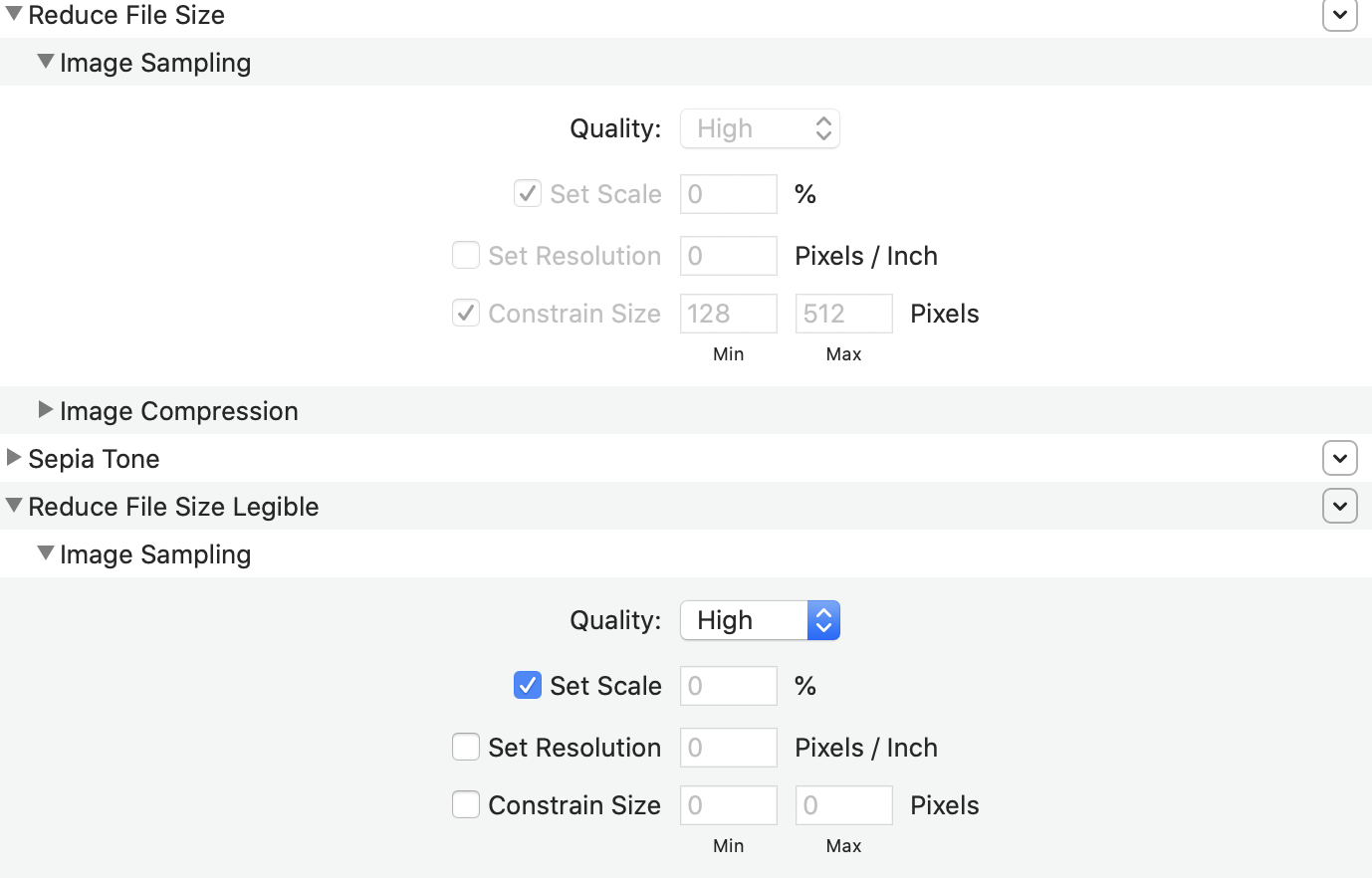


If any readers can provide better insight into the settings for us, please reply.

This thread has been closed by the system or the community team. You may vote for any posts you find helpful, or search the Community for additional answers.

Reduce File Size using Quartz Filter on Preview

Welcome to Apple Support Community
A forum where Apple customers help each other with their products. Get started with your Apple Account.
