Peculiar Slow web browsing iMac 27 running 10.15.6

Hi all ...

I have a really strange issue I'm trying to troubleshoot and would appreciate any help or tips please?


Problem:

After a shutdown/restart any web browser on my mac (Chrome, Safari, Firefox or Opera - all latest versions) .. effectively timeout when re-opening. This happens on all sites and all browsers only after a restart. All other network connectivity is fine - drives connect etc. only web traffic is impacted.

If I wait 5 minutes the problem is gone. I have multiple machines connected to the same network switch, the problem also occurs on WiFi. The imac like all other machines is using DHCP.


Any ideas of what to check? My macmini has the same software/versions loaded and the fault is not replicated - other macs (MB, MBPro) with similar software connected via WIFI also do not display the same issue.


Thanks inadvance.

Paul.

iMac 27″, macOS 10.15

Posted on Aug 20, 2020 5:06 PM

Reply
Question marked as Top-ranking reply

Posted on Aug 20, 2020 6:51 PM

Here are a few fundamental troubleshooting steps that may help. Some of the information will be redundant but review everything to determine if there is something you may have overlooked.


If you don't get anywhere, you can use the following procedure to determine if the problem is internal or external to your Mac. Causes may involve your router, your ISP, the DNS Server(s) it uses, or certain user-configurable options.


  1. Shut down your Mac.
  2. Load macOS Recovery by holding and r (two fingers) while you start your Mac with a third finger.
  3. At the macOS Utilities screen, release those two fingers.
  4. Choose Get Help Online.
  5. Safari will launch, but it will lack your bookmarks, favorites, history and other preferences.


Determine if the problem persists while using Safari in that mode. After that, restart your Mac normally, and reply with your observations.

Similar questions

8 replies
Question marked as Top-ranking reply

Aug 20, 2020 6:51 PM in response to P@ulG

Here are a few fundamental troubleshooting steps that may help. Some of the information will be redundant but review everything to determine if there is something you may have overlooked.


If you don't get anywhere, you can use the following procedure to determine if the problem is internal or external to your Mac. Causes may involve your router, your ISP, the DNS Server(s) it uses, or certain user-configurable options.


  1. Shut down your Mac.
  2. Load macOS Recovery by holding and r (two fingers) while you start your Mac with a third finger.
  3. At the macOS Utilities screen, release those two fingers.
  4. Choose Get Help Online.
  5. Safari will launch, but it will lack your bookmarks, favorites, history and other preferences.


Determine if the problem persists while using Safari in that mode. After that, restart your Mac normally, and reply with your observations.

Aug 21, 2020 5:26 PM in response to P@ulG

Thanks. These steps examined Safari-altering behavior due to the effects of various extensions and add-ons:


• Safari is slow, stops responding, quits unexpectedly, or has other issues - Apple Support
• If Safari doesn't load a page or webpage items are missing - Apple Support
• How to install Safari extensions on your Mac - Apple Support


After eliminating those potential factors, the next step is to examine what may affect system-wide behavior. Start by inspecting the contents of the following folder:


~/Library/LaunchAgents


To open that folder, copy the entire line above and paste it in the Finder's Go menu > Go to Folder... field. Make it look like this:


... and click the Go button.


A Finder window will open. Make sure all its file names are readable by selecting View > as List or other selection that shows that folder's complete contents. Then, take a screenshot of that Finder window.


Often, there is nothing in that Launch Agents folder so don't be surprised to find it empty.


Then, in the same manner as the above, navigate to this next folder:


/Library/LaunchDaemons


The Finder's Go menu > Go to Folder... field should look like this:
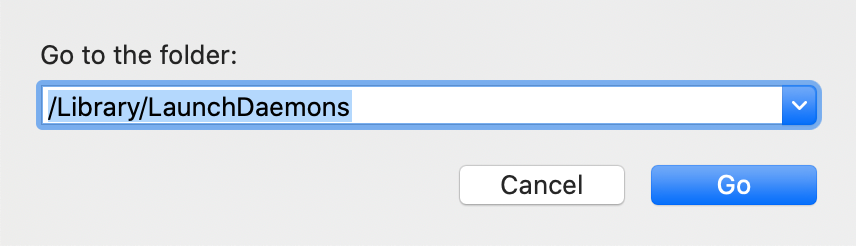


... and click the Go button once again.


Once again ensure all its files and their names are readable and capture a screenshot.


Then, repeat that exercise with the following folder:


/Library/LaunchAgents


Notice its pathname is different than the other two. The Finder's Go menu > Go to Folder... field should look like this:
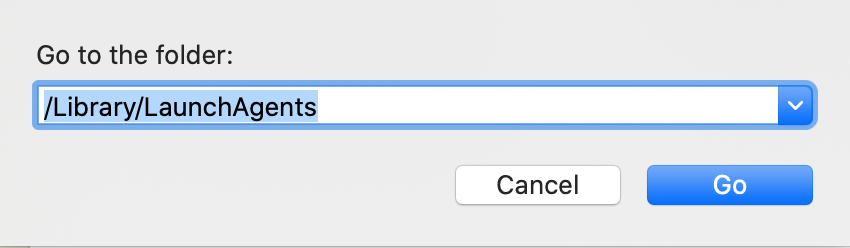


In the end, you will have captured the contents of the following three separate folders:


~/Library/LaunchAgents

/Library/LaunchDaemons

/Library/LaunchAgents


All three will be saved to your Mac's Desktop with names "Screen Shot... " followed by the date and time they were captured. Please be sure to include or otherwise indicate the name of the folder that corresponds to each screenshot, so that you and I can keep track of which ones they are.


Post the entire contents of all three windows, one at a time, using the "picture" icon that appears below your reply text:


Aug 20, 2020 5:17 PM in response to P@ulG

I agree that can be a vexing problem. Try creating a new "network location" as described in How to use network locations on your Mac - Apple Support. That often fixes problems too difficult to diagnose otherwise.


Needless to say, if you are using, or have used at any time in the past, any non-Apple "anti-virus", "cleaning", or "Internet security" products including "banking security", anything at all in that broad category of utterly useless garbage, don't. A lot of things won't work if you do.

This thread has been closed by the system or the community team. You may vote for any posts you find helpful, or search the Community for additional answers.

Peculiar Slow web browsing iMac 27 running 10.15.6

Welcome to Apple Support Community
A forum where Apple customers help each other with their products. Get started with your Apple Account.