
What is SearchUp?
What is Searchup? Is it Malware?
iMac 27″, macOS 10.15
What is Searchup? Is it Malware?
iMac 27″, macOS 10.15
Reply Part 2 of 2 follows next.
Next: if you want to eradicate all remaining adware remnants post a screenshot of the following folder, in the same manner as you did earlier:
~/Library/Application Support
It is normal for that folder to contain many items, but anything associated with the above adware may contain identical names. If you find a folder or folders bearing those names, drag those folders to the Trash. Without the files you already removed or the reintroduction of similar malware, they can do nothing but occupy space. These can be removed if you wish, but again don't remove anything if you are uncertain.
Finally: If any of the above actions result in abnormal operation or if something else stops working, the easiest way to recover would be to restore the Time Machine backup you created as a prerequisite, so the importance of that fundamental step cannot be overemphasized.
To see if there's other supporting files for SearchUp download and run Find Any File to search for any files with the application's name in the file name. Do the following search:
1 - Name contains search
Any files that are found can be dragged from the search results window to the Desktop or Trash bin in the Dock for deletion.
FAF can search areas that Spotlight can't like invisible folders, system folders and packages.
kellychildsis wrote:
I can see the SearchUp file in first one. I will try and remove it. Are there other files that look suspicious?
Do nothing until I reply with additional instructions.
Your screenshots are not very legible so I need to inspect them with care. I ask that you extend that same courtesy and await my reply.
Thanks. This is the first part of two replies so be sure to read the next one.
The screenshots you posted are less than completely legible, but there are only a few files whose names I cannot decipher with complete certainty.
At your option follow the instructions below. They will not harm your system and are nearly certain to permanently eradicate the "SearchUp" problem; I just prefer not to provide instructions with anything less than 100% certainty. Otherwise, please capture and post screenshots containing legible information.

First, ensure you have a reliable backup of your Mac, in case something should go wrong with continued troubleshooting. To learn how to do that, please read Back up your Mac with Time Machine.
Next: This step will prevent the scam products from loading so that they can be removed while they are inactive. Restart in "Safe Mode", and log in: Use safe mode to isolate issues with your Mac. Starting in Safe Mode takes longer than usual so let it finish. The rogue processes affecting that Mac are inoperative in "Safe Mode".
The following files and / or folders need to be deleted while using your Mac in "Safe Mode":
Delete all files except those that begin with the following in their names
com.adobe
com.apple
com.citrix
com.google
com.microsoft
com.logmein
com.oracle
com.paloaltonetworks
com.skype
Apply those instructions to each of the three screenshots you posted.
Drag those selections of files to the Trash. You may be asked to authenticate. Confirm they are no longer present in that folder. Leave all the others alone for now.
Next: open Safari and select the Safari menu > Preferences... > Extensions. If you see any Safari Extensions that you do not recognize or understand, simply click the Uninstall button and they will be gone. No Safari Extensions are required for normal operation. Then, select the General pane and review your Homepage selection. Repeat those equivalent actions for any other browser you may use (Brave, Firefox, or Opera for example).
There may also be adware-associated app icons in your Mac's Applications folder. Open it and examine its contents. Any unwanted or mysterious app icons should be obvious to you, but again please don't remove anything if you are uncertain—ask first. Identify any suspicious apps by name, or post another screenshot.
Next: In an abundance of caution, examine System Preferences > Extensions. Determine if there are any System Extensions that may have been installed without your knowledge. Ask if you're uncertain.
Remaining in System Preferences, check for the presence of any Profiles. Profiles are installed by organizations with a need to manage Macs deployed in institutional corporate or educational environments (for example), but have also been exploited by adware creators and similar malcontents. If any Profiles are installed on your Mac an icon like this will appear in System Preferences:
If you see that icon in System Preferences, select it. To remove a Profile, select it, then click the [—] (minus) button and authenticate.
Remaining in System Preferences, open Users & Groups. Select your User Account's Login Items. You may or may not find those Applications in its list. If you do, select them then click the [—] (minus) button to remove them from Login Items.
You can then restart your Mac and log in as usual. Evaluate its operation and ensure everything is working as you expect it should.
Hello. I, too, have this problem. Attaching screenshots of those items you mention. I'm currently backing up my computer but for next steps, where should I go from this point?
"Next: This step will prevent the scam products from loading so that they can be removed while they are inactive. Restart in "Safe Mode", and log in: Use safe mode to isolate issues with your Mac. Starting in Safe Mode takes longer than usual so let it finish. The rogue processes affecting that Mac are inoperative in "Safe Mode".
The following files and / or folders need to be deleted while using your Mac in "Safe Mode":
Delete all files except those that begin with the following in their names"
I'm running High Sierra 10.13.6 on a macbook Air
Any help is appreciated!
I can see the SearchUp file in first one. I will try and remove it. Are there other files that look suspicious?
Thank you!!
Thank you!
👍
Give me a little while for some research and I'll reply shortly.
Off course!
Many thanks for replying so promptly.
It's unlikely you will find a file by that name anywhere on your Mac. To ascertain the cause so that you can eliminate it, start by inspecting the contents of the following folder:
~/Library/LaunchAgents
To open that folder, copy the entire line above and paste it in the Finder's Go menu > Go to Folder... field. Make it look like this:
... and click the Go button.
A Finder window will open. Make sure all its file names are readable by selecting View > as List or other selection that shows that folder's complete contents. Then, take a screenshot of that Finder window.
Often, there is nothing in that Launch Agents folder so don't be surprised to find it empty.
In the same manner as the above, navigate to this next folder:
/Library/LaunchDaemons
The Finder's Go menu > Go to Folder... field should look like this:
... and click the Go button once again.
Once again ensure all its files and their names are readable and capture a screenshot.
Then, repeat that exercise with the following folder:
/Library/LaunchAgents
Notice its pathname is different than the other two. The Finder's Go menu > Go to Folder... field should look like this:
In the end, you will have captured the contents of the following three separate folders:
~/Library/LaunchAgents
/Library/LaunchDaemons
/Library/LaunchAgents
All three will be saved to your Mac's Desktop with names "Screen Shot... " followed by the date and time they were captured. Please be sure to include or otherwise indicate the name of the folder that corresponds to each screenshot, so that you and I can keep track of which ones they are.
Post the entire contents of all three windows, one at a time, using the "picture" icon that appears below your reply text:
Although you should use caution following remedies intended for someone else, in this particular case the same exact instructions apply to your concern.
In anticipation of others piling on with additional "me too" requests consider the following general instructions for eradicating adware. These things are always the result of deliberately downloading and installing something. You never need to download and install something else to fix it.
To learn how not to make that mistake again, please read How to install adware.
The subject dialog always takes this form, as described in Safely open apps on your Mac:
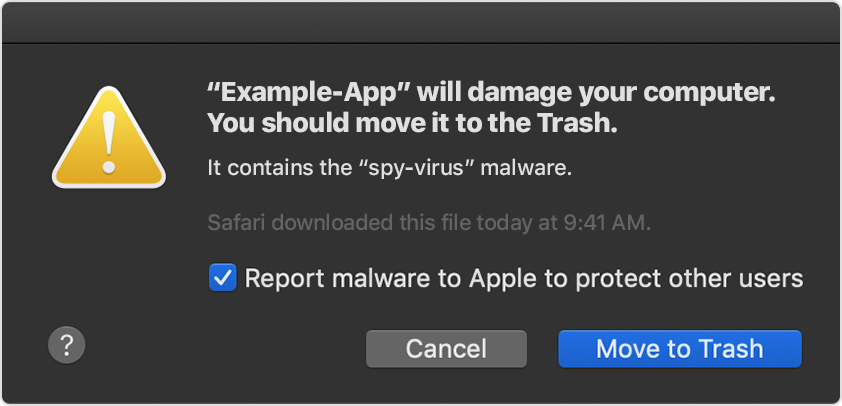
Move to Trash is the correct response. When that message becomes persistent though, the cause is always the same: one or more files that spawn the process resulting in its appearance.
General instructions applicable to all similarly categorized malware are as follows:
The folders to be examined are these three:
~/Library/LaunchAgents
/Library/LaunchDaemons
/Library/LaunchAgents
There should only be few files, if any, in each of the above folders. You should have a passing familiarity with what they are and the reason you need them. If you're unsure, ask.
Legitimate products that deposit system-altering components in those folders commonly include Adobe, Amazon, Citrix, Dropbox, Google and Microsoft, including its product Skype. Teamviewer also, assuming you really need it. Less common but equally legitimate products include Steam (games), various non-Apple "cloud backup" products that don't work very well, and device drivers for external hardware such as printers and non-Apple input devices. It's incumbent upon every Mac user to know the products they install on your Mac, so the files they deposit in those folders will never come as a surprise.
Illegitimate products notorious for causing trouble include any non-Apple product that claims to "clean", "enhance", "optimize", "protect", or "scan" your Mac. Anything in that broad category of junk should be uninstalled according to their instructions and never reinstalled, ever again.
Everything else should be regarded as suspicious. Some malware will litter those folders with hundreds of randomly named files in a pathetic attempt to obscure itself. For one particularly egregious example refer to notice unysgar.app, but if you have no explanation for any particular file in those folders you need to investigate.
Among a few examples are files containing the following in their names:
calculator
confcloud
copypaste
date
fixer
helper
hlpr
mafntask
moniter 🙄
pcv
scan
search
systemExtr
spigot
techyutil
time
updService
util
utilty
vlm
... files containing nothing but a random string of long alphanumeric text
... among a few others, but deleting those is a good place to start.
Then, reset your desired Search Engine, uninstall any strange Extensions, remove any unwanted Login Items, delete any unwanted apps, examine System Preferences for the existence of any Profiles, and finally restart your Mac (normally; not Safe Mode).
Then, evaluate its operation. If something still isn't right re-examine those three folders and determine if you overlooked anything. If something really gets messed up you have Time Machine to fall back on, so keep that important fact in mind.
That in a nutshell is how you get rid of adware, on your own, without having to install some sketchy tool or even ask anyone else for help. If you prefer individual attention specifically tailored to your needs though, then by all means please post a new Discussion. To do that click the Post link above right, and choose Discussion from the dropdown menu:
Dear John Galt,
I have similar issues but I am afraid of deleting some folders I am unaware of. Could you help me sort out? I made a new discussion as you proposed: https://discussions.apple.com/thread/252135212
Would appreciate any help!
Sounds like Adware, something you were tricked into installing yourself.
You should be able to use Etrecheck to remove it.
Just run Etrecheck and you can be done with this within 10 minutes*
*but, based on the incredible volume of system add-ons you have installed, it may take longer for it to run.
Thanks, John. I've just posted a new topic here: https://discussions.apple.com/thread/252069398
Any help would be greatly appreciated!
What is SearchUp?



