malware removal

SearchUp, etc. malware? 


I am piggybacking two threads before me and starting a new one per John Galt's recommendation to get answers to my specific case

https://discussions.apple.com/thread/252069398

https://discussions.apple.com/thread/251876361?login=true


I'm attaching those same items recommended (LaunchAgents, LaunchDaemons, ~LaunchAgents); using an iMac (2019); version 10.15.7


I've been having issues with pop up windows and google search being redirected to bing, after searching a bit I end up here and finding the exact name files as the ones before me. I am trying to do the cleaning proposed by John Galt, but I am unsure ove a couple files more specifically dagesh, sandlog, wingseed, xerafin, randomization, nonmorality, tragicheroicomic


I realised some of them are exec files and trying to have full disk access (print screen), and that's another reason it triggered me to look for them.


Can anyone help me sort out what should I clean and what should I keep?


iMac 27″, macOS 10.15

Posted on Dec 5, 2020 9:41 AM

Reply
Question marked as Top-ranking reply

Posted on Dec 5, 2020 12:33 PM

Thanks. This is Part 1 of 2 replies to be sure to read the next one.


... I am unsure ove a couple files more specifically dagesh, sandlog, wingseed, xerafin, randomization, nonmorality, tragicheroicomic


You're on the right track. All of them should go, but to be sure they're really gone follow these instructions. To learn how not to make that mistake again, please read How to install adware.



First, ensure you have a reliable backup of your Mac, in case something should go wrong with continued troubleshooting. To learn how to do that, please read Back up your Mac with Time Machine.


  • A backup is a fundamental prerequisite regardless of whatever method you may choose uninstall adware, and would apply even if your Mac were running perfectly well. Do not overlook this fundamental requirement. It's important.


Next: This step will prevent the scam products from loading so that they can be removed while they are inactive. Restart in "Safe Mode", and log in: Use safe mode to isolate issues with your Mac. Starting in Safe Mode takes longer than usual so let it finish. The rogue processes affecting that Mac are inoperative in "Safe Mode".


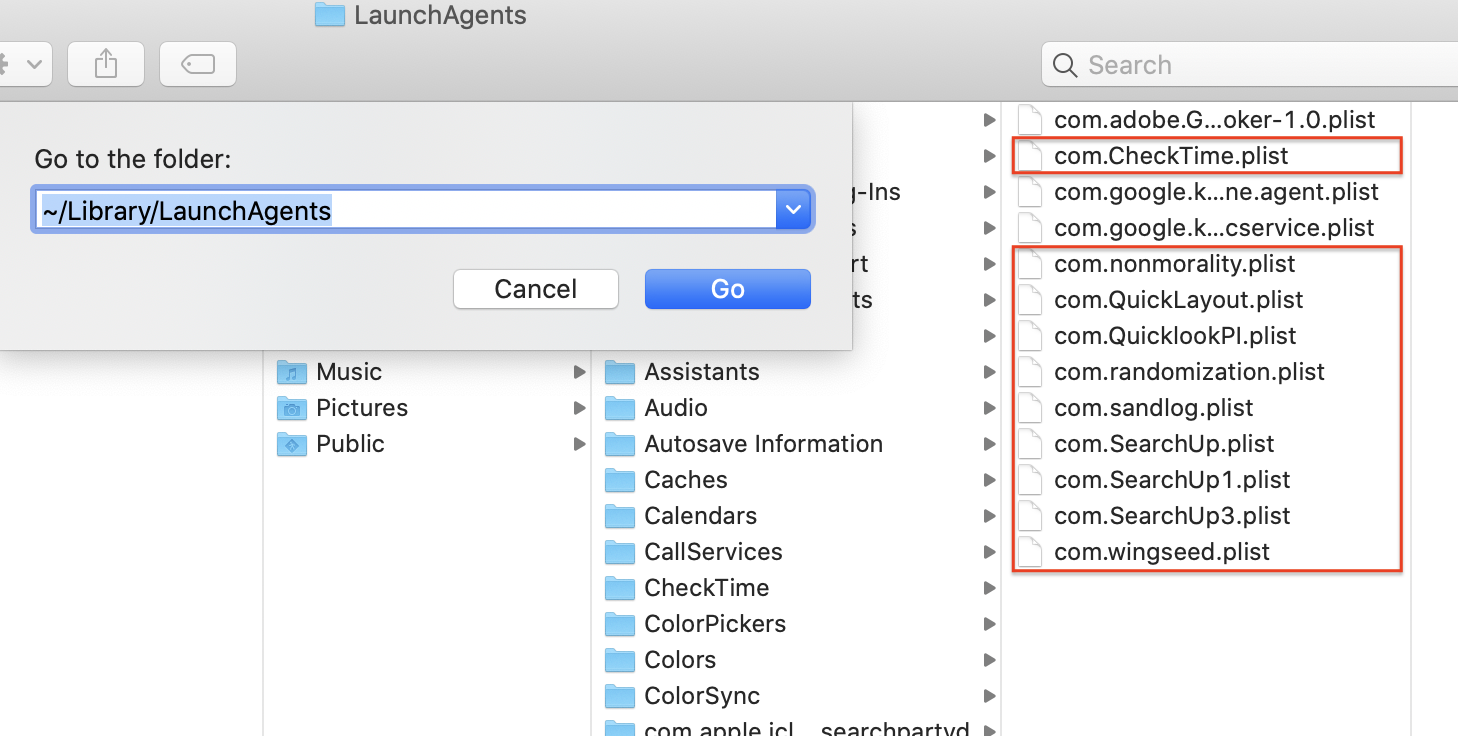
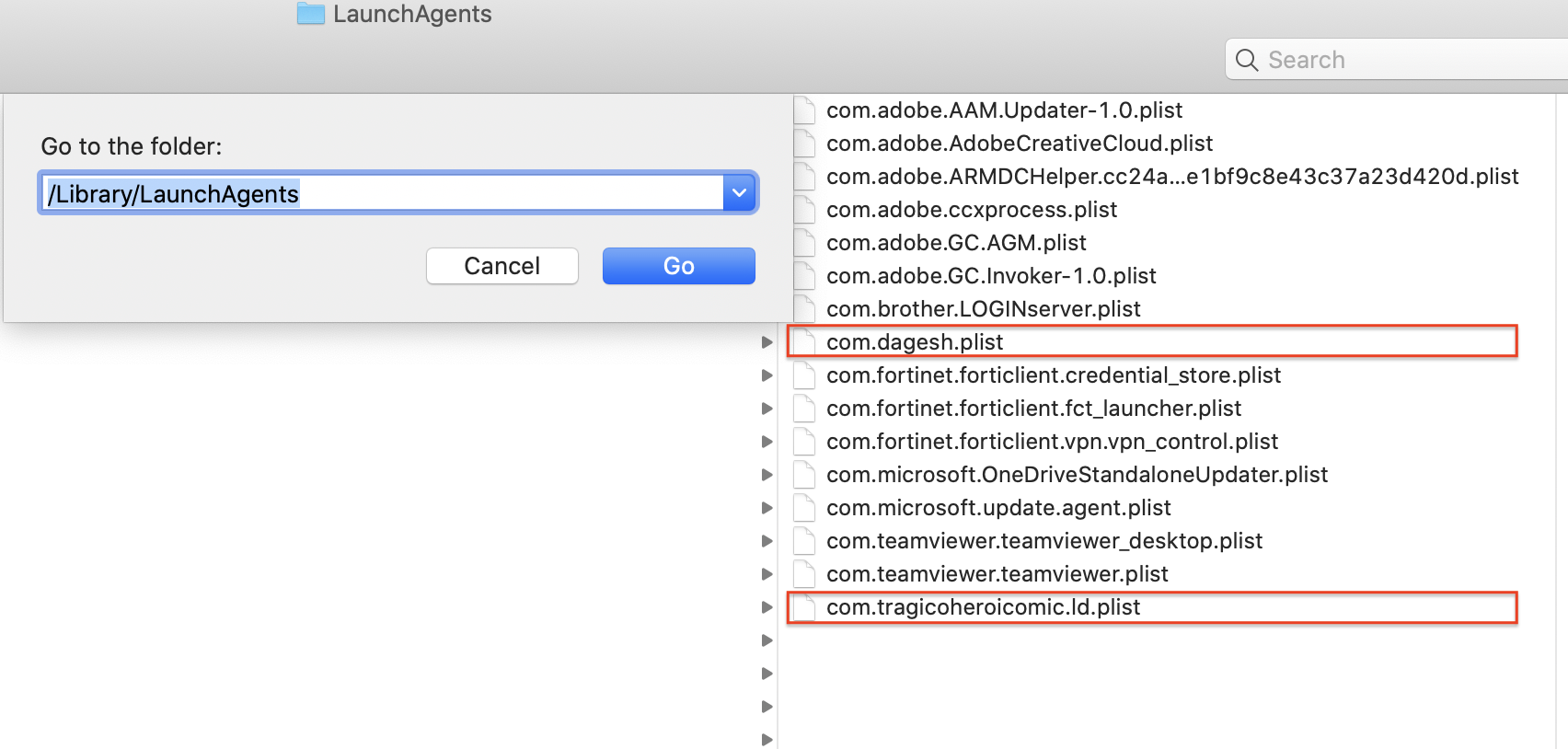
The following files and / or folders need to be deleted while using your Mac in "Safe Mode":


First screenshot:


Second screenshot:


Third screenshot:
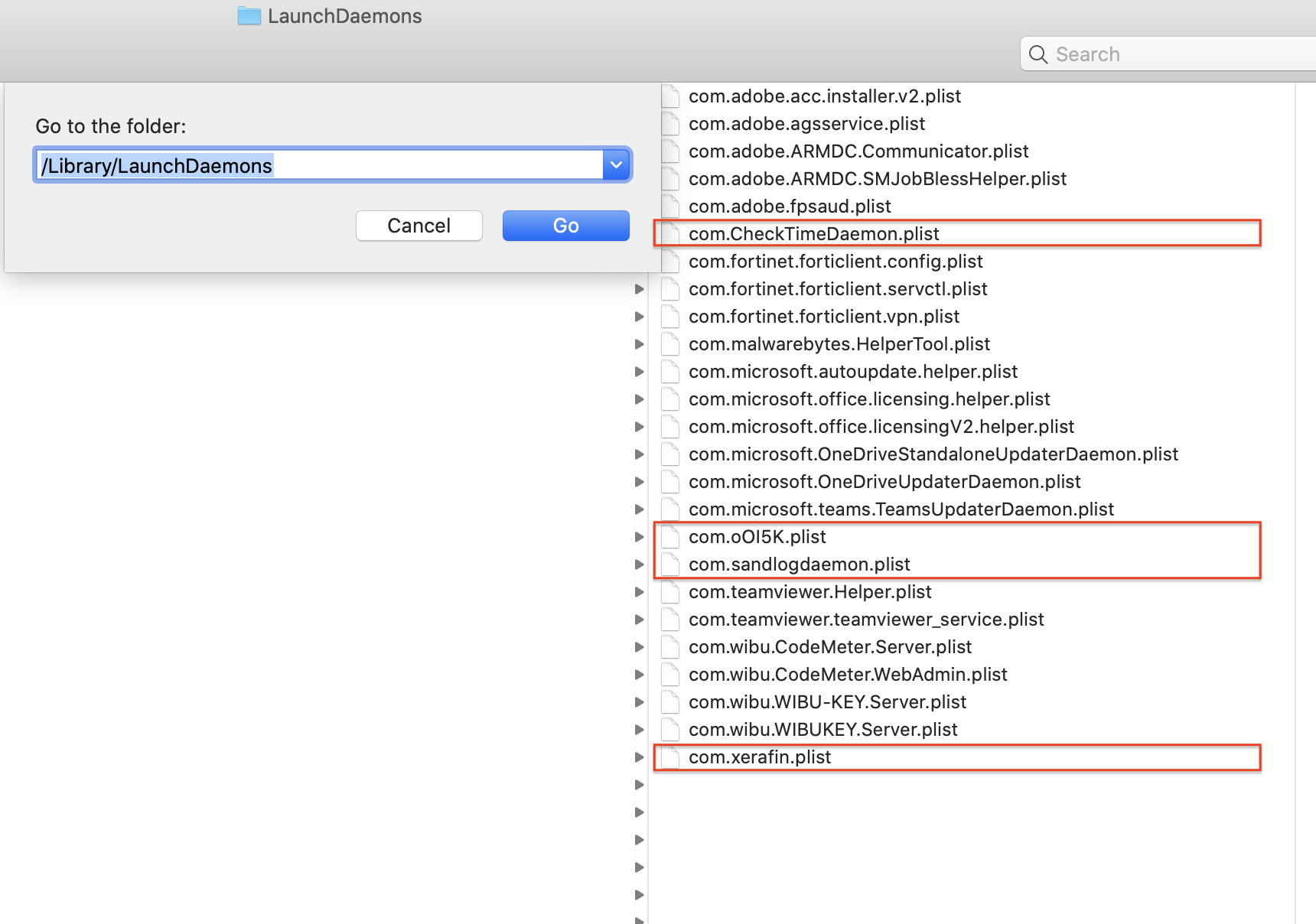


Drag those selections of files to the Trash. You may be asked to authenticate. Confirm they are no longer present in each of those folders.


Next: open Safari and select the Safari menu > Preferences... > Extensions. If you see any Safari Extensions that you do not recognize or understand, simply click the Uninstall button and they will be gone. No Safari Extensions are required for normal operation. Then, select the General pane and review your Homepage selection. Repeat those equivalent actions for any other browser you may use (Brave, Firefox, or Opera for example).


There may also be adware-associated app icons in your Mac's Applications folder. Open it and examine its contents. Any unwanted or mysterious app icons should be obvious to you, but again please don't remove anything if you are uncertain—ask first. Identify any suspicious apps by name, or post another screenshot.


Next: In an abundance of caution, examine System Preferences > Extensions. Determine if there are any System Extensions that may have been installed without your knowledge. Ask if you're uncertain.


Remaining in System Preferences, check for the presence of any Profiles. Profiles are installed by organizations with a need to manage Macs deployed in institutional corporate or educational environments (for example), but have also been exploited by adware creators and similar malcontents. If any Profiles are installed on your Mac an icon like this will appear in System Preferences:



If you see that icon in System Preferences, select it. To remove a Profile, select it, then click the [—] (minus) button and authenticate.


Remaining in System Preferences, open Users & Groups. Select your User Account's Login Items. You may or may not find those Applications in its list. If you do, select them then click the [—] (minus) button to remove them from Login Items.


You can then restart your Mac and log in as usual. Evaluate its operation and ensure everything is working as you expect it should.


Reply Part 2 of 2 follows next.

Similar questions

4 replies
Question marked as Top-ranking reply

Dec 5, 2020 12:33 PM in response to Ninadalla

Thanks. This is Part 1 of 2 replies to be sure to read the next one.


... I am unsure ove a couple files more specifically dagesh, sandlog, wingseed, xerafin, randomization, nonmorality, tragicheroicomic


You're on the right track. All of them should go, but to be sure they're really gone follow these instructions. To learn how not to make that mistake again, please read How to install adware.


First, ensure you have a reliable backup of your Mac, in case something should go wrong with continued troubleshooting. To learn how to do that, please read Back up your Mac with Time Machine.


  • A backup is a fundamental prerequisite regardless of whatever method you may choose uninstall adware, and would apply even if your Mac were running perfectly well. Do not overlook this fundamental requirement. It's important.


Next: This step will prevent the scam products from loading so that they can be removed while they are inactive. Restart in "Safe Mode", and log in: Use safe mode to isolate issues with your Mac. Starting in Safe Mode takes longer than usual so let it finish. The rogue processes affecting that Mac are inoperative in "Safe Mode".


The following files and / or folders need to be deleted while using your Mac in "Safe Mode":


First screenshot:


Second screenshot:


Third screenshot:


Drag those selections of files to the Trash. You may be asked to authenticate. Confirm they are no longer present in each of those folders.


Next: open Safari and select the Safari menu > Preferences... > Extensions. If you see any Safari Extensions that you do not recognize or understand, simply click the Uninstall button and they will be gone. No Safari Extensions are required for normal operation. Then, select the General pane and review your Homepage selection. Repeat those equivalent actions for any other browser you may use (Brave, Firefox, or Opera for example).


There may also be adware-associated app icons in your Mac's Applications folder. Open it and examine its contents. Any unwanted or mysterious app icons should be obvious to you, but again please don't remove anything if you are uncertain—ask first. Identify any suspicious apps by name, or post another screenshot.


Next: In an abundance of caution, examine System Preferences > Extensions. Determine if there are any System Extensions that may have been installed without your knowledge. Ask if you're uncertain.


Remaining in System Preferences, check for the presence of any Profiles. Profiles are installed by organizations with a need to manage Macs deployed in institutional corporate or educational environments (for example), but have also been exploited by adware creators and similar malcontents. If any Profiles are installed on your Mac an icon like this will appear in System Preferences:


If you see that icon in System Preferences, select it. To remove a Profile, select it, then click the [—] (minus) button and authenticate.


Remaining in System Preferences, open Users & Groups. Select your User Account's Login Items. You may or may not find those Applications in its list. If you do, select them then click the [—] (minus) button to remove them from Login Items.


You can then restart your Mac and log in as usual. Evaluate its operation and ensure everything is working as you expect it should.


Reply Part 2 of 2 follows next.

Dec 5, 2020 12:33 PM in response to Ninadalla

Next: if you want to eradicate all remaining adware remnants post a screenshot of the following folder, in the same manner as you did earlier:


~/Library/Application Support


It is normal for that folder to contain many items, but anything associated with the above adware may contain identical names. If you find a folder or folders bearing those names, drag those folders to the Trash. Without the files you already removed or the reintroduction of similar malware, they can do nothing but occupy space. These can be removed if you wish, but again don't remove anything if you are uncertain.


Finally: If any of the above actions result in abnormal operation or if something else stops working, the easiest way to recover would be to restore the Time Machine backup you created as a prerequisite, so the importance of that fundamental step cannot be overemphasized.


Comments: That Mac has what appears to be using Fortinet, an institutional "anti-virus" product. You can see for yourself it did nothing to protect that Mac. Assuming it is in fact your Mac to own and control, then uninstall that product according to its instructions. If you are employed or otherwise engaged with an institution requiring its use, inform them of its uselessness and insist that you are permitted to use your equipment consistent with your needs. If they do not agree they may decide to supply you with a Mac that they own and control. If you (or they) are under the impression that "anti-virus" product is protecting you or your Mac, it's doing the exact opposite.


"Teamviewer" is a legitimate product that can be used for nefarious purposes. Unless you use Teamviewer and are certain you need it, delete all of its files. You will need to boot "Safe Mode" again but you know how to do that by now.


"Wibu" is an anti-piracy product that may have been installed in conjunction with legitimate software you need. If that sounds familiar to you them leave it be. Otherwise, delete it in Safe Mode too.


I don't know what "Xerafin" is. Since you don't seem to know either, then drag those files to the Trash. https://www.xerafin.net may have installed it. It appears to be associated with FaceBook and that's already guilt by association as far as I'm concerned. Trash it.

Dec 9, 2020 8:51 PM in response to Ninadalla

Although there might be unnecessary items in that Application Support folder, none of them appear to be directly related to the "SearchUp" malware. Even if malware were to exist in that folder, it cannot be activated lacking a process to invoke it. You prevented that by removing those items from Launch Agents / Launch Daemons.


I don't know what com.nordln is either. My closest guess would be Nord VPN, but there is no rule saying a folder name has to be meaningful. Legitimate software should make no effort to obscure itself, but even legitimate software is written by programmers who sometimes do odd things unless they're told otherwise. For example it took ages for programmers (and even Mac users) to get over the fact a file name can have more than eight characters, leading to unnecessarily cryptic file names.


If in doubt about a particular folder in Application Support, drag it out of there and onto your Desktop (for example). Use your Mac as you normally do, and if everything still works as expected after a week or two, drag that folder to the Trash. It probably wasn't needed.

Dec 9, 2020 12:28 PM in response to John Galt

Dear John,

many many thanks!


This seems to have fixed my issue. I have also deleted the files with same name from the folder ~/Library/Application Support as you suggested, but the quick look folder keeps coming back, maybe it is not the same exact naming and that might be the reason (I quickly searched and saw that the preview from apple is named quicklook, not sure if the same thing though). I am al so still unsure about a couple of folders such as nordln (?) and I am also not sure if I should delete. I am posting here under in case you can look, otherwise, the fact that I don't have pop up windows anymore, or I'm neither being redirected to bing search is already very good!


Anyways, I am very grateful for all your help, I really appreciate.


p.s.: I thought would be kind explaining: the fortinet is not used for anti-virus but for vpn connection to my office server, since we are teleworking, it is then called Forticlient VPN, but from same developers.

This thread has been closed by the system or the community team. You may vote for any posts you find helpful, or search the Community for additional answers.

malware removal

Welcome to Apple Support Community
A forum where Apple customers help each other with their products. Get started with your Apple Account.