HomePod (14.3) after a reset - did not start
Did a reset and after that the HomePod is dead. Gray circle in the display and I cannot able to do a hard reset.
Did a reset and after that the HomePod is dead. Gray circle in the display and I cannot able to do a hard reset.
Try unplugging it for a minute to see if that helps.
It might be the manner in which you are touching the top, if it’s for too long (5 seconds) it is trying to reset itself again once it’s going red. So try the Reset again and be sure to count the seconds for both times it instructs you to do this:
Try unplugging it for a minute to see if that helps.
It might be the manner in which you are touching the top, if it’s for too long (5 seconds) it is trying to reset itself again once it’s going red. So try the Reset again and be sure to count the seconds for both times it instructs you to do this:
See the Press the top of HomePod to reset it section of Reset HomePod - Apple Support to reset it. Pay attention to the timings. Before you do so reboot your phone then open a webpage in Safari on the phone to establish your network is accessible on the phone.
See also If you can’t set up HomePod - Apple Support.
tt2
Did you ever hear it say it’s about to Reset? Is it doing anything? can you talk to Siri?
If it’s not doing anything Unplug it for 5 seconds, plug back in and let’s see if you can get it set up by holding your phone near it.
Set up HomePod
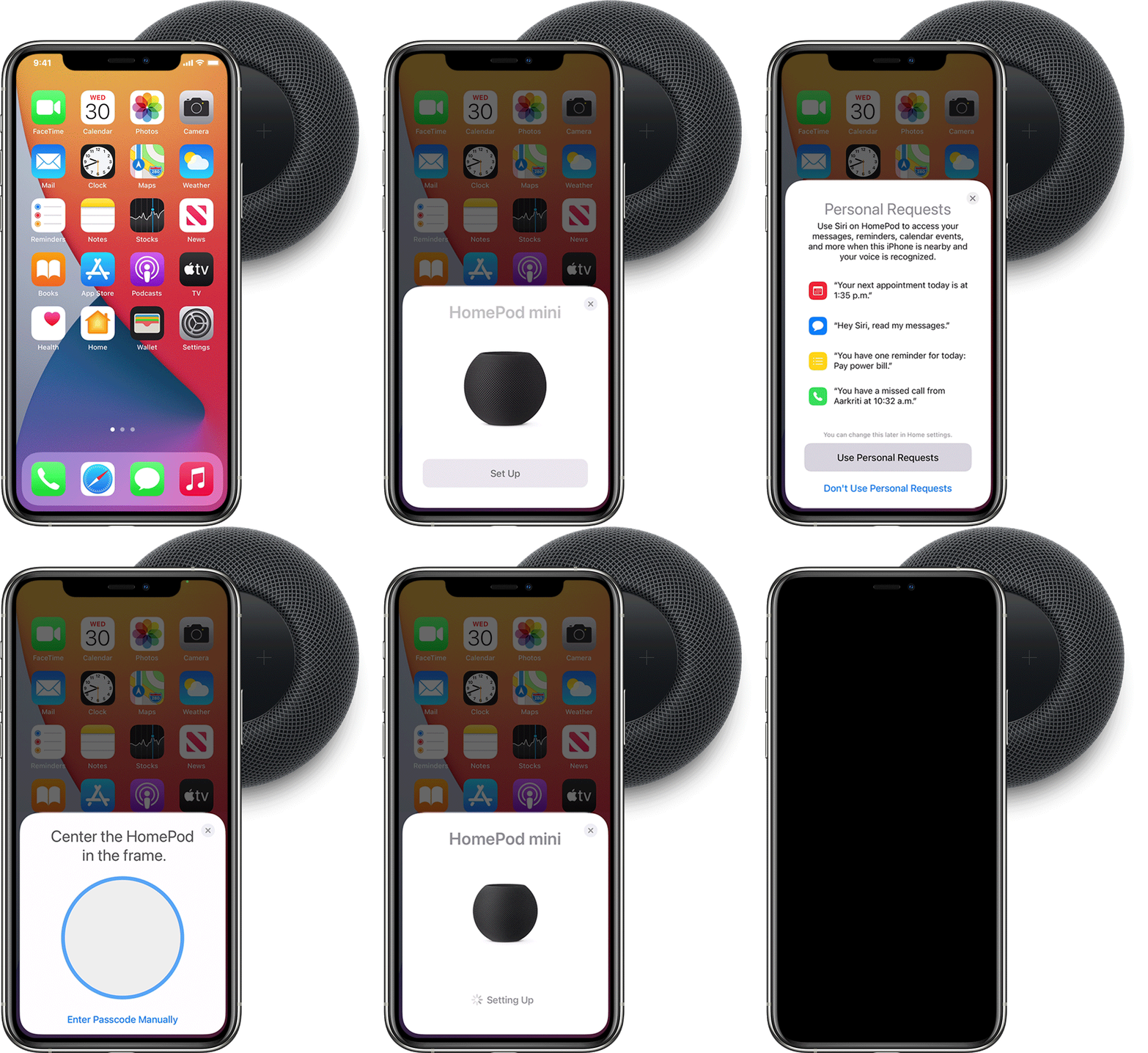
It’s not dead if it’s a white swirling light. It’s going to take a few minutes to be ready to set up again .
Set up and use HomePod - Apple Support
If it’s still in the Hone App, remove it from that, then try the set up,
It is not in the home app anymore.
When I press the white (gray) circle it turns RED and nothing happens.
Did all the steps.
Never hear the 3 beeps.
I am totally disapointed.
How can a reset command bricked it???
And after a long time pressing with red circle it lights the + and - and turn back to white circle.
The homepod I am having problem isn't the mini.
Can I use the same procedure?
Rgds,
R
Yes
HomePod (14.3) after a reset - did not start