How can I browse the files and photos on my iPhone without iCloud

I want to eliminate the iCloud - which tells me I'm out of storage and I should upgrade my plan (aka spend more money). After reading all of the complaints, problems and restrictions everyone has posted in this community, I want to get rid of iCloud. But, I want to be sure I have all of my files off of my phone. How can I browse my phone? I am unable to do it in iTunes. I used to be able to do this with Windows File Explorer - but, now, it shows the Apple iPhone\Internal Storage\DCIM - I click on DCIM and it shows "This folder is empty". In Windows File Options, I have Show Hidden Files, etc. enabled. File Explorer shows me 790MB free of 14.9GB, so I know it's reading SOME information from the drive. Interestingly enough, iTunes, Info, shows 6.16GB Free. The phone itself shows under General, iPhone Storage - 14.8GB of 16GB with more than half of that being used by Other. Any suggestions?

Posted on May 12, 2021 1:51 PM

Reply
Question marked as Top-ranking reply

Posted on May 12, 2021 2:28 PM

The iPhone does not work like Windows does. So things like what you describe don't really apply.


As was already mentioned, everything in iCloud would be replicated in the relevant App.


So any Photos being synced to iCloud, would also, by definition, be in the Photos App on the iPhone.


If you turn off iCloud Photos, then it will ask if you wish to keep all the photos on your device. Answer yes, and all the Photos would then reside on your device within the Photos App and not iCloud. Same applies with Contacts, Notes and Calendar entries. While you an export Photos to a folder in the Files App, you cannot do the same with Contacts, Notes or Calendars entries. They all reside in the related App, and cannot be extracted from there. Though they will reside directly on your iPhone and not iCloud if you turn the feature off as explained above.


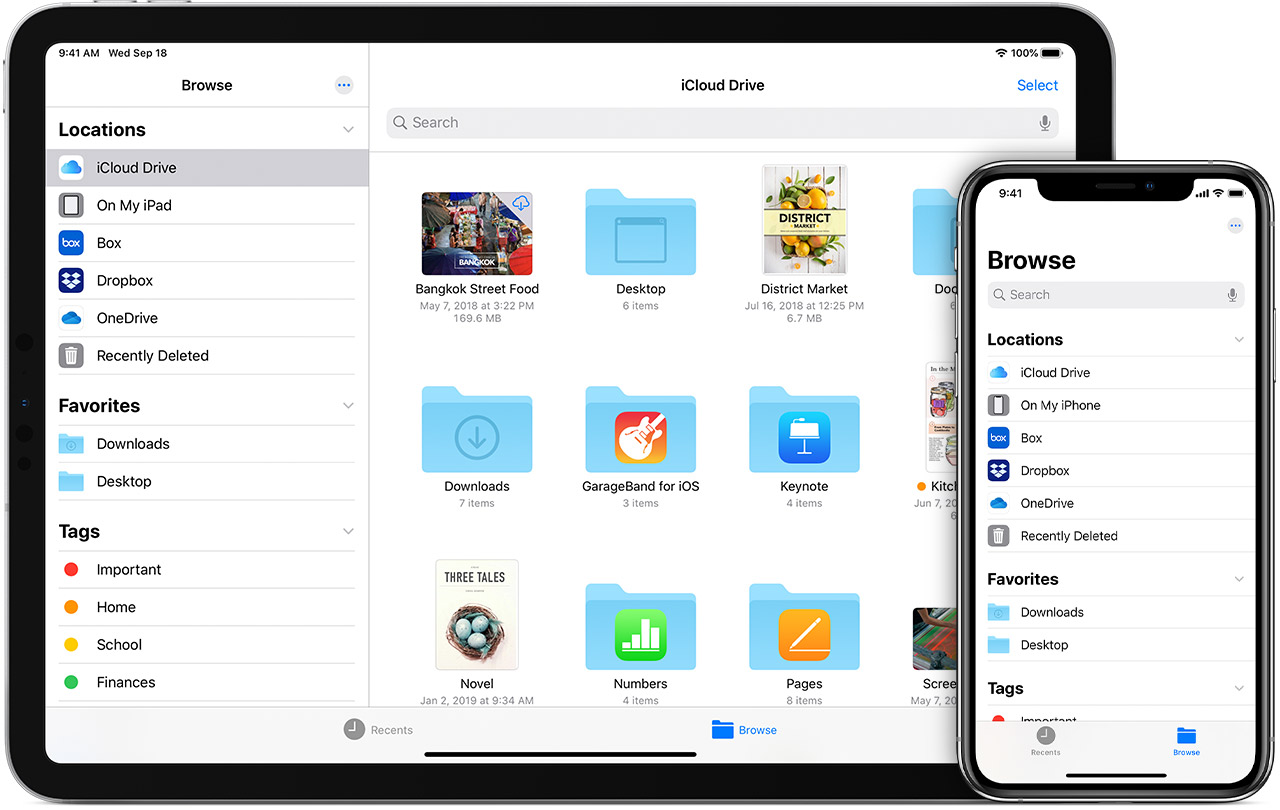
For other types of files, like PDF documents or other document files, you can use the Files App to copy things from the iCloud folder they may be in, to the "On your iPhone" Folder.


The Files App acts a bit like Windows Explorer on a Windows machine, but not entirely.


For files in other Apps, some may be visible again through the Files App in the relevant App folder there, but unless the App actively syncs to iCloud, they should all be saved in your iPhone already.


link-> Use the Files app on your iPhone, iPad, or iPod touch - Apple Support


There has never been an option to view files on the iPhone from Windows Explorer, it has always been limited to Photos created on or taken with iPhone in the DCIM folder only, but nothing else.


All other files and content are in their respective Apps, and cannot be seen by Windows Explorer.


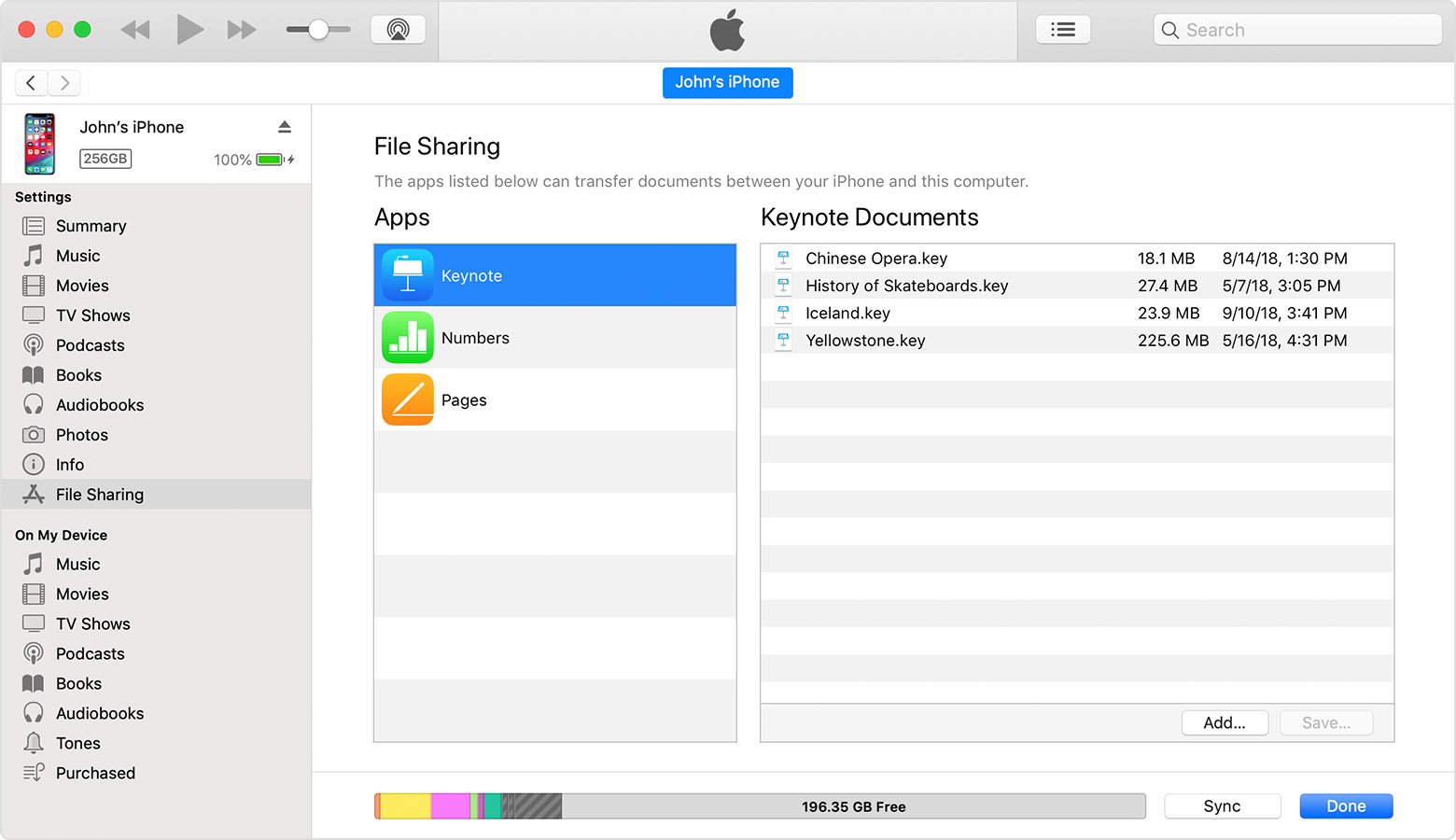
You can use iTunes to view the contents of certain Apps that expose this, on Windows, and yes transfer files off the Apps.


See here: link-> Use iTunes to share files between your computer and your iOS or iPadOS device - Apple Support

9 replies
Question marked as Top-ranking reply

May 12, 2021 2:28 PM in response to bscherer

The iPhone does not work like Windows does. So things like what you describe don't really apply.


As was already mentioned, everything in iCloud would be replicated in the relevant App.


So any Photos being synced to iCloud, would also, by definition, be in the Photos App on the iPhone.


If you turn off iCloud Photos, then it will ask if you wish to keep all the photos on your device. Answer yes, and all the Photos would then reside on your device within the Photos App and not iCloud. Same applies with Contacts, Notes and Calendar entries. While you an export Photos to a folder in the Files App, you cannot do the same with Contacts, Notes or Calendars entries. They all reside in the related App, and cannot be extracted from there. Though they will reside directly on your iPhone and not iCloud if you turn the feature off as explained above.


For other types of files, like PDF documents or other document files, you can use the Files App to copy things from the iCloud folder they may be in, to the "On your iPhone" Folder.


The Files App acts a bit like Windows Explorer on a Windows machine, but not entirely.


For files in other Apps, some may be visible again through the Files App in the relevant App folder there, but unless the App actively syncs to iCloud, they should all be saved in your iPhone already.


link-> Use the Files app on your iPhone, iPad, or iPod touch - Apple Support


There has never been an option to view files on the iPhone from Windows Explorer, it has always been limited to Photos created on or taken with iPhone in the DCIM folder only, but nothing else.


All other files and content are in their respective Apps, and cannot be seen by Windows Explorer.


You can use iTunes to view the contents of certain Apps that expose this, on Windows, and yes transfer files off the Apps.


See here: link-> Use iTunes to share files between your computer and your iOS or iPadOS device - Apple Support

May 12, 2021 3:07 PM in response to bscherer


You can’t browse the file system on your phone. You can’t see the files on your phone from “outside” the phone; files are owned by apps, and, to maintain the security of the phone they are generally not visible or accessible except by opening the app that “owns” them. The exception is some text files, which you can see with the built in Files app. But other than that you see photos with the Photos app, email with the Mail app, Contacts with the Contacts app, etc.


If you go to Settings/[your name]/iCloud and turn off all of the switches your phone will no longer sync to iCloud; you will be prompted to keep content on the phone if you do this. So indirectly it will tell you what content is on the phone, but not details.


You can also back up your phone to iTunes on your computer, then use one of the many iPhone backup extractor programs on your PC to view the contents of the backup, which will generally be the same content that is on the phone.


[Edited by Moderator]

May 12, 2021 2:18 PM in response to bscherer

You cannot do that. You cannot access data on your iPhone with Windows and move files to a folder on Windows to manage them. The only thing you can move to Windows is if you have photos in your Camera Roll, you can import them to Windows using the Photos app in Windows. You cannot use File Explorer to look at files, copy files, move files, etc. The iPhone is designed to not allow that. As a matter of fact, it is even designed for you not to be able to do that with a Mac, except again for photos.

May 12, 2021 2:23 PM in response to bscherer

bscherer wrote:

The phone itself shows under General, iPhone Storage - 14.8GB [used, presumably] of 16GB

In that case, you are also out of iPhone storage (and then some).


You always need an absolute minimum of 10% of your iPhone’s total storage free. Therefore, that total used space must never exceed 14.4GB, and should generally be considerably lower.

May 12, 2021 1:56 PM in response to bscherer

bscherer wrote:

I want to eliminate the iCloud - which tells me I'm out of storage and I should upgrade my plan (aka spend more money). After reading all of the complaints, problems and restrictions everyone has posted in this community, I want to get rid of iCloud. But, I want to be sure I have all of my files off of my phone. How can I browse my phone? I am unable to do it in iTunes. I used to be able to do this with Windows File Explorer - but, now, it shows the Apple iPhone\Internal Storage\DCIM - I click on DCIM and it shows "This folder is empty". In Windows File Options, I have Show Hidden Files, etc. enabled. File Explorer shows me 790MB free of 14.9GB, so I know it's reading SOME information from the drive. Any suggestions?

Are you syncing data to icloud or backing up your phone to icloud?


This thread has been closed by the system or the community team. You may vote for any posts you find helpful, or search the Community for additional answers.

How can I browse the files and photos on my iPhone without iCloud

Welcome to Apple Support Community
A forum where Apple customers help each other with their products. Get started with your Apple Account.