Thanks for the additional information. Unfortunately, we will need to start all over again. Please follow these steps carefully.
Power off the Time Capsule
Connect an Ethernet cable from one of the LAN <--> Ethernet ports on the mesh router to the "O" WAN Ethernet port on the Time Capsule.
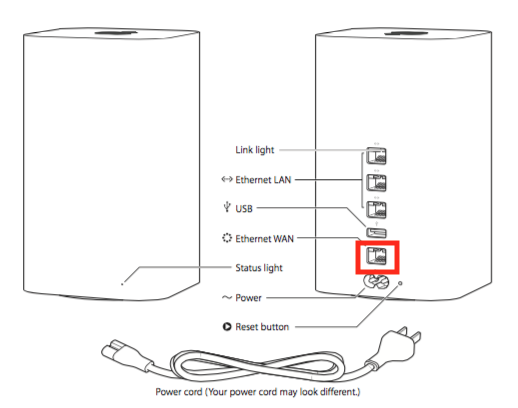
Power up the Time Capsule and let it run for a minute
Hold in the reset button on the back of the Time Capsule for 7-8 seconds
Release the reset button and allow the Time Capsule a full minute to restart
The indicator light on the Time Capsule will be slowly blinking amber at this point
Click the WiFi menu at the top of your Mac's screen
Look for a listing of New AirPort Base Station
Click directly on AirPort Time Capsule
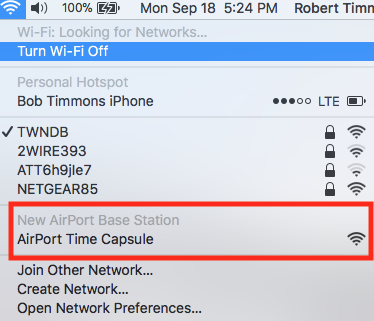
When you click on AirPort Time Capsule, that will start up the AirPort Utility software. After a few seconds, you will see a screen that looks like the example below, except your screen will display a Time Capsule.
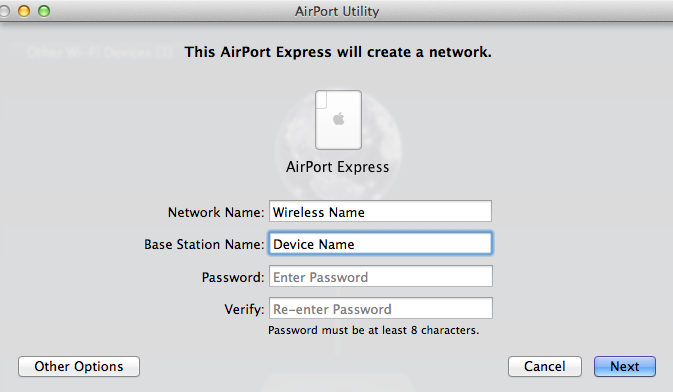
Network Name.......Type in a name for the Time Capsule WiFi. Later, we will turn this off, but it must be on for now
Base Station Name.......Type in a device name that you want to call the Time Capsule
Password.......Type in a password for the Time Capsule
Verify.....Type in the same password again to confirm
Click Next, and allow the AirPort Utility software a minute to set up the Time Capsule
When you see the message of Setup Complete, click Done
There should be a green light on the Time Capsule
Very important........now you need to log your Mac onto the mesh WiFi network by clicking on the WiFi menu at the top of the screen and selecting the name of the mesh network
There are more steps to complete, but first a progress check to make sure that the Time Capsule is connected to the mesh network correctly........this is very important.......
Does the Time Capsule appear when you open AirPort Utility?
Does the Time Capsule appear under the Locations heading on the left side of a Finder window?

