Open a Safari window to an innocuous website, and tap and hold on a link.
You’ll see one of the following two presentations pop-up:
Preview disabled:
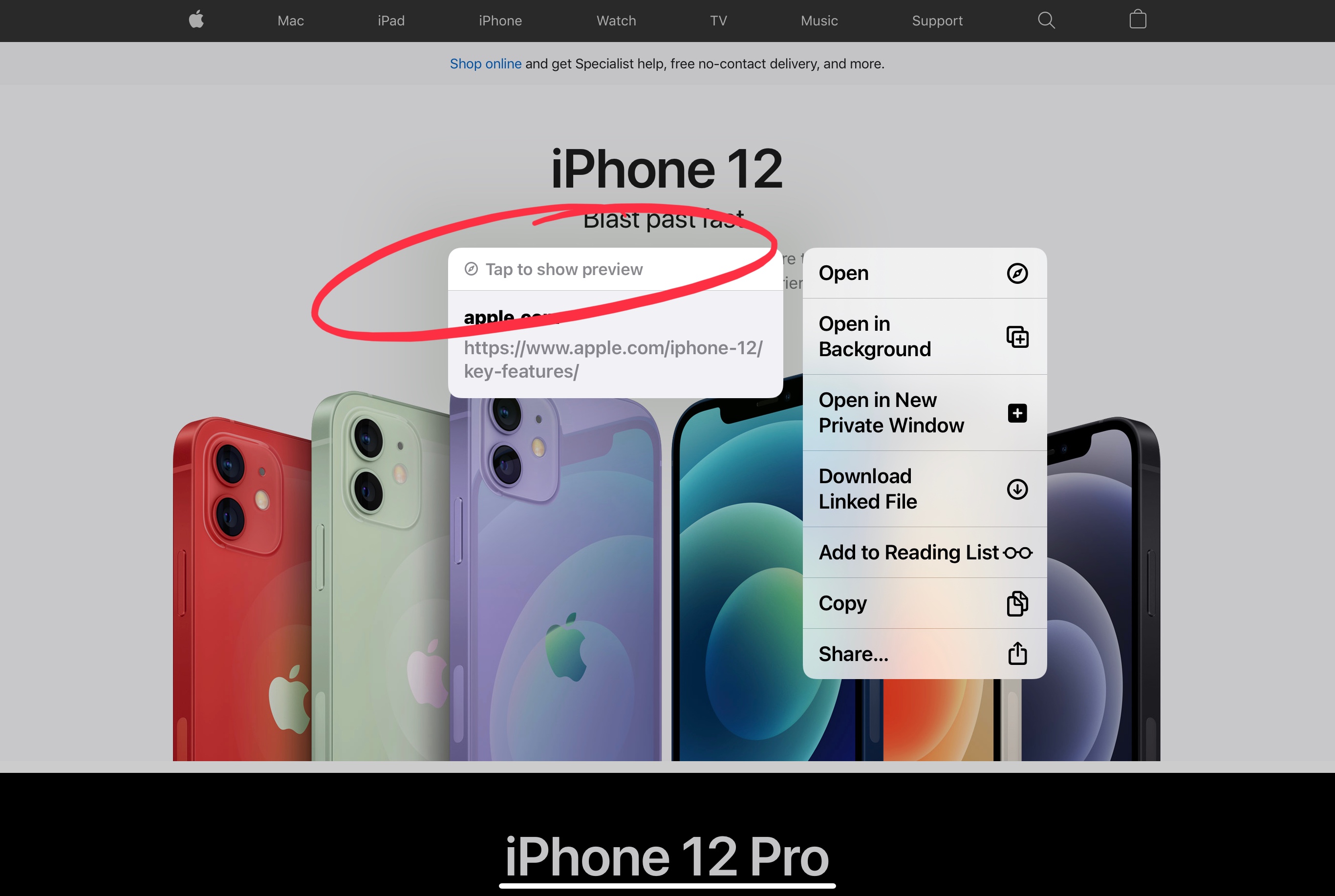
Preview enabled:

If you do not see the preview, you’re good to go, both in Safari and in Mail. (see first image)
If you do see the preview displayed, select Hide Preview (see second image, control circled in red).
If you want to see the preview again, select show preview (see first image, control circled in red).
Yes, you can also change the preview default from Mail, too. But first you have to find an innocuous link. An innocuous link you might not be able to re-surface as easily from within your mail file.
If you’re (reasonably) concerned about this preview setting, you’ll probably also want to disable downloading remote images in mail. (Settings > Mail > Load Remote Images)
And any discussions of malware and so-called zero-day security flaws aside, I prefer not to visit a webpage with phishing or spam content, as I’d prefer not to confirm the reception of the message, whether innocuous, or phishing, or spam, or otherwise. Which is what the Preview (unfortunately) does, as well as does the remote image load default for mail.


