
My deleted emails all reappear
I deleted my email's they keep coming back, I deleted the account from Google to delete all emails but they all come back have done it many times, help my disc is full!!
MacBook Air 13″, macOS 10.15
I deleted my email's they keep coming back, I deleted the account from Google to delete all emails but they all come back have done it many times, help my disc is full!!
MacBook Air 13″, macOS 10.15
Go System Preferences >> Internet Accounts >>and look on left as listing for " Google " Remove the Google from there.
Add or remove email accounts in Mail on Mac
Use the Mail app to send, receive, and manage email for all of your email accounts in one location. Simply add the accounts—such as iCloud, Exchange, Google, school, work, or other—you want to use in Mail.
Add an email account to use in Mail
 on your Mac, it may prompt you to add an account. Select an account type—if you don’t see your type, select Other Mail Account—then enter your account information.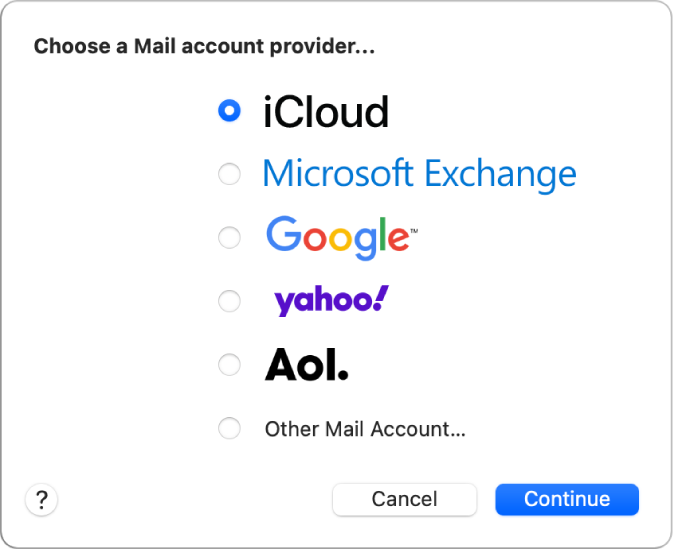
Temporarily stop using an email account in Mail
on your Mac, choose Mail > Accounts.Start using an email account again in Mail
on your Mac, choose Mail > Accounts.Remove an email account from Mail
When you remove an email account from Mail, the account’s messages are deleted and no longer available on your Mac. Copies of messages remain on the account’s mail server and are still available (from webmail, for example).
Important: If you’re unsure whether messages you want to keep are still on the mail server, move or copy them to a mailbox stored on your Mac (the mailbox appears in the On My Mac section in the Mail sidebar) before you delete the account in Mail.
on your Mac, choose Mail > Preferences, then click Accounts. ..
..Sorry but now you have added the Key Part of the missing information from All the previous posting - Remove the Account and Add it back. What do you expect it to do ? Not download the messages on your G-mail account ? If the Apple Mail is not syncing the delated message from G-Mail - suggest contacting Google for the solution as it is their mail service. Apple Mail is only doing what you are asking it to do.
This Apple Support topic talks about Adding an E-mail Account. Just reserve engineer the process to Remove the g-mail account from Apple Mail Application.
I deleted the account, it is supposed to delete all emails but they all come back have deleted it many many times and then it and they all came back every time!
Yes, thank you, but I am doing that like I said, it is not working!!! I delete my account, I wait, I add it back, the emails are gone for a few seconds then they all start to download again, all of them, over and over even if I go into google and delete them they reappear. I don't want to change my email and I don't want to keep logging into google to read either.
I don't understand, sorry!
It is not solved I hit the wrong button I need help.
I C - from where did you Add the G-mail account and to what Application ??
Mail icon to accounts, I deleted it from there and I add it back, but they all come back ,I watch them all reload after I add the account back.
I added it back to Google
yes, I am doing that, it is not working, they delete then come all back.
Well, from everything I have read it is supposed to delete and stay deleted thats the point of deleting the account. They are not supposed to come back.
why when I delete them from my email account do they come back, I am not deleting the account when I do this just deleting my emails, but they show back up all of them!
my emails will not delete!
My deleted emails all reappear
