Hello convertedluddite,
Welcome to Apple Support Communities!
If we understand your post correctly, the date and time on your MacBook is wrong by days and hours, search function is not working properly, and your MacBook won't sleep. We'd like to see if we can help!
Choose Apple menu > System Preferences, then click Language & Region.
- Make sure that the Region menu is set correctly for your region.
- Use the ”Time format” checkbox to control whether your Mac displays time in the 24-hour format.
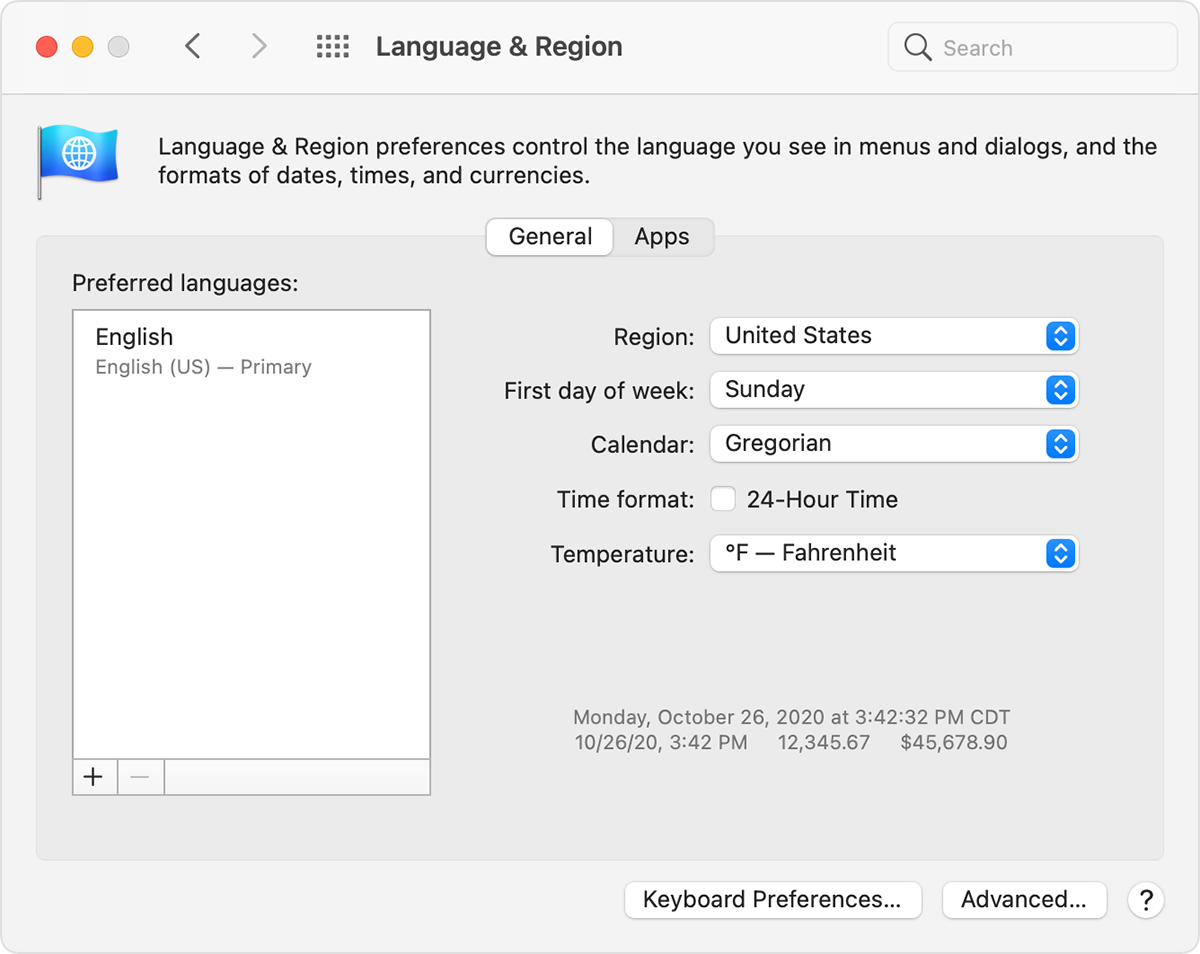
For advanced formatting options, click the Advanced button, then check the settings in the Dates pane and Times pane. These settings control how dates and times are displayed in the Finder and apps. If any settings have been changed, you can click the Restore Defaults button in each pane to use the default settings for your region. If the button is dimmed, your Mac is already using the default settings.
 "
"
For more information about automatic date and time, see this article: Automatic date and time wrong
For the other issues, search not working and MacBook won't sleep, let's try the following:
Let's try an SMC reset.
How to reset the SMC of your Mac
You may also want to try an NVRAM reset.
Reset NVRAM or PRAM on your Mac
We also recommend starting in safe mode. Sometimes just starting in this mode and then restarting can resolve issues like this: How to use safe mode on your Mac
You can also create another user on your Mac and test to see if you experience the same issue.
Set up users, guests, and groups on Mac
You may want to also run Disk Utility which will check for and fix errors related to the formatting and directory structure of a Mac storage device.
Repair a storage device in Disk Utility on Mac
Let us know if you have any questions.
Thank you for using Apple Support Communities.
Take care!


