Brntoki wrote:
I'm sorry, but am guilty of being terribly wordy and so try to keep things simple and short, but often at the expense of clarity. </wordy-on> lol
@ Luis
I didn't mention the cable type, but thought it would be understood that it was at least a USB-C to USB-C, since both computers have those ports natively. Could have been thunderbolt too, of course. It was USB-C/USB-C.
I mentioned (not as straight as I could have) that the two MBPs were directly connected to each other via a cable, which pretty much rules out an ethernet cable. I also mentioned the size of transfer was, I thought, around 700GB. It was actually closer to 500 though.
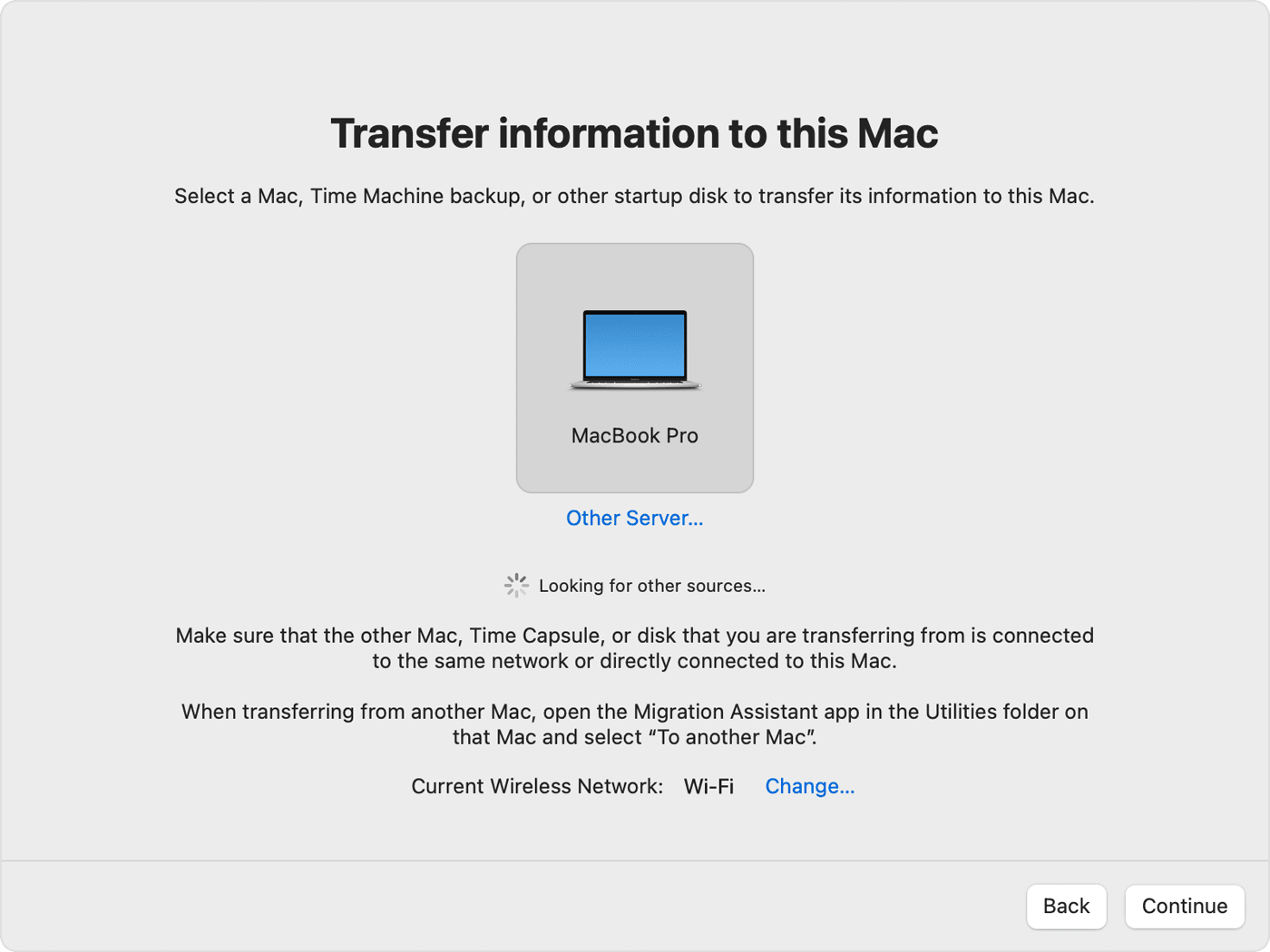
When the Migration Assistant on the new MBP was searching for a Mac to migrate from, even though they were next to each other, the old MBP was on and already running Migration Assistant and was set to transfer to a Mac, it (the new MBP) couldn't find the old one. It asked me to attach a cable, so I did (USB-C/USB-C). I didn't think anything of this until much later when I noticed that the transfer was being done via a direct (as I mentioned) WiFi connection (i.e. MBP to MBP; no wired lan or wireless router involved). I've heard of target disk mode, but don't know how to enable/initialize it, and assume you probably can't from the initial setup process (i.e., no user account created yet).
@Blueberry
Yes. Exactly what it did, peer to peer WiFi, to my dismay.
I know how to turn off WiFi, but that can, AFAIK, only be done from within a logged-in user account. This is one thing I should have been clear and explicit about. This was the very initial setup sequence of this brand new MBP and it had no user accounts on it at all. I wanted to use Migration Assistant because, if I created an account and then did the migration, I would have had to delete the account I just set up as it would be unneeded. Knowing what I know now, this would have been a much better option.
To be clear, the setup and process was very easy and straightforward, but the implementation of the actual copying of data, especially since I was asked by Migration Assistant to connect a cable directly to the Mac I would migrate from, was, unnecessarily, very, very slow, though I appreciate the convenience of having everything, including all my settings, bang on and ready to go.
Let me try to explain in a little more detail, as my previous post was quite terse and may have come out as somewhat rude (which was not my intention).
In order to do the migration, you have to have one of the following situations:
1) Have a Time Machine backup, or a clone of the old mac drive in an external, and attach it to the new mac (*)
2) Have both macs connected to the same wired or wireless network (**)
3) Start the old mac in Target Disk Mode, and connect it to the new one with a Thunderbolt cable (it has to be Thunderbolt, not just a common USB-C cable (***))
(*) This is my preferred option, because I would have done the backup, anyway; it is (relatively) fast and does not rely on wireless connections
(**) This is what you did. It's is a viable option. It requires that both macs be connected to (in this case) wifi.
I would have liked to see the exact wording about "connecting a cable" that you saw. I have to say that you must have misinterpreted that as "connect a USB-C cable", and that the cable was not used for migrating, contrary to what you assumed.
(***) This could potentially be the fastest way, but would require a Thunderbolt 3 cable and, depending on the age of the older mac, an adapter. It could be really fast because the internal drives on macs are much faster than an external drive, particularly if it is an HD and not an SSD (and for backups, HD are still much cheaper and do fine).
It does not help matters much that the plugs for USB-C and Thunderbolt are the same, but the cables certainly aren't.
For example, the cable that comes with my mac power adapter, even though it may look very similar to a real Thunderbolt 3 cable, can only transfer data at old USB 2 speeds...