Authorizing / Deauthorizing phantom devices

My mac claims I have 5 previously authorized devices on my account. I only see 3 but deleted one. anyway. I turned my computer on and off, hoping this would clear it up. It still is blocking from authorizing my account, still saying I have 5 devices!!! What can I do?

MacBook Air (2020 or later)

Posted on Jan 3, 2022 10:57 AM

Reply
Question marked as Top-ranking reply

Posted on Jan 3, 2022 11:16 AM

Try Deauthorize All and then authorize any computers you still have and want to use. See the Deauthorize All button in the second screenshot below from Authorize or deauthorize your computer for iTunes Store purchases - Apple Support


See your authorized computers

To automatically sign in to your Account Information page from your computer, click here. Or follow these steps:

  1. On a Mac, open the Music app, Apple TV app, or Apple Books app. On a PC, open iTunes for Windows.
  2. Sign in with your Apple ID.
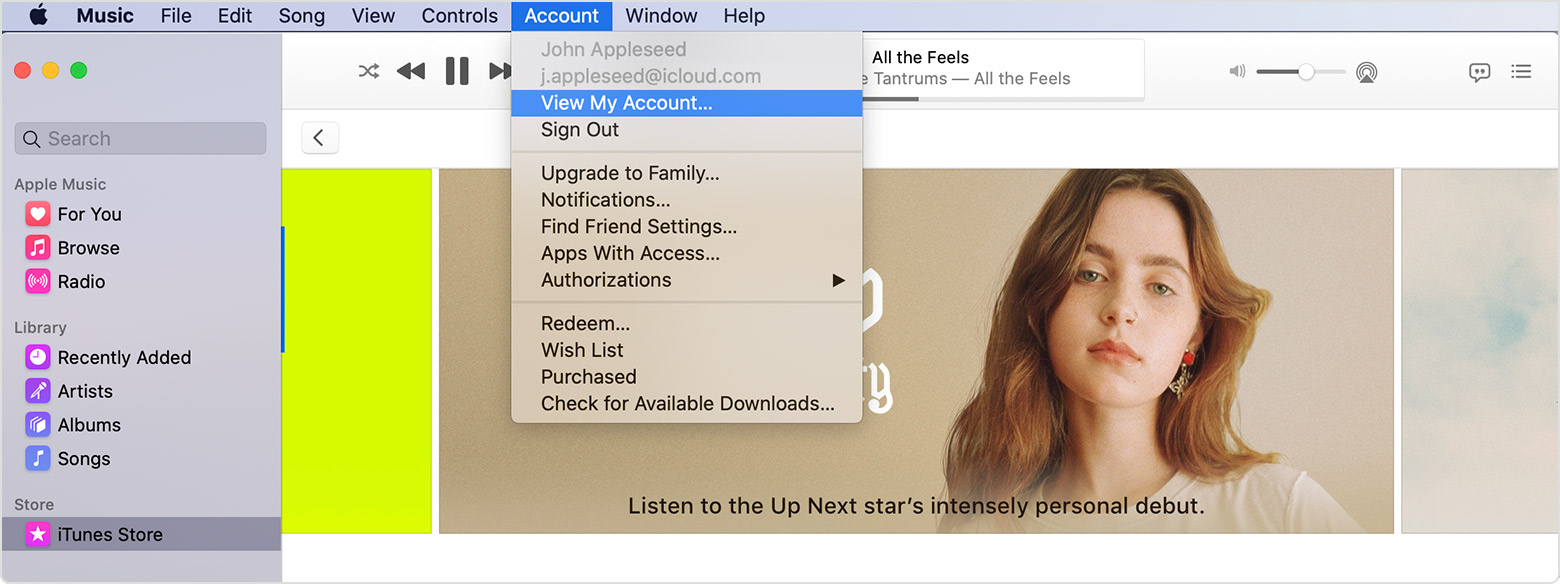
  3. In the menu bar on your Mac or PC, choose Account > View My Account.
  4. Sign in with your Apple ID.
  5. On the Account Information page, scroll to the Apple ID Summary section. You'll see the number of computers that you've authorized with your Apple ID. You can’t see the names of those computers. If you haven't authorized 2 or more computers, you won't see this section.
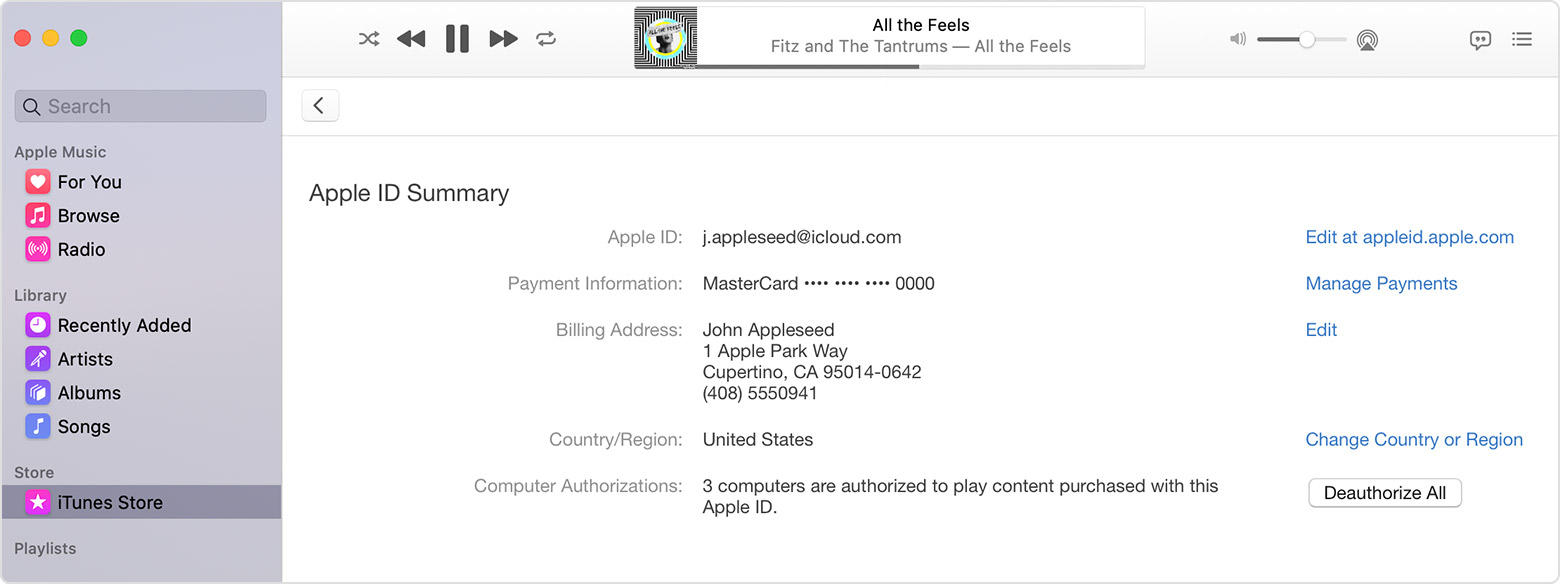
If the number of authorized computers listed is more than what you expect, you might not have deauthorized the computers that you no longer use, gave away, or sold. You need to deauthorize all of your computers and then authorize each one that you still use.

2 replies
Question marked as Top-ranking reply

Jan 3, 2022 11:16 AM in response to slwest16

Try Deauthorize All and then authorize any computers you still have and want to use. See the Deauthorize All button in the second screenshot below from Authorize or deauthorize your computer for iTunes Store purchases - Apple Support


See your authorized computers

To automatically sign in to your Account Information page from your computer, click here. Or follow these steps:

  1. On a Mac, open the Music app, Apple TV app, or Apple Books app. On a PC, open iTunes for Windows.
  2. Sign in with your Apple ID.
  3. In the menu bar on your Mac or PC, choose Account > View My Account.

  4. Sign in with your Apple ID.
  5. On the Account Information page, scroll to the Apple ID Summary section. You'll see the number of computers that you've authorized with your Apple ID. You can’t see the names of those computers. If you haven't authorized 2 or more computers, you won't see this section.

If the number of authorized computers listed is more than what you expect, you might not have deauthorized the computers that you no longer use, gave away, or sold. You need to deauthorize all of your computers and then authorize each one that you still use.

This thread has been closed by the system or the community team. You may vote for any posts you find helpful, or search the Community for additional answers.

Authorizing / Deauthorizing phantom devices

Welcome to Apple Support Community
A forum where Apple customers help each other with their products. Get started with your Apple Account.