I don't have macOS Catalina to confirm, but I believe the first occurrence of this Preview PDF/A feature arrived in macOS Big Sur.
You can open a PDF in Preview, and then from the File menu, select Export… On that new panel, you set Format to PDF and then select the now present Create PDF/A. I strongly suggest appending the filename with _pdfa.pdf (so it is obvious in the Finder), and then saving it. Optionally, you can also select Create Linearized PDF which is another name for Fast Web View. This is the only place in Preview where you have this capability.
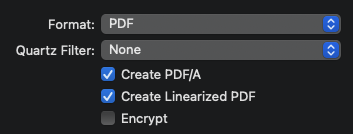
The PDF/A standard does not allow images or artwork in the PDF. Preview presently only saves this as a PDF/A-2b, and Preview has no means to inform you that it is a PDF/A-2b document when reopened in that application. When opened in the current Adobe Acrobat Reader DC, a blue banner appears across the top of the PDF, and the Adobe application will provide this information:
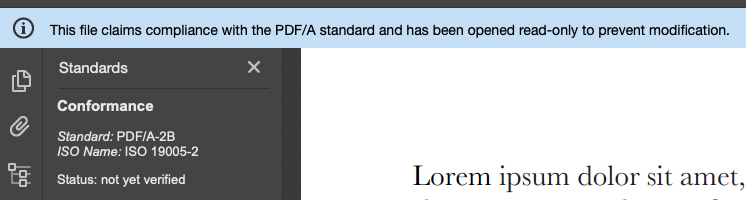
The key takeaway here is Status not yet verified. That means that the PDF must be verified by a third-party conformance tool such as Adobe Acrobat Pro DC, or veraPDF. There are several other online sites that claim to do this, but you need to upload the PDF and that is not a good idea if it contains corporate sensitive or personal information.
What I have described is the only means to create an unverified PDF/A document using Apple products. I don't recommend it as it is forward fragile with future operating system updates, but in June 2021, I wrote a GUI AppleScript to do the above export to PDF/A in Preview. It worked reliably then and took a long time to debug. I just ran it on macOS 11.6.3 with a single-page text-based PDF and it broke. Apple has changed something in the layout of Preview's internal structure since last June. This is the false promise of doing GUI scripting as it will eventually break.
Whatever Apple is doing in Preview to export to PDF/A does not appear to be present in the public developer frameworks, or I cannot find it.
The free LibreOffice Writer (currently 7.3) allows one on its Export to PDF panel to select PDF/A-1b, 2b, 3b, and PDF/UA-1 export standards. Once you select something there, it remains selected, and using the LibreOffice command-line tool to export to PDF remembers that panel's last settings.
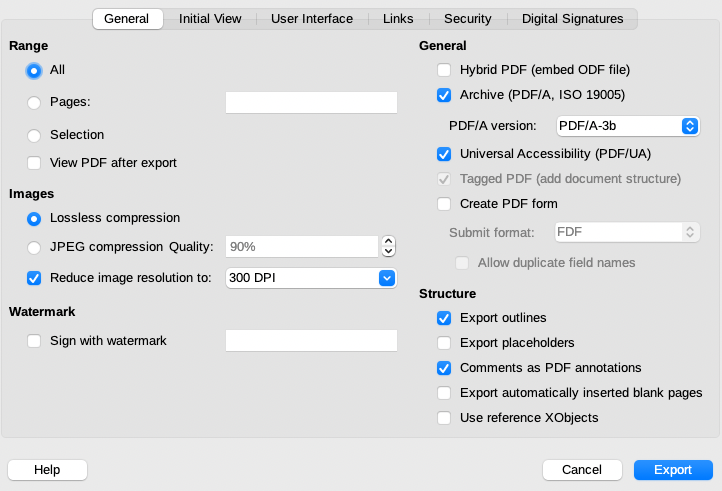
However, opening a PDF in LibreOffice Draw does not grant you access to this panel, so you cannot transform an existing PDF into one of the PDF/A formats. One can open a PDF in Affinity Designer and then export it to (unverified) PDF/A, and PDF/X formats. The following syntax will transform other types of documents to a PDF/A-3b and PDF/UA-1 based on the following command line, and write (in this case), foo.pdf in the same filesystem location:
/Applications/LibreOffice.app/Contents/MacOS/soffice --headless --convert-to pdf foo.docx
You would again, still need to open this in Adobe Acrobat Reader DC to confirm it has these standards hints awaiting actual PDF/A, and PDF/UA verification.
And finally, if one has the optional Ghostscript installed via a package manager, one can transform existing PDF documents (again without artwork or images) into PDF/A-1, and PDF/A-2 documents. Stackoverflow has examples of this approach.

