How do I delete a "deleted user" in Mac OS Monterey?

I used time machine to restore a backup file to get around a problem with the admin account. It created a copy of the old account and stored it in "/users/deleted users" and I cannot view or delete this file, which is over 350gb. I have read online about deleting these types of files and none of the offered solutions work. All of the suggested solutions are from 2019 or back and when I follow the instructions I do not get to the same place so I am guessing the OS has changed enough to make them outdated. I do not have the luxury of keeping this file around. Short of reformatting the hard drive and then using time machine to restore is there a fix to delete this old profile?

iMac 27″, macOS 12.0

Posted on Feb 21, 2022 10:15 AM

Reply
Question marked as Top-ranking reply

Posted on Feb 21, 2022 8:24 PM

Open Terminal in /Applications/Terminal.


Type the following commands:


List the contents of the /Users folder:

ls -l /Users


Identify the precise users home folder you wish to remove e.g. "/Users/username Deleted"


Type the following to delete the precise user home folder, if there is a space in the name enclose it in quotes, enter your Mac password to execute the command. The sudo command means Super User Do and the rm command is remove (delete) and the -r is recursive meaning to delete the parent folder and all sub-folders and the -f is force so it doesn't ask you to confirm:

sudo rm -rf /Users/"username Deleted"


Deleting 350GB may take several minutes, let it run. When the cursor comes back and moves to the next line it has finished and you can type "exit" and press Return then quit Terminal.

Similar questions

8 replies
Question marked as Top-ranking reply

Feb 21, 2022 8:24 PM in response to Surgius

Open Terminal in /Applications/Terminal.


Type the following commands:


List the contents of the /Users folder:

ls -l /Users


Identify the precise users home folder you wish to remove e.g. "/Users/username Deleted"


Type the following to delete the precise user home folder, if there is a space in the name enclose it in quotes, enter your Mac password to execute the command. The sudo command means Super User Do and the rm command is remove (delete) and the -r is recursive meaning to delete the parent folder and all sub-folders and the -f is force so it doesn't ask you to confirm:

sudo rm -rf /Users/"username Deleted"


Deleting 350GB may take several minutes, let it run. When the cursor comes back and moves to the next line it has finished and you can type "exit" and press Return then quit Terminal.

Mar 8, 2022 2:54 PM in response to gregfromredmond

There's a couple of scenarios here depending on the choice made when deleting a user account:
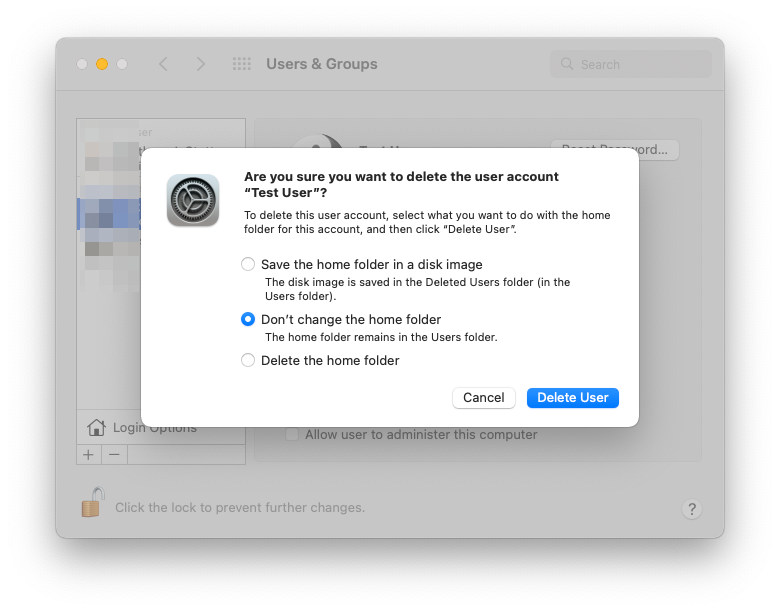

The first option creates a folder /Users/"Deleted Users"/ and inside that folder are disk image files for each deleted user (DMG files). /Users/"Deleted Users"/test.dmg


The second option says not to change the home folder but it actually renames it from /Users/test to /Users/"test (Deleted"/


Notice how I am using double-quotes around directory or filenames with spaces. You can use single or double-quotes.


Valid ways of dealing with a space in a folder or filename when on the command line in Terminal:


/Users/"test (Deleted)"/
/Users/'test (Deleted)'/
/Users/"Deleted Users"/
/Users/'Deleted Users'/ 


As to referencing the "Gray Area" that must be the System side in About this Mac -> Storage? Well it's likely a large snapshot or multiple snapshots on APFS. Connect up Time Machine drive and let a backup occur a few times and it should reduce it.


In Terminal, you can obtain the human readable size of a folder thusly:


sudo du -h /Users/"Deleted Users"/
sudo du -h /Users/"test (Deleted)"/


Depending on the amount of data, deleting 350GB might take a long time. I doubt it would take 12 hours. Try a reboot and try deleting again. Or perhaps boot into Safe Mode by holding Shift at power on (Intel Macs) or Hold power button on M1 Macs and hold shift when mousing over the disks and there's a button below to choose Safe Mode. Then try deleting the user again. Safe Mode boots without any extra background services running. I know of several IT related tools that would slow down deleting and copying files as they need to scan every file. Security software doing that is one reason why it can slow down a Mac considerably. Antivirus, Data Loss Prevention, Malware blocking, etc. They all scan the drive and slow down file access when copying, moving, or deleting files.


Feb 21, 2022 9:00 PM in response to Surgius

I appreciate the detailed information but it does not work. The "ls -1 /users" command returned a user list that included "Deleted Users" and the space in the phrase does not allow me to see inside the "Deleted Users" area. When I type "ls -1 /users/Deleted Users" I get a response that "/users/Deleted" does not exist. The only time I have seen this area is when my Antivirus software is running a full system scan. It has been running for 12 hours now due to all of the files it has to go through. When looking at the disk volume the files are obviously still there as I have little memory left available. Any other thoughts?

Mar 8, 2022 10:47 AM in response to James Brickley

I have a similar issue.


My original Administrator User (Greg) became corrupted and I created a new Administrator (Lawrence). The system seems to be working fine with using Lawrence. I then deleted "Greg" and the Disk Utility is still running after 12 hours saying that it's deleting the files.


I only keep applications on the iMac drive (500 GB) - Lightroom/Photoshop/MS office.


The finder shows that the various folders under deleted users/Greg are empty. The Trash is empty.


My concern is that the grey area within the Hard Drive is showing 450.5 GB, the amount used is 15.75 GB.


I'm a novice. Is there any danger that the grey area contains any files necessary going forward.


Can you confirm that the Terminal instruction should be:

ls -l /Users/"Deleted Users"


then, when prompted


sudo rm -rf /Users/"Greg"

This thread has been closed by the system or the community team. You may vote for any posts you find helpful, or search the Community for additional answers.

How do I delete a "deleted user" in Mac OS Monterey?

Welcome to Apple Support Community
A forum where Apple customers help each other with their products. Get started with your Apple Account.