There's a couple of scenarios here depending on the choice made when deleting a user account:
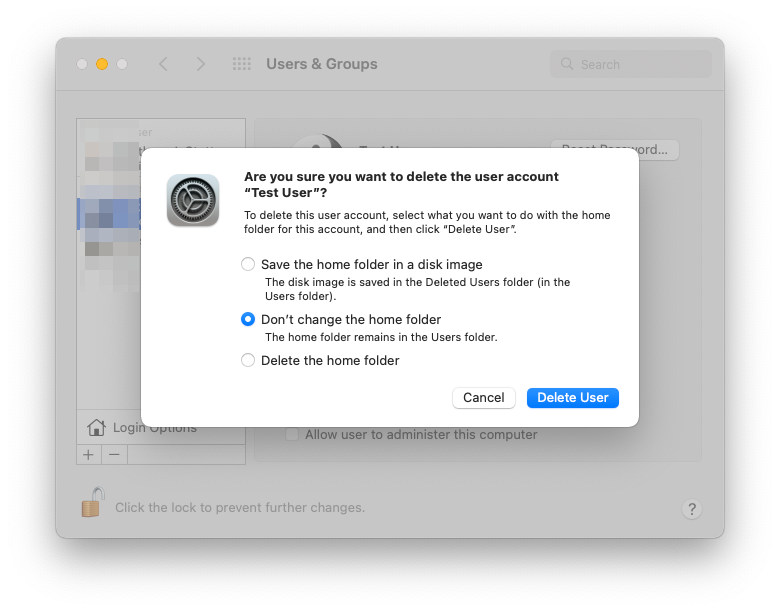
The first option creates a folder /Users/"Deleted Users"/ and inside that folder are disk image files for each deleted user (DMG files). /Users/"Deleted Users"/test.dmg
The second option says not to change the home folder but it actually renames it from /Users/test to /Users/"test (Deleted"/
Notice how I am using double-quotes around directory or filenames with spaces. You can use single or double-quotes.
Valid ways of dealing with a space in a folder or filename when on the command line in Terminal:
/Users/"test (Deleted)"/
/Users/'test (Deleted)'/
/Users/"Deleted Users"/
/Users/'Deleted Users'/
As to referencing the "Gray Area" that must be the System side in About this Mac -> Storage? Well it's likely a large snapshot or multiple snapshots on APFS. Connect up Time Machine drive and let a backup occur a few times and it should reduce it.
In Terminal, you can obtain the human readable size of a folder thusly:
sudo du -h /Users/"Deleted Users"/
sudo du -h /Users/"test (Deleted)"/
Depending on the amount of data, deleting 350GB might take a long time. I doubt it would take 12 hours. Try a reboot and try deleting again. Or perhaps boot into Safe Mode by holding Shift at power on (Intel Macs) or Hold power button on M1 Macs and hold shift when mousing over the disks and there's a button below to choose Safe Mode. Then try deleting the user again. Safe Mode boots without any extra background services running. I know of several IT related tools that would slow down deleting and copying files as they need to scan every file. Security software doing that is one reason why it can slow down a Mac considerably. Antivirus, Data Loss Prevention, Malware blocking, etc. They all scan the drive and slow down file access when copying, moving, or deleting files.



