Travel time won't calculate in Calendar. Do you have any additional ideas?
I have read the answer Apple Support gave to the last person who posted the exact subject line above on Jul 5, 2017 at 10:02 PM, as well as the 90 people "who have this question too." She never got her question successfully answered 4½ years ago and neither did the other ninety with the same query.
I am asking Apple Support in advance, please do NOT post this same solution that was previously given:
__________________________________________________
Hello and welcome to Apple Support Communities Lauriesm,
It sounds like the Calendar app on your Mac is no longer automatically recording travel time when you add a location to an event. The ability to add travel time to an event in Calendar is a really convenient feature, so I can understand the importance of getting it working again. You came to the right place for help!
In order for travel time to calculate automatically, you will need to have either your address listed in your contact card in Contacts and/or Location Services enabled for Calendar. To check your contact card, follow these steps:
- Open the Contacts app.
- Select Card from the Apple menu bar.
- Select Go to My Card.
- If your address isn't listed there, select Edit.
- Enter your address in the appropriate field.
- Select Done.
Next, open System Preferences > Security & Privacy on your Mac. Select the Privacy tab, and then select "Location Services" from the left side. Make sure there is a check mark next to Calendar in that list. If there isn't a check mark, you may need to select the lock in the bottom-left corner, and then enter in your login password in order to make changes.
When you add a location to an event in Calendar, you will need to select the location from the pop-up menu that appears as you're typing the location in order for you to get automatic travel time calculations. This also adds a map in your event. If an address is entered without choosing a location from the pop-up menu, a map won't appear and you won't get automatic travel time. You can view more about this in Calendar for Mac: Add locations and travel info in Calendar, specifically this section:
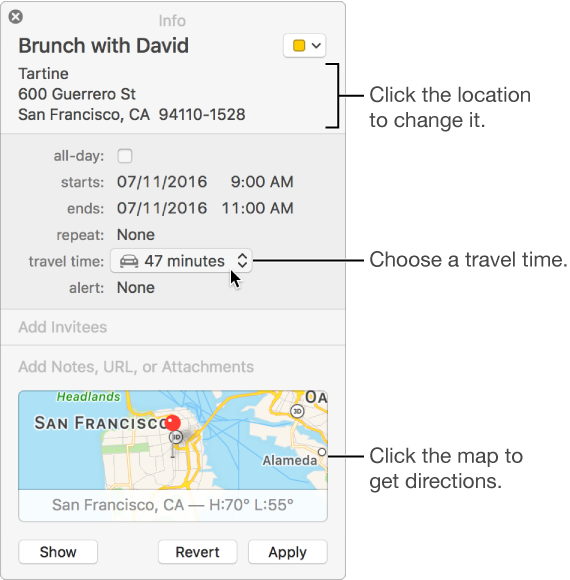
Add a location
Double-click or force click an event to view event details, then click Add Location. (You can also select an event, then use the Touch Bar.)
Enter an address, a business name, or a type of business (such as “coffee shop” or “museum”), then select a location from the list of locations that match what you entered. If a list doesn’t appear, or you don’t want to select a location from the list, press Return to use your location verbatim.
If you select a location from the list, a map and weather info are added to the event. If you just use the location you entered, map and weather info might not appear.
If the event info window includes a map, an alert is set so you’re notified when to leave to arrive on time at your destination. You receive a notification based on your likely location before the event starts, the event’s location, and current traffic or transit conditions at these times:
• Before you need to leave
• When you need to leave
• If you’re running late
The time to leave is calculated based on the preference set in the Maps app using the View > Directions menu. Calendar finds your starting location by using the location in any events that are up to three hours before this event. If Calendar doesn’t find a location, it uses your work address or home address, depending on the time of day. (Your work hours are set in General preferences using the “Day starts at” and “Day ends at” pop-up menus.) If your card in Contacts doesn’t have your addresses, Calendar uses your computer’s current location.
You don’t receive time-to-leave alerts for events with destinations that take more than three hours to reach.
Thanks for using Apple Support Communities.
_____________________________________
This solution did not work for Lauriesm, nor the 90 others, nor myself.
Do you have any additional ideas?
Thank you,
Cello Jim