How to clear data but not formulas that us columns from a cell in numbers

How to clear data but not formulas that us columns from a cell in numbers?

I have a spreadsheet from last month that I would like to copy all the formulas in them but not the information from the prior month; the cells would all be blank until new numbers were entered.


MacBook Pro 13″, macOS 12.3

Posted on Apr 9, 2022 8:49 AM

Reply
Question marked as Top-ranking reply

Posted on Apr 9, 2022 9:57 AM

You can use a short script to clear data while leaving formulas in selected cells. You don't need to know AppleScript to use it. You just need to be able to copy, paste, point, click, etc. It can be configured to run from the menu or a keyboard shortcut,


  1. Copy-paste the script below into Script Editor (in Applications > Utilities)
  2. Make sure Script Editor is listed and checked at System Preferences > Security & Privacy > Privacy > Accessiblity
  3. Select the target range of cells in a table
  4. Click the triangle <run> button in Script Editor


Best to try this on a duplicate of a table first to make sure it is doing what you want.


If you use this often you can place it in the Script Menu for easy access. You can also put it in an Automator Service and attach it to a keyboard shortcut.


Tested on Numbers 12.0. Older Numbers versions may need a small change to the script.


As written it leaves intact any formulas and also any text that it finds in a cell; it only deletes numbers. But it easily can be adapted to delete text too.


SG


tell application "Numbers"
	tell front document to tell active sheet
		tell (first table whose selection range's class is range)
			repeat with aCell in (get selection range)'s cells
				try
					tell aCell to if its formula is missing value and ¬
						(its value) * 1 is its value then ¬
						set its value to ""
				end try
			end repeat
		end tell
	end tell
end tell


10 replies
Question marked as Top-ranking reply

Apr 9, 2022 9:57 AM in response to Kakiop

You can use a short script to clear data while leaving formulas in selected cells. You don't need to know AppleScript to use it. You just need to be able to copy, paste, point, click, etc. It can be configured to run from the menu or a keyboard shortcut,


  1. Copy-paste the script below into Script Editor (in Applications > Utilities)
  2. Make sure Script Editor is listed and checked at System Preferences > Security & Privacy > Privacy > Accessiblity
  3. Select the target range of cells in a table
  4. Click the triangle <run> button in Script Editor


Best to try this on a duplicate of a table first to make sure it is doing what you want.


If you use this often you can place it in the Script Menu for easy access. You can also put it in an Automator Service and attach it to a keyboard shortcut.


Tested on Numbers 12.0. Older Numbers versions may need a small change to the script.


As written it leaves intact any formulas and also any text that it finds in a cell; it only deletes numbers. But it easily can be adapted to delete text too.


SG


tell application "Numbers"
	tell front document to tell active sheet
		tell (first table whose selection range's class is range)
			repeat with aCell in (get selection range)'s cells
				try
					tell aCell to if its formula is missing value and ¬
						(its value) * 1 is its value then ¬
						set its value to ""
				end try
			end repeat
		end tell
	end tell
end tell


Apr 9, 2022 10:49 AM in response to Barry

See... true newbie; I didn't see the space after your help comment. This is why I use Numbers and not Excel; just opening a blank Excel file makes my head spin.

Barry, thank you for your quick reply. I did go ahead and use what I think is your "more efficient method" but I went and duplicated the whole file and then deleted the names and dates and left the formulas in the following columns; as long as there is no name, I know it was from last month and have entered as I go the correct figures and the formulas seem to be working as they have in the past.

Is that what you were saying?

Thanks again,

Kaki


Apr 10, 2022 8:38 PM in response to Kakiop

If you are running Monterey (macOS 12.3.1) then you can click this link to get the Shortcut with the AppleScript inside it.


The Shortcut will be added to your Shortcuts app. You can open that app, double-click 'Clear formulas keep values' to open it, click the Shortcut Details upper right, and check 'Pin in Menu'. Then it will appear as in my animation above, ready to use.


You can also add it to the Dock if you prefer that.


SG

Apr 9, 2022 9:10 AM in response to Kakiop

If your formulas include a part that prevents calculation until there is data in the cells that the formula uses i its calculations, you should be able to select the column containing those formulas, Copy, then select the same column in the new table and Paste.


Another path would be to select and copy the entire existing table, Paste it into the new location, then clear the data (but not the formula(s) from the copy.


Overall, a more efficient method would be to continue adding the data to the original table, and move the monthly calculations to a separate table. The separate 'summary' table can then be duplicated for each month, and will need only the date reference changed to calculate results for the new month.


Separating data entry from calculations also makes it more difficult to accidentally damage the formula(s) when entering data.


Regards,

Barry

Apr 9, 2022 10:43 AM in response to Barry

Barry, thank you for your quick reply. I did go ahead and use what I think is your "more efficient method" but I went and duplicated the whole file and then deleted the names and dates and left the formulas in the following columns; as long as there is no name, I know it was from last month and have entered as I go the correct figures and the formulas seem to be working as they have in the past.

Is that what you were saying?

Thanks again,

Kaki

Apr 9, 2022 9:02 PM in response to Kakiop

Kakiop wrote:

Wow SG, this frankly is over my head


Almost certainly not over your head. It takes about the same skills as posting here. Type, click, pick from a menu, etc.. That's usually all it takes to use a script. And setting one up with instructions like those in my post above take about a half a minute.


Here's all I have to do now to remove numbers and leave the formulas....
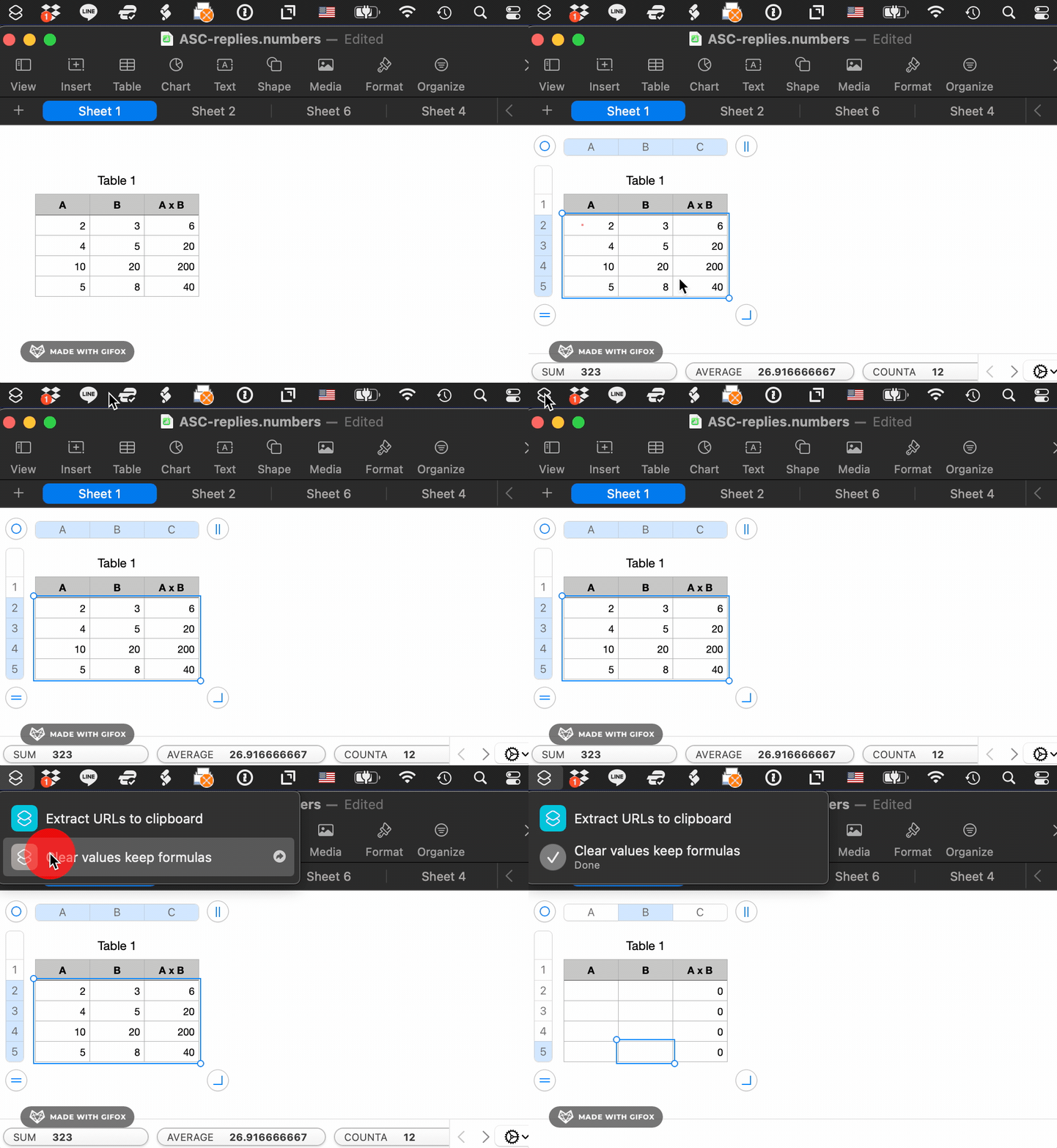


Templates are great if you want to start from scratch each time. But they're not always so great if you want want to keep information from multiple periods in the same document, so that formulas can use it efficiently.


The advantage of a script is that you can target which cells you want to clear and which ones you don't. A template is all or nothing.


I'm a big believer in working smarter, not harder.


And learning new things, especially something as simple as running a script (as opposed to writing one), can lead to working smarter.😀


SG

This thread has been closed by the system or the community team. You may vote for any posts you find helpful, or search the Community for additional answers.

How to clear data but not formulas that us columns from a cell in numbers

Welcome to Apple Support Community
A forum where Apple customers help each other with their products. Get started with your Apple Account.