HDMI Audio on New MacBook

I have a new MacBook Air Monterey 12.3.1. The audio is not being received on my TV through HDMI, video is fine. The Mac recognizes the TV's speaker but won't connect. Old Macbook works with TV and same HDMI cable. Any Suggestions?

MacBook Air 13″, macOS 10.15

Posted on Apr 12, 2022 9:32 AM

Reply
Question marked as Top-ranking reply

Posted on Apr 14, 2022 8:52 AM

Andyerwin,


Got it. Next thing to do is isolate it even further the best we can since we know it's specific to this Mac. We'll start with safe mode. Make sure to use the steps that are specific to the Mac computer that you have (Apple Silicon or Intel): How to use safe mode on your Mac


Once in safe mode, try the same steps again with your TV. If it's fine in safe mode, restart the Mac normally by doing a simple restart in safe mode.


If it happens in safe mode, try reinstalling macOS which will reinstall audio information as well to provide a fresh connection. As with safe mode, be sure to follow the steps with the model of Mac you have:


Reinstall macOS

Reinstalling macOS does not remove data from your Mac. To begin installation, select Reinstall macOS from the utilities window in macOS Recovery, then click Continue and follow the onscreen instructions. 
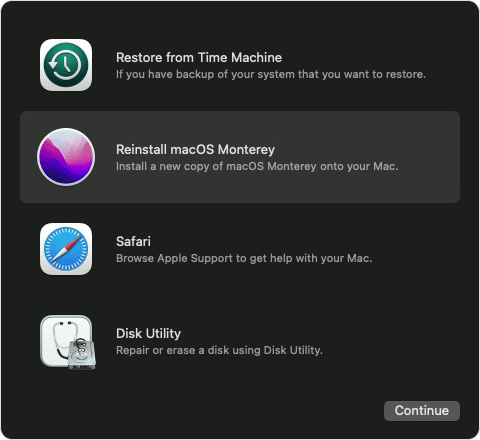
macOS Recovery options with "Reinstall macOS Monterey" selected
Follow these guidelines during installation:
• If the installer asks to unlock your disk, enter the password you use to log in to your Mac.
• If the installer doesn't see your disk, or it says that it can't install on your computer or volume, you might need to erase your disk first.
• If the installer offers you the choice between installing on Macintosh HD or Macintosh HD - Data, choose Macintosh HD.
• Allow installation to complete without putting your Mac to sleep or closing its lid. Your Mac might restart and show a progress bar several times, and the screen might be empty for minutes at a time.

After installation is complete, your Mac might restart to a setup assistant. If you're selling, trading in, or giving away your Mac, press Command-Q to quit the assistant without completing setup. Then click Shut Down. When the new owner starts up the Mac, they can use their own information to complete setup.


You can find the same steps and more information here as well: How to reinstall macOS


Take care.

4 replies
Question marked as Top-ranking reply

Apr 14, 2022 8:52 AM in response to Andyerwin

Andyerwin,


Got it. Next thing to do is isolate it even further the best we can since we know it's specific to this Mac. We'll start with safe mode. Make sure to use the steps that are specific to the Mac computer that you have (Apple Silicon or Intel): How to use safe mode on your Mac


Once in safe mode, try the same steps again with your TV. If it's fine in safe mode, restart the Mac normally by doing a simple restart in safe mode.


If it happens in safe mode, try reinstalling macOS which will reinstall audio information as well to provide a fresh connection. As with safe mode, be sure to follow the steps with the model of Mac you have:


Reinstall macOS

Reinstalling macOS does not remove data from your Mac. To begin installation, select Reinstall macOS from the utilities window in macOS Recovery, then click Continue and follow the onscreen instructions. 
macOS Recovery options with "Reinstall macOS Monterey" selected
Follow these guidelines during installation:
• If the installer asks to unlock your disk, enter the password you use to log in to your Mac.
• If the installer doesn't see your disk, or it says that it can't install on your computer or volume, you might need to erase your disk first.
• If the installer offers you the choice between installing on Macintosh HD or Macintosh HD - Data, choose Macintosh HD.
• Allow installation to complete without putting your Mac to sleep or closing its lid. Your Mac might restart and show a progress bar several times, and the screen might be empty for minutes at a time.

After installation is complete, your Mac might restart to a setup assistant. If you're selling, trading in, or giving away your Mac, press Command-Q to quit the assistant without completing setup. Then click Shut Down. When the new owner starts up the Mac, they can use their own information to complete setup.


You can find the same steps and more information here as well: How to reinstall macOS


Take care.

Apr 25, 2022 3:52 PM in response to Nicholas_B2

Hi, I'm having the same issue as OP. I reinstalled Monterey OS and am still having issues. I even went into the MIDI settings and tried to add my monitor to Aggregate/Multi-Ouput, adding only the monitor, but still not luck. Maybe the issue is something new to the silicone chip? I've also had issues connecting with other newer monitors using various HDMI cables.


Any help or guidance would be much appreciated.

This thread has been closed by the system or the community team. You may vote for any posts you find helpful, or search the Community for additional answers.

HDMI Audio on New MacBook

Welcome to Apple Support Community
A forum where Apple customers help each other with their products. Get started with your Apple Account.