Need a script to add seq number to files, copy the files, and then rename them

Our photo club runs contests and once all entries are received and put into a folder the files need to be given a two digit sequential number, then those files get copied to a second folder where they are renamed to remove the photographer's name.

Files in the input folder will originally look like this:

category_My Image Title-Member Name.jpg

category_Another Image Title-Another Name.jpg


After adding two digit sequential prefix and those files then look like this:

01_category_My Image Title-Member Name.jpg

02_category_Another Image Title-Another Name.jpeg


These newly named file are then copied to a second output folder and are renamed by removing the member name portion, ie. everything from the last - to the .file extension resulting in files like this

01_category_My Image Title.jpg

02_category_Another Image Title.jpeg


Note there might be spaces after the title or before the member name. It is hard to get people to follow instructions. As long as everything from the last - to the .jpg is gone it will be fine.


Posted on May 17, 2022 4:27 AM

Reply

Similar questions

9 replies

May 18, 2022 7:12 AM in response to JB001

I now have a working solution using your example filenames from yesterday. When the solution is run, it does:

  1. Prepends a two-digit, zero-padded numeric sequence number (e.g. 01_) to those images that do not have it.
  2. Extracts all filename content except membership name and then copies that new filename to the destination folder.


In the following example, I selected two folders from my Desktop: 1: WIP as the source image folder and 2: B as the destination folder. After running this script, here is what the two folders reflect:
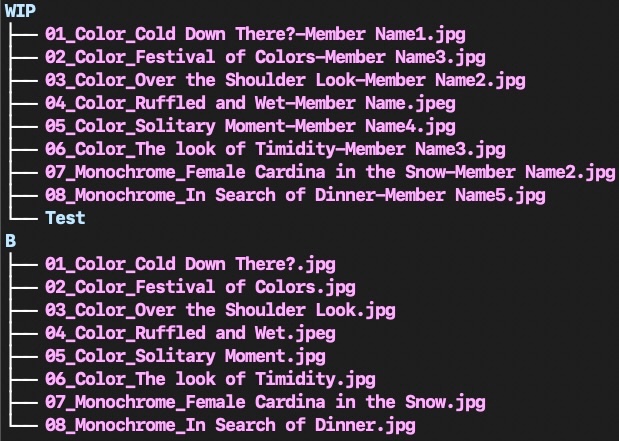


I have switched from AppleScript to an Automator application which allows you to visually choose the two folders, and then the Zsh shell script processes both folders in a blink of the eye. I would encourage you to adapt a better filenaming scheme that does not include martian characters such as the question mark in the first file shown above. I had to add special syntax to handle that issue.


In your /Applications folder you will see the Automator (robot) application. Launch that, and on the File choose, click New Document, and a view of Automator related choices appear. Select Application and click Choose.


Now, You have a list of Libraries on the left and a large empty workflow window on the right. Follow these instructions:

  1. Click on Library > Files & Folders, and then click and drag the Ask For Finder Items action onto the large Workflow window. Do it again because you will have two Folder prompts.
    1. For each Ask for Finder Items, select the Type as Folders, and do not select Allow Multiple Selection.
  2. Click on Library > Utilities, and click and drag the Run Shell Script action below the last Ask For Finder Items.
    1. In the header of the Run Shell Script, set the shell to /bin/zsh and the Pass input: as arguments, as the latter will receive the full path of the two folders you will select.
    2. There will be boiler-plate content in that Run Shell Script that you can select and remove as it is not needed. You will replace that text with the code that I provide below that you copy/paste into the Run Shell Script action.
    3. You can test the code before you save it to your Desktop by clicking the ▸ Run button. This will produce a dialog about not receiving input when run inside Automator … just click OK, and then your two dialogs will appear, the script will run, and your renamed files will be in your destination folder.
    4. Save your Automator application to your Desktop with a brief, but meaningful name, and then quit Automator. That application can now be run by double-clicking it.


Code for the Run Shell Script action:


STARTDIR="${1:a}"
OUTDIR="${2:a}"
# zero padded integer, set to 3 if need 001 sequence
PREFIX=2

# prefix counter
typeset -gi i=1

cd "${STARTDIR}"

# numerically prefix two-digit ascending numbers to images
# look for case-insensitive extensions
setopt NO_CASE_GLOB
for f in *.(jpg|jpeg)(.N);
do
	# check if numeric prefix already on file and if it is, skip file
	[[ "${f:t}" =~ "([0-9]{2}_).*" ]] && continue

	# sequentially rename file with numeric incremental prefix in alphabetical order
	/bin/mv "${f:t}" "${(l:$PREFIX::0:)$((i++))}_${f:t}"
done

# now, copy the individual prefixed files to the OUTDIR with the membership info trimmed
for f in *.(jpg|jpeg)(.N);
do
    # Reconstruct moved filename from capture () strings ($match array)
    # eliminate member name from it. Skip if no match
    [[ "${f:t}" =~ "([A-Za-z0-9_ \?]+).*(\.jpe?g)" ]] || continue

    # copy with attributes the filename without membership name to the OUTDIR
    /bin/cp -a "${f:t}" "${OUTDIR}/${match[1]}${match[2]}"
done
# inform whan script is done
/usr/bin/osascript -e 'display dialog "File rename/move has finished." with title "Image Rename Facility"'


The finished Automator application will appear:


May 18, 2022 3:03 PM in response to JB001

Select and remove the code in your Run Shell Script with the following that allows filename instances with any case of JPG or JPEG extensions to be copied to the destination folder.


Launch Automator, and from its Open Recent menu, select your application. Drag the bottom of the Run Shell Script action downward to expand it again.


New Code:


STARTDIR="${1:a}"
OUTDIR="${2:a}"
# zero padded integer, set to 3 if need 001 sequence
PREFIX=2

# prefix counter
typeset -gi i=1

cd "${STARTDIR}"

# numerically prefix two-digit ascending numbers to images
# look for case-insensitive extensions
setopt NO_CASE_GLOB
for f in *.(jpg|jpeg)(.N);
do
	# check if numeric prefix already on file and if it is, skip file
	[[ "${f:t}" =~ "([0-9]{2}_).*" ]] && continue

	# sequentially rename file with numeric incremental prefix in alphabetical order
	mv "${f:t}" "${(l:$PREFIX::0:)$((i++))}_${f:t}"
done

# now, copy the individual prefixed files to the OUTDIR with the membership info trimmed
setopt NO_CASE_GLOB
for f in *.(jpg|jpeg)(.N);
do
    # Reconstruct moved filename from capture () strings ($match array)
    # eliminate member name from it. Skip if no match
    [[ "${f:t}" =~ "([A-Za-z0-9_ \?]+).*(\.jpe?g|\.JPE?G)" ]] || continue

    # copy with attributes the filename without membership name to the OUTDIR
    /bin/cp -a "${f:t}" "${OUTDIR}/${match[1]}${match[2]}"
done
# inform whan script is done
/usr/bin/osascript -e 'display dialog "File rename/move has finished." with title "Image Rename Facility"'


May 17, 2022 2:42 PM in response to JB001

Is this what you are seeking? On my Desktop, I have two folders, WIP, and B. In WIP, i have placed two test files named:


category_My image Title-Another Name.jpg
category_My image Title-Member Name.jpeg


I run a short Zsh shell script that takes the source folder (WIP) and the destination folder (B) as input:


ntrim.zsh WIP B


and it delivers the following output in folder B:


The numeric prefixes are added by default to the alphabetical order of the files in the originating folder.


It would be good to see a few sample filenames (with anonymous member) to confirm the script that I have written is capable of your image collection.

May 17, 2022 4:37 PM in response to VikingOSX

Yes, I don't know what a Zsh shell script is but this looks like what I need exactly.


Here's some actual file names received with the member names changed.


Color_Cold Down There?-Member Name1.jpg

Color_Cold Feet-Member Name1.jpg

Color_Festival of Colors-Member Name3.jpg

Color_Over the Shoulder Look-Member Name2.jpg

Color_Ruffled and Wet-Member Name.jpeg

Color_Solitary Moment-Member Name4.jpg

Color_The look of Timidity-Member Name3.jpg

Monochrome_Female Cardina in the Snow-Member Name2.jpg

Monochrome_In Search of Dinner-Member Name5.jpg


This thread has been closed by the system or the community team. You may vote for any posts you find helpful, or search the Community for additional answers.

Need a script to add seq number to files, copy the files, and then rename them

Welcome to Apple Support Community
A forum where Apple customers help each other with their products. Get started with your Apple Account.
