I now have a working solution using your example filenames from yesterday. When the solution is run, it does:
- Prepends a two-digit, zero-padded numeric sequence number (e.g. 01_) to those images that do not have it.
- Extracts all filename content except membership name and then copies that new filename to the destination folder.
In the following example, I selected two folders from my Desktop: 1: WIP as the source image folder and 2: B as the destination folder. After running this script, here is what the two folders reflect:
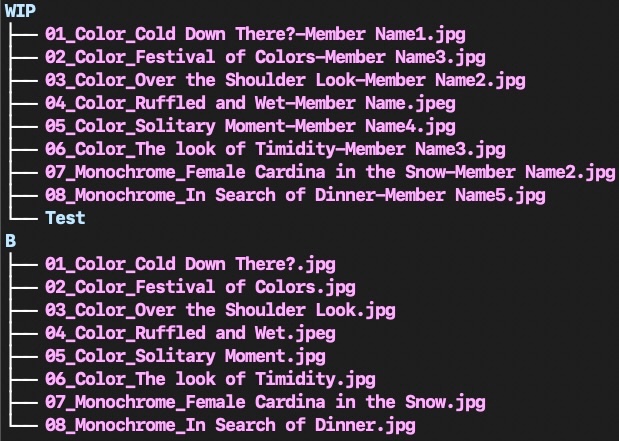
I have switched from AppleScript to an Automator application which allows you to visually choose the two folders, and then the Zsh shell script processes both folders in a blink of the eye. I would encourage you to adapt a better filenaming scheme that does not include martian characters such as the question mark in the first file shown above. I had to add special syntax to handle that issue.
In your /Applications folder you will see the Automator (robot) application. Launch that, and on the File choose, click New Document, and a view of Automator related choices appear. Select Application and click Choose.
Now, You have a list of Libraries on the left and a large empty workflow window on the right. Follow these instructions:
- Click on Library > Files & Folders, and then click and drag the Ask For Finder Items action onto the large Workflow window. Do it again because you will have two Folder prompts.
- For each Ask for Finder Items, select the Type as Folders, and do not select Allow Multiple Selection.
- Click on Library > Utilities, and click and drag the Run Shell Script action below the last Ask For Finder Items.
- In the header of the Run Shell Script, set the shell to /bin/zsh and the Pass input: as arguments, as the latter will receive the full path of the two folders you will select.
- There will be boiler-plate content in that Run Shell Script that you can select and remove as it is not needed. You will replace that text with the code that I provide below that you copy/paste into the Run Shell Script action.
- You can test the code before you save it to your Desktop by clicking the ▸ Run button. This will produce a dialog about not receiving input when run inside Automator … just click OK, and then your two dialogs will appear, the script will run, and your renamed files will be in your destination folder.
- Save your Automator application to your Desktop with a brief, but meaningful name, and then quit Automator. That application can now be run by double-clicking it.
Code for the Run Shell Script action:
STARTDIR="${1:a}"
OUTDIR="${2:a}"
# zero padded integer, set to 3 if need 001 sequence
PREFIX=2

# prefix counter
typeset -gi i=1

cd "${STARTDIR}"

# numerically prefix two-digit ascending numbers to images
# look for case-insensitive extensions
setopt NO_CASE_GLOB
for f in *.(jpg|jpeg)(.N);
do
	# check if numeric prefix already on file and if it is, skip file
	[[ "${f:t}" =~ "([0-9]{2}_).*" ]] && continue

	# sequentially rename file with numeric incremental prefix in alphabetical order
	/bin/mv "${f:t}" "${(l:$PREFIX::0:)$((i++))}_${f:t}"
done

# now, copy the individual prefixed files to the OUTDIR with the membership info trimmed
for f in *.(jpg|jpeg)(.N);
do
    # Reconstruct moved filename from capture () strings ($match array)
    # eliminate member name from it. Skip if no match
    [[ "${f:t}" =~ "([A-Za-z0-9_ \?]+).*(\.jpe?g)" ]] || continue

    # copy with attributes the filename without membership name to the OUTDIR
    /bin/cp -a "${f:t}" "${OUTDIR}/${match[1]}${match[2]}"
done
# inform whan script is done
/usr/bin/osascript -e 'display dialog "File rename/move has finished." with title "Image Rename Facility"'
The finished Automator application will appear:


