Hey there HenkRoos,
If you're having problems with a specific automation, you may need to delete it and set it up again. Following Create scenes and automations with the Home app
"Turn off or delete an automation
To enable or disable an automation:
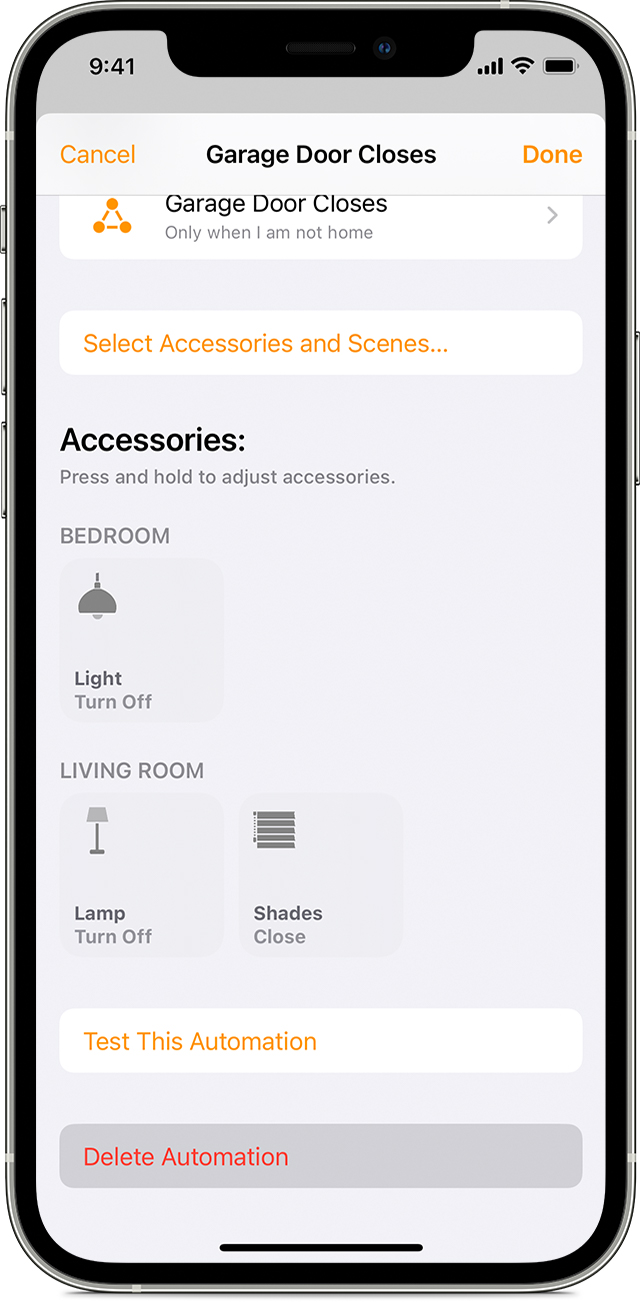
- Open the Home app on your iPhone, iPad, iPod touch, or Mac and go to the Automation tab.
- Tap or click the automation.
- Turn Enable This Automation on or off.
Tap or click Turn Off to choose an amount of time to turn off accessories in an automation. For example, if you create an automation that turns on the lights when you arrive home, you can have the lights turn off after an hour.
To delete an automation, tap or click the automation, then scroll to the bottom and tap or click Delete Automation. On your iOS or iPadOS device, you can also swipe left over the automation and tap Delete."
"Create an automation based on an accessory's action
When an accessory turns on, off, or detects something, you can automate other accessories and scenes to react and perform actions.
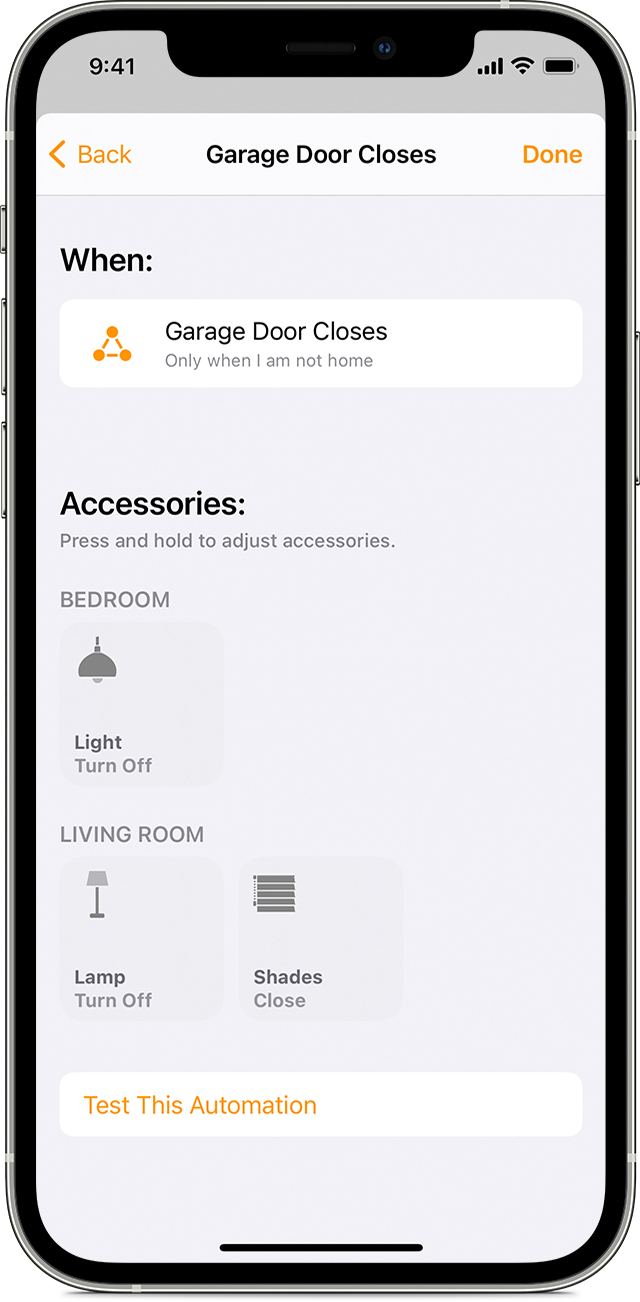
- In the Home app, go to the Automation tab. Tap or click the Add button
 , then select Add Automation.
 - To start an automation when an accessory turns on or off, choose An Accessory is Controlled. Or choose A Sensor Detects Something.
- Select the accessory that starts the automation, then tap or click Next.
- Choose the action that triggers the automation, like if it turns on or opens, then tap or click Next.
- Select accessories and scenes that react to the action, then tap or click Next.
- To adjust an accessory on iPhone, iPad, or iPod touch, press and hold it. On Mac, double-click the accessory.
- Tap or click Done.
Want to get an alert when an accessory detects something? Learn how to set up notifications for your HomeKit accessories."
Have a good one!


