Off-loading iPhone photos
I am taking an extended vacation and will have more photos than I can save on my iPhone. How do I offload them and still keep them for later review on my Mac?
iPhone XS, iOS 15
I am taking an extended vacation and will have more photos than I can save on my iPhone. How do I offload them and still keep them for later review on my Mac?
iPhone XS, iOS 15
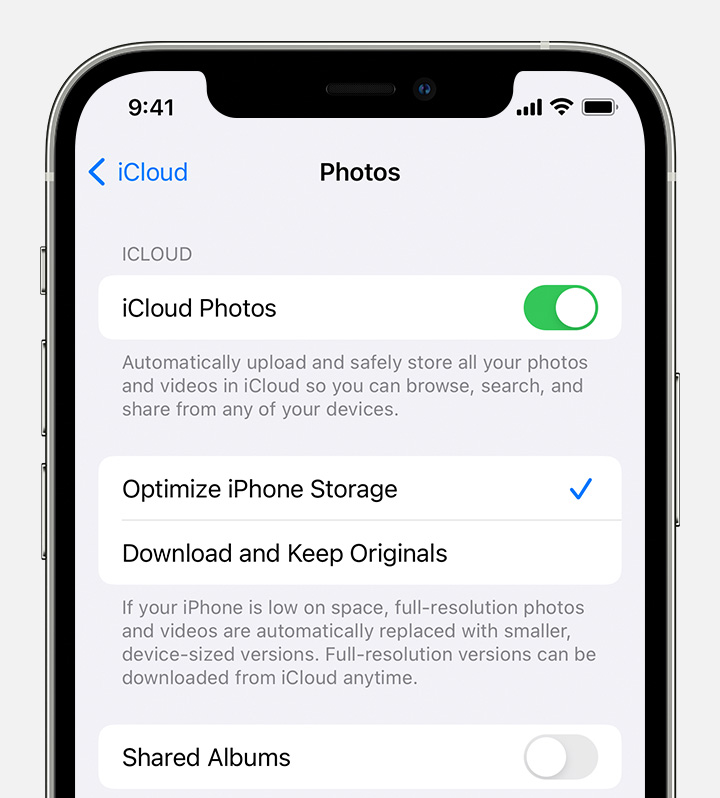
One thing you can do is enable iCloud Photos, which will sync your photos to iCloud, then go to Settings/[your name]/iCloud Photos and turn on Optimize iPhone Storage. This will save lower resolution photos on your phone, but still keep the full resolution in iCloud. Optimize will reduce your on-phone photos to about 1/4 of their original size.
If that is not sufficient you can subscribe to a 3rd party archiving service: Google Photos, Dropbox, Box.com, Shutterfly, Amazon Photos, etc. These all have apps that will upload your photos to the provider’s servers. Among these Google Photos is the most sophisticated; you can create albums, and it will also organize your photos automatically by date, location, subject, people (it uses facial recognition to create albums of each face). If this seems too invasive, Dropbox and box.com just store the photos without organizing them.
Another possible solution (that you can use along with the above) is to get a Lightning to SD card adapter that you can plug into your phone, and copy photos to the SD card using the provider’s app.
One thing you can do is enable iCloud Photos, which will sync your photos to iCloud, then go to Settings/[your name]/iCloud Photos and turn on Optimize iPhone Storage. This will save lower resolution photos on your phone, but still keep the full resolution in iCloud. Optimize will reduce your on-phone photos to about 1/4 of their original size.
If that is not sufficient you can subscribe to a 3rd party archiving service: Google Photos, Dropbox, Box.com, Shutterfly, Amazon Photos, etc. These all have apps that will upload your photos to the provider’s servers. Among these Google Photos is the most sophisticated; you can create albums, and it will also organize your photos automatically by date, location, subject, people (it uses facial recognition to create albums of each face). If this seems too invasive, Dropbox and box.com just store the photos without organizing them.
Another possible solution (that you can use along with the above) is to get a Lightning to SD card adapter that you can plug into your phone, and copy photos to the SD card using the provider’s app.
Hello PaulD_,
Thanks for updating us with that information.
If you're using iCloud Photos, check if you have Optimize iPhone Storage enabled. This will clear up some space on your iPhone when needed: Manage your photo and video storage - Apple Support
Store your photos and videos in iCloud
Your photos and videos are stored on your device in their original, high-resolution version. This means that they use a lot of space on your iPhone, iPad, and iPod touch. With iCloud Photos, you can make more space available on your device and have your entire collection, everywhere you go.
Get started with iCloud Photos:
1. Tap Settings > [your name] > iCloud > Photos.
2. Turn on iCloud Photos.
3. Select Optimize iPhone Storage to save space on your device.
With Optimize Storage, smaller, space-saving photos and videos are kept on your device while all of your original, full-resolution versions are stored in iCloud. And as long as you have enough space in iCloud, you can store as many photos and videos as you want.
If you already have that enabled, review the following resource for suggestions on how to clear up some space on your iPhone: How to check the storage on your iPhone, iPad, and iPod touch - Apple Support
Have a great day!
Hi PaulD_,
Thank you for using the Apple Support Communities! Yo can import photos from your iPhone to your Mac by following the steps below that can help:
Transfer photos and videos from your iPhone, iPad, or iPod touch to your Mac or PC
1.Connect your iPhone, iPad, or iPod touch to your Mac with a USB cable.
2.Open the Photos app on your computer.
3.The Photos app shows an Import screen with all the photos and videos that are on your connected device. If the Import screen doesn't automatically appear, click the device's name in the Photos sidebar.
4.If asked, unlock your iOS or iPadOS device using your passcode. If you see a prompt on your iOS or iPadOS device asking you to Trust This Computer, tap Trust to continue.
5.Choose where you want to import your photos. Next to "Import to," you can choose an existing album or create a new one.
6.Select the photos you want to import and click Import Selected, or click Import All New Photos.
7.Wait for the process to finish, then disconnect your device from your Mac.
Hope this helps!
Have a great day.
Paul ~ Another option is to create your own custom shortcuts in Apple's Shortcuts app to save your photos to iCloud or Dropbox:
Shortcuts User Guide for iPhone and iPad
Shortcuts User Guide for Mac (macOS Monterey)
...Below are just the Photos actions available as building blocks for a custom shortcut – but it represents just a tiny fraction of the possibilities:
õ¿õ¬
Lawrence Finch wrote: "Well, you COULD, but why would you bother when iCloud sync, dropbox, box.com, etc all do it automatically and in background? Why reinvent the wheel?"
Because a custom shortcut could optionally provide a more granular level of control over the selection, resizing, saving and deleting of photos. That may or may not be of interest to the OP.
õ¿õ¬
Thanks for your response. I won't have my Mac on my trip. My question is how I keep pics taken on my iPhone after I run out storage space. Can they be saved to iCloud and retrieved later? If so, how do I prevent them from being deleted when I delete them from my iPhone. Is there another way, or am I limited to what I can keep on my iPhone?
PaulD_ wrote:
Further:
Wouldn't you have to turn off syncing iPhone photos and iCloud to prevent the new photos on iCloud from being deleted when removed from iPhone in order to regain space on iPhone?
Yes, that’s why I described methods that do not require turning off iCloud sync. If you are using a 3rd party archive then you would turn off iCloud sync, but using Optimize Photos you leave iCloud Sync on.
Right on! I thought this could be done but know the details. Thanks for your lucid response!
Further:
Wouldn't you have to turn off syncing iPhone photos and iCloud to prevent the new photos on iCloud from being deleted when removed from iPhone in order to regain space on iPhone?
Well, you COULD, but why would you bother when iCloud sync, dropbox, box.com, etc all do it automatically and in background? Why reinvent the wheel?
Off-loading iPhone photos