Hi, ivin209
You'll want to follow the steps here to switch modes:
"Switch between noise-control modes
You can switch between noise-control modes right from your AirPods Pro or AirPods Max, or you can use your iPhone, iPad, Apple Watch, or Mac. When you switch between modes, you hear a chime.
When you use iOS, iPadOS, watchOS, or macOS to switch between noise-control modes, you see Active Noise Cancellation available as Noise Cancellation.
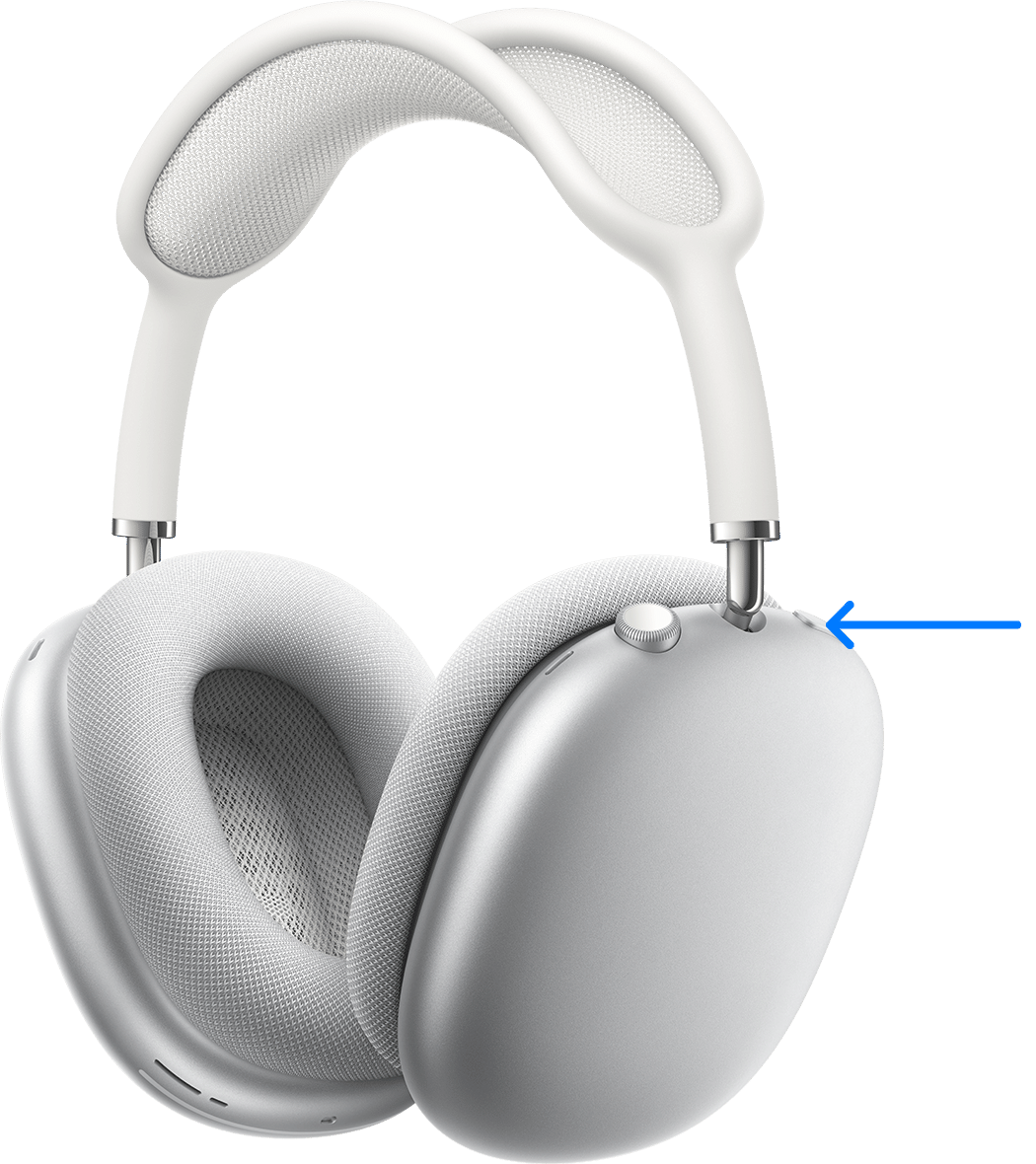
Switch between noise-control modes on your AirPods Max
When you're wearing your AirPods Max, press the noise control button to switch between Active Noise Cancellation and Transparency mode. You can customize which modes to switch between (Active Noise Cancellation, Transparency mode, and Off) in Bluetooth settings on your iPhone, iPad, or Mac.
Switch between noise-control modes on your AirPods Pro
Press and hold the force sensor on the stem of an AirPod until you hear a chime.
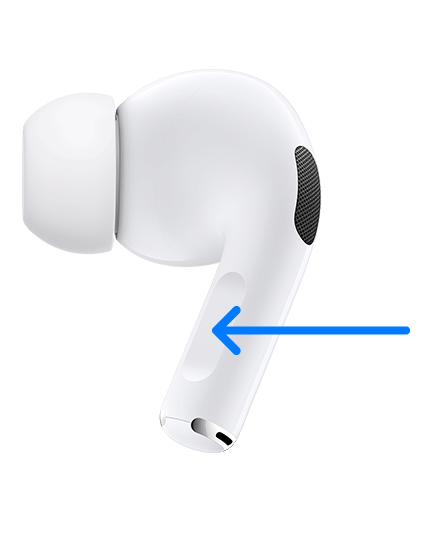
When you're wearing both AirPods, press and hold the force sensor on either AirPod to switch between Active Noise Cancellation and Transparency mode. You can customize which modes to switch between (Active Noise Cancellation, Transparency mode, and Off) in Bluetooth settings on your iPhone, iPad, or Mac.
To use Active Noise Cancellation with one AirPod only, use your iPhone or iPad to go to Settings > Accessibility > AirPods, and turn on Noise Cancellation with One AirPod. Then press and hold the force sensor to switch between Active Noise Cancellation, Transparency mode, and Off.
Switch between noise-control modes on your iPhone or iPad
- Open Control Center on your iOS or iPadOS device.
- While wearing your AirPods Max or both AirPods, touch and hold the volume slider until you see the additional controls.
- Tap the Noise Control icon
 in the lower-left corner.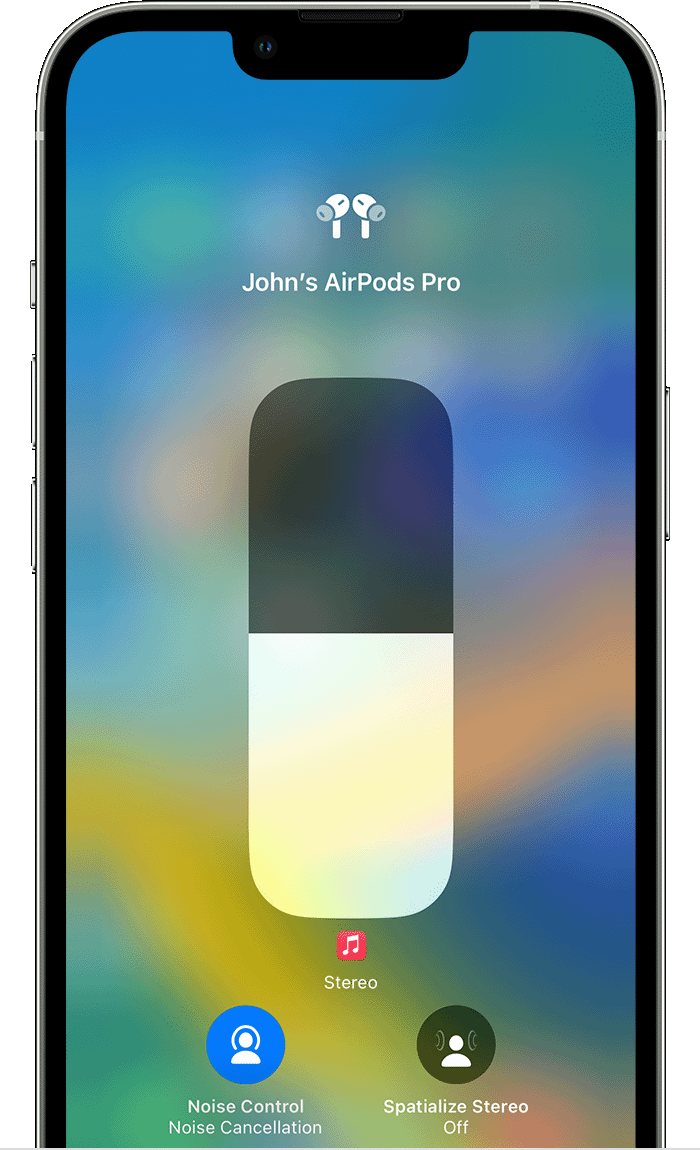
- Tap Noise Cancellation, Transparency, or Off.

You can also customize and switch between noise-control modes in Settings:
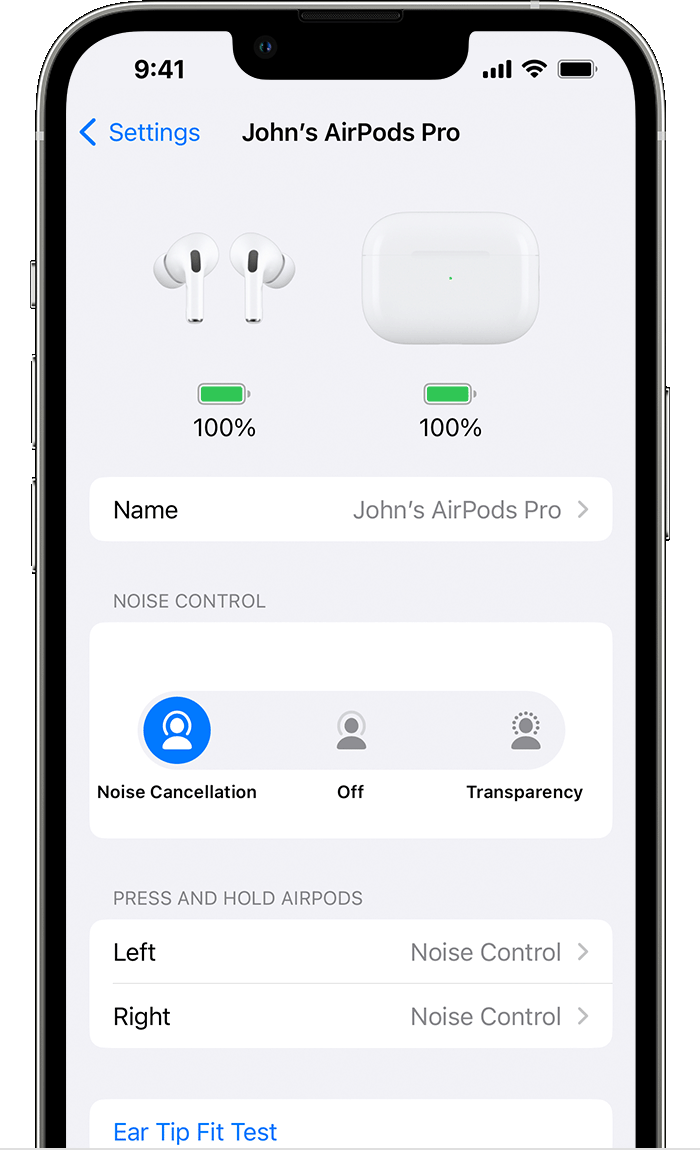
- With your AirPods in your ears and connected to your iPhone or iPad, go to Settings > Bluetooth. Alternatively, you can go to Settings > [your AirPods].
- While wearing your AirPods Max or both AirPods, tap the More Info button
 next to your AirPods in the list of devices.
 - To switch between noise-control modes, tap Noise Cancellation, Transparency, or Off. To select the noise-control modes that you want to use with the force sensor on your AirPods Pro or the noise control button on your AirPods Max, select two or three modes under Button Cycles Between.
Switch between noise-control modes on your Apple Watch
- While listening to audio through your watch, tap the AirPlay icon
 .
. 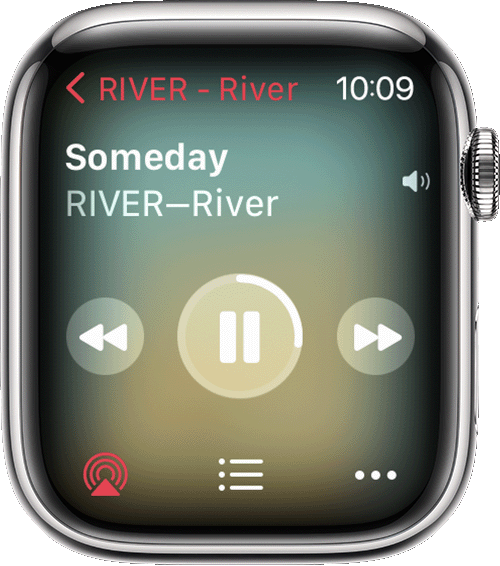
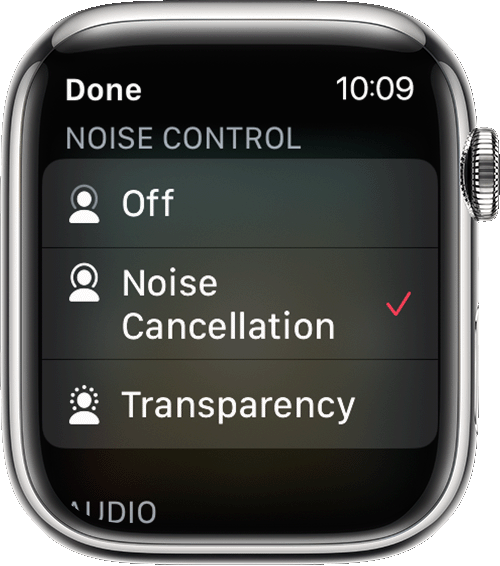
- Tap Noise Cancellation, Transparency, or Off.
Switch between noise-control modes on your Mac
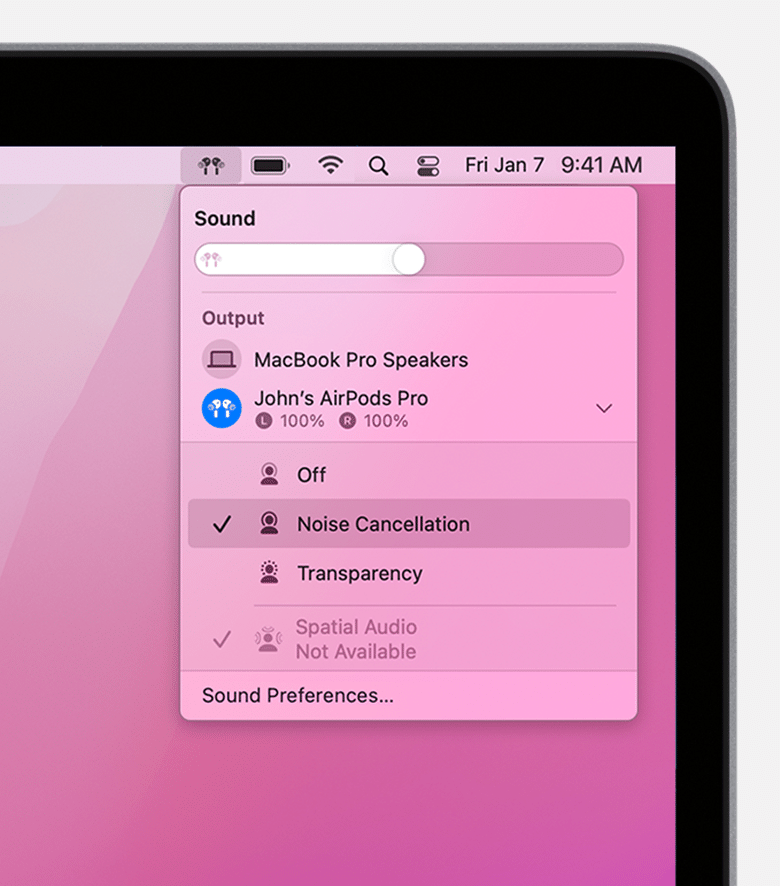
- With your AirPods Pro or AirPods Max connected to your Mac, click the volume control
 in the menu bar on your Mac.*
 - Choose your AirPods Pro or AirPods Max, then choose Noise Cancellation, Transparency, or Off.
You can also choose the two or three noise-control modes that you want to use with the force sensor on your AirPods Pro or the noise control button on your AirPods Max:
- With your AirPods Pro or AirPods Max connected to your Mac, choose Apple menu > System Preferences.
- In the System Preferences window, click Bluetooth.
- Choose your AirPods Pro or AirPods Max, then click Options.
- Next to Noise Control Toggles Between, select the two or three noise-control modes that you want to cycle between.
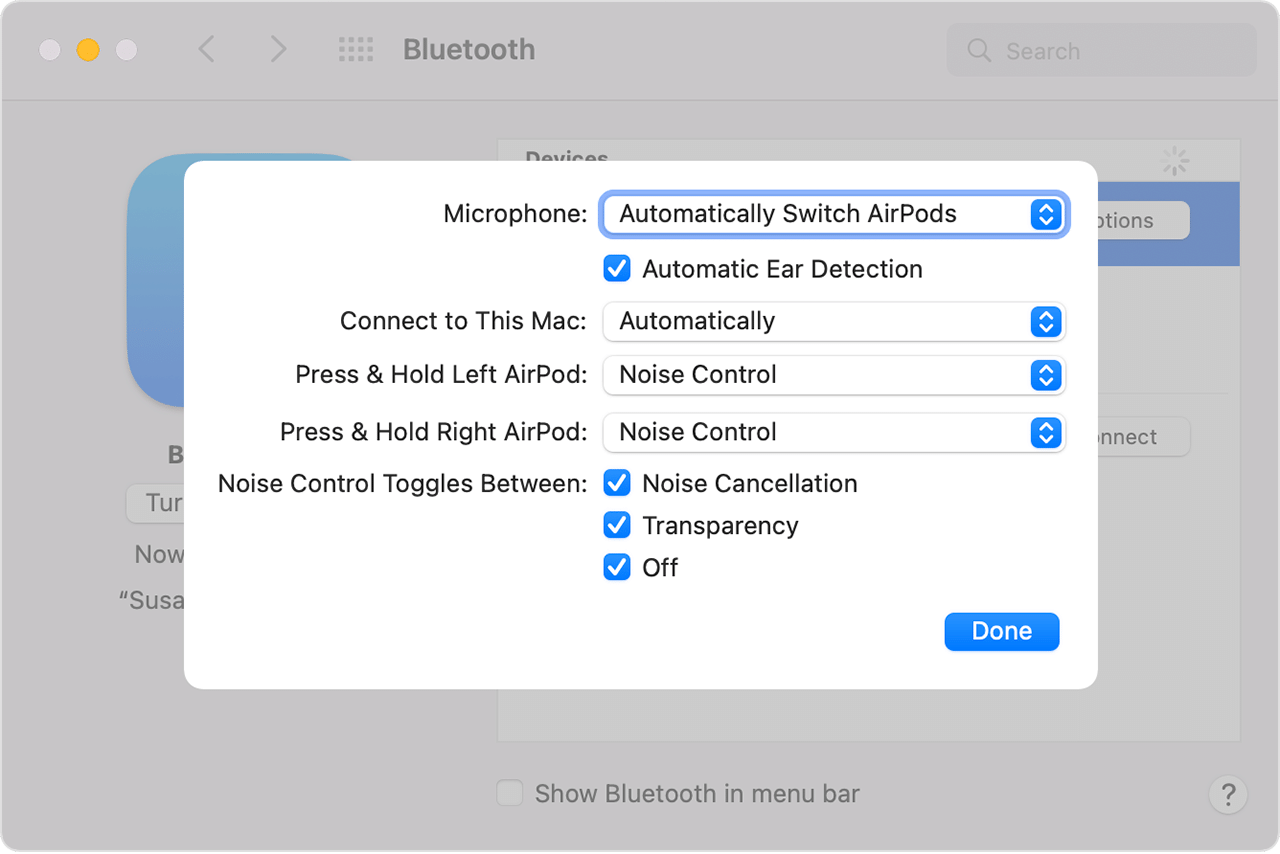
* If you don't see the volume control in the menu bar, choose Apple menu > System Preferences. Click Sound. Click the Output tab, then select "Show Sound in menu bar."
"
AirPods Pro and AirPods Max Active Noise Cancellation and Transparency mode - Apple Support
If they're not working properly, and you have everything set properly, you may need to reach out to Apple to look into this with you further; as it could indicate a hardware issue: Apple Support
Cheers.


