Hello J_C_E_,
Welcome to Apple Support Communities!
If we understand your post correctly, you're getting a message saying cannot open this content is not authorized, in Apple Music. We'd like to help!
Have you restarted your phone since this started happening?
Restart your iPhone
Try deleting the songs and re-adding them.
Another thing to check is restrictions. Check them to ensure that there is no restriction that might be preventing your from listening to the song.
Set Content & Privacy Restrictions
Go to Settings and tap Screen Time.
Tap Turn on Screen Time, then tap it again. Choose "This is My [Device]" or "This is My Child's [Device]."
If you're the parent or guardian of your device and want to prevent another family member from changing your settings, tap Use Screen Time Passcode to create a passcode, then re-enter the passcode to confirm. After you confirm your passcode you'll be asked to enter your Apple ID and password. This can be used to reset your Screen Time passcode if you forget it.
If you're setting up Screen Time on your child's device, follow the prompts until you get to Screen Time Passcode and enter a passcode. Re-enter the passcode to confirm. After you confirm your passcode you'll be asked to enter your Apple ID and password. This can be used to reset your Screen Time passcode if you forget it.
Tap Content & Privacy Restrictions. If asked, enter your passcode, then turn on Content & Privacy Restrictions.
Make sure to choose a passcode that's different from the passcode that you use to unlock your device. To change or turn off the passcode on your child's device, tap Settings > Screen Time > [your child's name]. Then tap Change Screen Time Passcode or Turn Off Screen Time Passcode, and authenticate the change with Face ID, Touch ID, or your device passcode.
With iOS 16, while you're setting up Screen Time for a child's device, you can set age-related restrictions for content in apps, books, TV shows, and movies. Just follow the onscreen instructions during setup.
If you forgot your Screen Time passcode, update your device to the latest iOS or iPadOS then reset your passcode. If you can’t update your device, erase it and set it up as new to remove the passcode and choose a new one. Restoring your device from a backup won't remove your passcode.
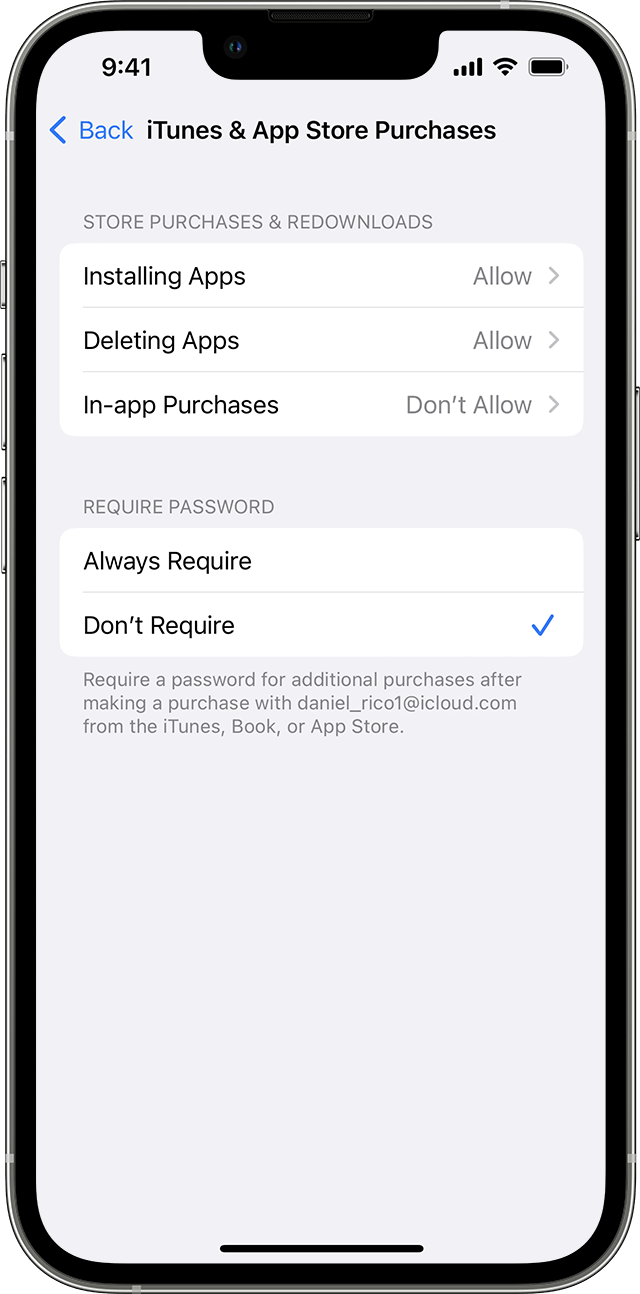
Prevent iTunes & App Store purchases
You can also prevent your child from being able to install or delete apps, make in-app purchases, and more. To prevent iTunes & App Store purchases or downloads:
Go to Settings and tap Screen Time.
Tap Content & Privacy Restrictions. If asked, enter your passcode.
Tap iTunes & App Store Purchases.
Choose a setting and set to Don't Allow.
You can also change your password settings for additional purchases from the iTunes & App Store or Book Store. Follow steps 1-3, then choose Always Require or Don't Require.

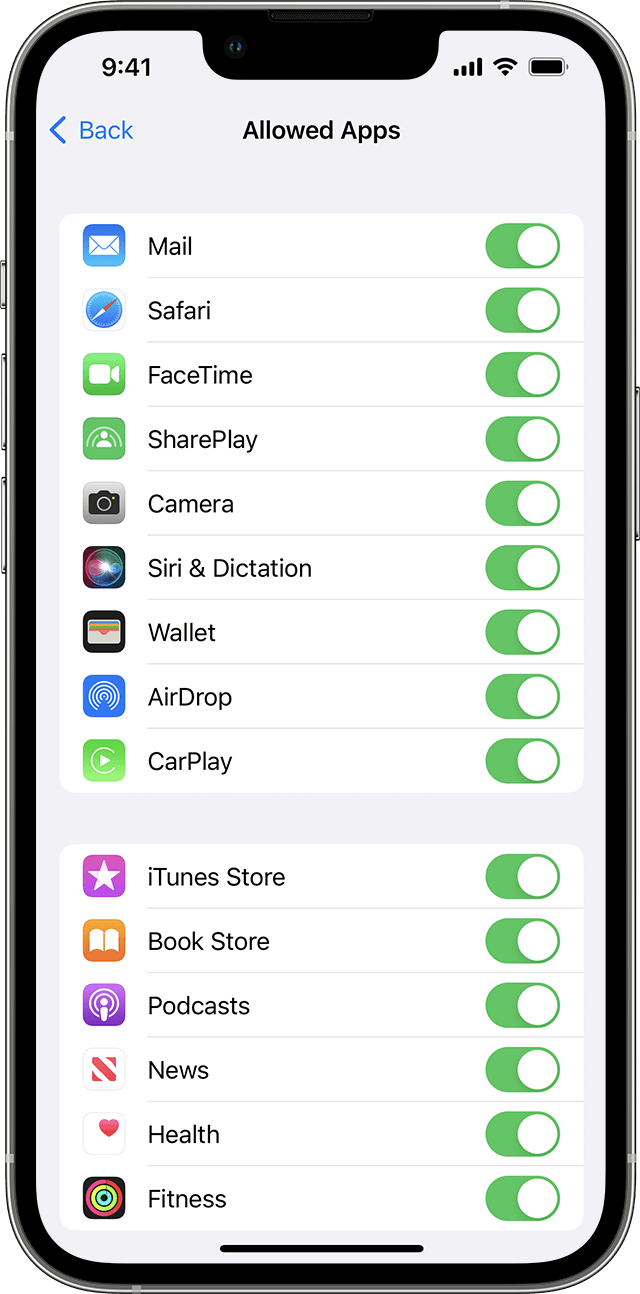
Allow built-in apps and features
You can restrict the use of built-in apps or features. If you turn off an app or feature, the app or feature won't be deleted, it's just temporarily hidden from your Home Screen. For example, if you turn off Mail, the Mail app won't appear on your Home Screen until you turn it back on.
To change your Allowed Apps:
Go to Settings and tap Screen Time.
Tap Content & Privacy Restrictions.
Enter your Screen Time passcode.
Tap Allowed Apps.
Select the apps that you want to allow.

Prevent explicit content and content ratings
You can also prevent the playback of music with explicit content and movies or TV shows with specific ratings. Apps also have ratings that can be configured using content restrictions.
To restrict explicit content and content ratings:
Go to Settings and tap Screen Time.
Tap Content & Privacy Restrictions, then tap Content Restrictions.
Choose the settings that you want for each feature or setting under Allowed Store Content.
Here are the types of content that you can restrict:
Music, Podcasts, News, Fitness: Prevent the playback of music, music videos, podcasts, news, and workouts containing explicit content
Music Videos: Prevent finding and viewing music videos
Music Profiles: Prevent sharing what you're listening to with friends and seeing what they're listening to
Movies: Prevent movies with specific ratings
TV Shows: Prevent TV shows with specific ratings
Books: Prevent content with specific ratings
Apps: Prevent apps with specific ratings
App Clips: Prevent app clips with specific ratings
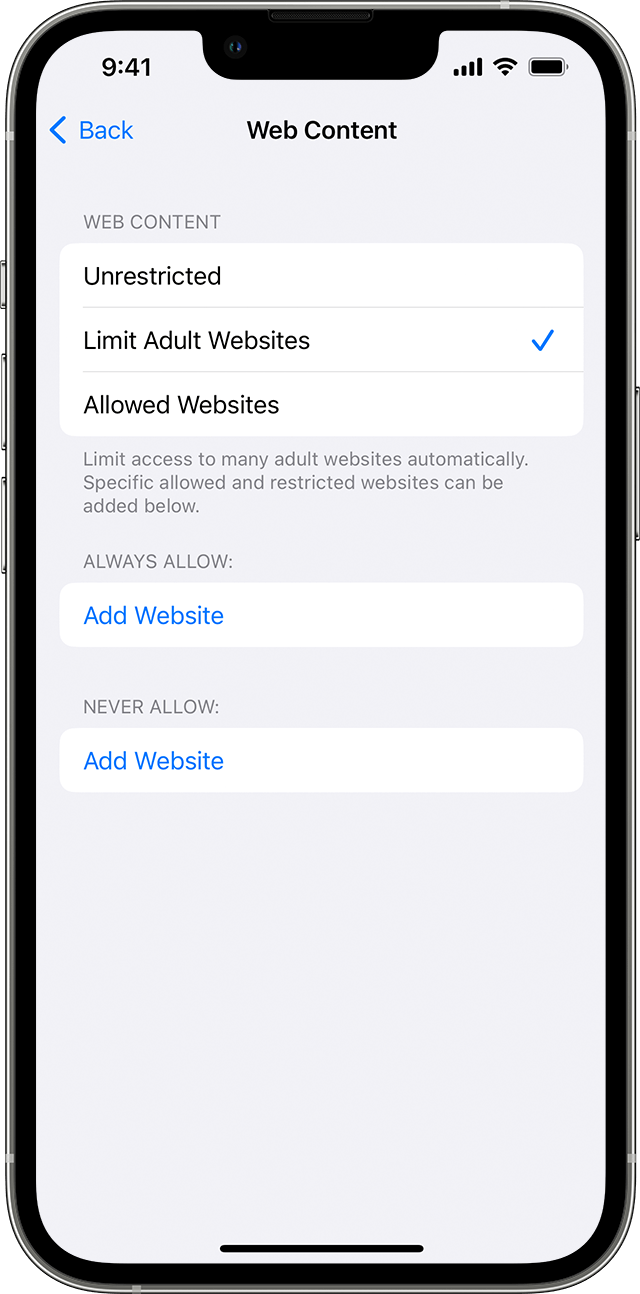
Prevent web content
iOS and iPadOS can automatically filter website content to limit access to adult content in Safari and other apps on your device. You can also add specific websites to an approved or blocked list, or you can limit access to only approved websites. Follow these steps:
Go to Settings and tap Screen Time.
Tap Content & Privacy Restrictions and enter your Screen Time passcode.
Tap Content Restrictions, then tap Web Content.
Choose Unrestricted Access, Limit Adult Websites, or Allowed Websites.
Depending on the access you allow, you might need to add information, like the website that you want to restrict.
Use parental controls on your child's iPhone, iPad, and iPod touch
Let us know if you have any questions.
Thank you for using Apple Support Communities.
Take care!



