Why can’t I change what plays next In ios 16?

Why can’t I change what plays next on Apple Music on iOS 16?

iPhone 12 Pro, iOS 16

Posted on Sep 30, 2022 8:49 AM

Reply
Question marked as Top-ranking reply

Posted on Oct 2, 2022 6:01 AM

Hello oskar92,


Thank you for reaching out to Apple Support Communities, and we'll be happy to help in any way we can. We understand you have questions about how to use Play Next. THe related article at the top of the page is an excellent reference on how that works:


"Choose what you want to play next

  1. Open the Apple Music app and play music.
  2. Find a song, album, or playlist that you want to play next.
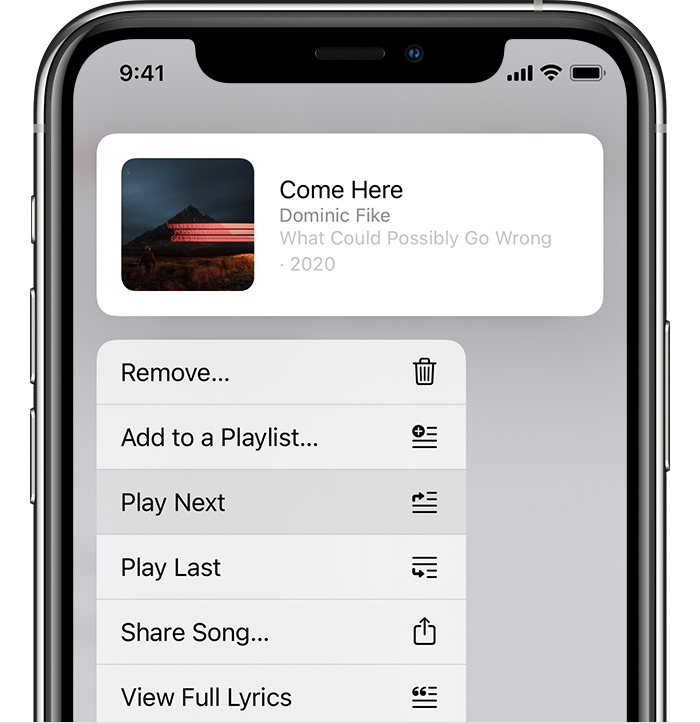
  3. When you find something, touch and hold it, then choose when you want it to play:
    • To play your selection right after the song that’s playing, tap Play Next the Play Next icon.
    • To move your selection to the bottom of your music queue, tap Play Last the Play Last icon.

iPhone showing a song selected to play next

See and change what plays next

  1. Tap the song that's playing at the bottom of your screen.
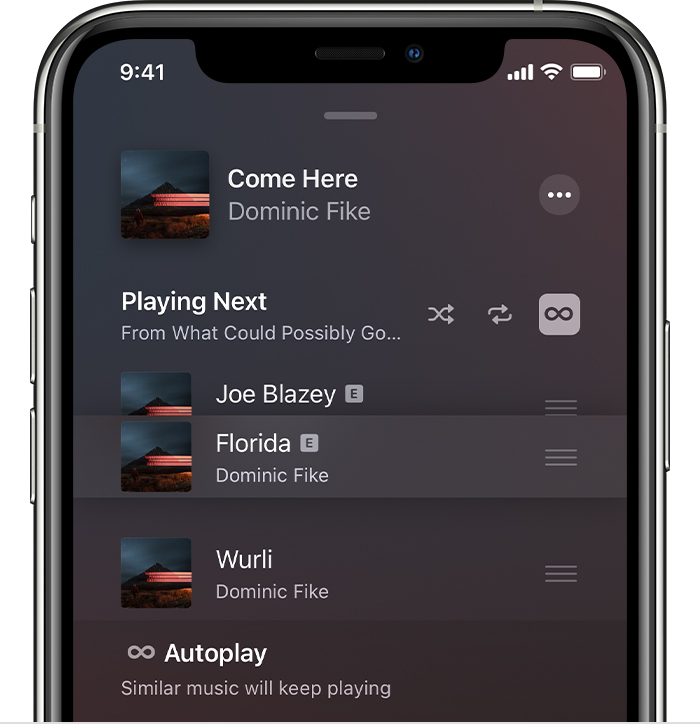
  2. In the lower-right corner of your screen, tap Playing Next the Playing Next icon.
  3. From here, you can see and edit your Playing Next and Autoplay queues.
    • Reorder music: Drag the three lines the Reorder icon next to a song up or down.
    • Remove a song: Swipe left over a song, then tap Remove.

iPhone showing music that's being rearranged on the Playing Next screen

If you play music that's not in your queue, you'll see an option to clear your music queue. If you choose Clear, then the music in your queue is replaced with the music you've selected to play.Choose what you want to play next

  1. Open the Apple Music app and play music.
  2. Find a song, album, or playlist that you want to play next.
  3. When you find something, touch and hold it, then choose when you want it to play:
    • To play your selection right after the song that’s playing, tap Play Next the Play Next icon.
    • To move your selection to the bottom of your music queue, tap Play Last the Play Last icon.

iPhone showing a song selected to play next

See and change what plays next

  1. Tap the song that's playing at the bottom of your screen.
  2. In the lower-right corner of your screen, tap Playing Next the Playing Next icon.
  3. From here, you can see and edit your Playing Next and Autoplay queues.
    • Reorder music: Drag the three lines the Reorder icon next to a song up or down.
    • Remove a song: Swipe left over a song, then tap Remove.

iPhone showing music that's being rearranged on the Playing Next screen

If you play music that's not in your queue, you'll see an option to clear your music queue. If you choose Clear, then the music in your queue is replaced with the music you've selected to play.Choose what you want to play next

  1. Open the Apple Music app and play music.
  2. Find a song, album, or playlist that you want to play next.
  3. When you find something, touch and hold it, then choose when you want it to play:
    • To play your selection right after the song that’s playing, tap Play Next the Play Next icon.
    • To move your selection to the bottom of your music queue, tap Play Last the Play Last icon.

iPhone showing a song selected to play next

See and change what plays next

  1. Tap the song that's playing at the bottom of your screen.
  2. In the lower-right corner of your screen, tap Playing Next the Playing Next icon.
  3. From here, you can see and edit your Playing Next and Autoplay queues.
    • Reorder music: Drag the three lines the Reorder icon next to a song up or down.
    • Remove a song: Swipe left over a song, then tap Remove.

iPhone showing music that's being rearranged on the Playing Next screen

If you play music that's not in your queue, you'll see an option to clear your music queue. If you choose Clear, then the music in your queue is replaced with the music you've selected to play.Choose what you want to play next

  1. Open the Apple Music app and play music.
  2. Find a song, album, or playlist that you want to play next.
  3. When you find something, touch and hold it, then choose when you want it to play:
    • To play your selection right after the song that’s playing, tap Play Next the Play Next icon.
    • To move your selection to the bottom of your music queue, tap Play Last the Play Last icon.

iPhone showing a song selected to play next

See and change what plays next

  1. Tap the song that's playing at the bottom of your screen.
  2. In the lower-right corner of your screen, tap Playing Next the Playing Next icon.
  3. From here, you can see and edit your Playing Next and Autoplay queues.
    • Reorder music: Drag the three lines the Reorder icon next to a song up or down.
    • Remove a song: Swipe left over a song, then tap Remove.

iPhone showing music that's being rearranged on the Playing Next screen

If you play music that's not in your queue, you'll see an option to clear your music queue. If you choose Clear, then the music in your queue is replaced with the music you've selected to play.Choose what you want to play next

  1. Open the Apple Music app and play music.
  2. Find a song, album, or playlist that you want to play next.
  3. When you find something, touch and hold it, then choose when you want it to play:
    • To play your selection right after the song that’s playing, tap Play Next the Play Next icon.
    • To move your selection to the bottom of your music queue, tap Play Last the Play Last icon.

iPhone showing a song selected to play next

See and change what plays next

  1. Tap the song that's playing at the bottom of your screen.
  2. In the lower-right corner of your screen, tap Playing Next the Playing Next icon.
  3. From here, you can see and edit your Playing Next and Autoplay queues.
    • Reorder music: Drag the three lines the Reorder icon next to a song up or down.
    • Remove a song: Swipe left over a song, then tap Remove.

iPhone showing music that's being rearranged on the Playing Next screen

If you play music that's not in your queue, you'll see an option to clear your music queue. If you choose Clear, then the music in your queue is replaced with the music you've selected to play.Choose what you want to play next

  1. Open the Apple Music app and play music.
  2. Find a song, album, or playlist that you want to play next.
  3. When you find something, touch and hold it, then choose when you want it to play:
    • To play your selection right after the song that’s playing, tap Play Next the Play Next icon.
    • To move your selection to the bottom of your music queue, tap Play Last the Play Last icon.

iPhone showing a song selected to play next

See and change what plays next

  1. Tap the song that's playing at the bottom of your screen.
  2. In the lower-right corner of your screen, tap Playing Next the Playing Next icon.
  3. From here, you can see and edit your Playing Next and Autoplay queues.
    • Reorder music: Drag the three lines the Reorder icon next to a song up or down.
    • Remove a song: Swipe left over a song, then tap Remove.

iPhone showing music that's being rearranged on the Playing Next screen

If you play music that's not in your queue, you'll see an option to clear your music queue. If you choose Clear, then the music in your queue is replaced with the music you've selected to play."


If something is going wrong, describe the behavior you're seeing in detail so that we can help you out.


We hope this helps.


Cheers!

Similar questions

1 reply
Question marked as Top-ranking reply

Oct 2, 2022 6:01 AM in response to oskar92

Hello oskar92,


Thank you for reaching out to Apple Support Communities, and we'll be happy to help in any way we can. We understand you have questions about how to use Play Next. THe related article at the top of the page is an excellent reference on how that works:


"Choose what you want to play next

  1. Open the Apple Music app and play music.
  2. Find a song, album, or playlist that you want to play next.
  3. When you find something, touch and hold it, then choose when you want it to play:
    • To play your selection right after the song that’s playing, tap Play Next the Play Next icon.
    • To move your selection to the bottom of your music queue, tap Play Last the Play Last icon.

iPhone showing a song selected to play next

See and change what plays next

  1. Tap the song that's playing at the bottom of your screen.
  2. In the lower-right corner of your screen, tap Playing Next the Playing Next icon.
  3. From here, you can see and edit your Playing Next and Autoplay queues.
    • Reorder music: Drag the three lines the Reorder icon next to a song up or down.
    • Remove a song: Swipe left over a song, then tap Remove.

iPhone showing music that's being rearranged on the Playing Next screen

If you play music that's not in your queue, you'll see an option to clear your music queue. If you choose Clear, then the music in your queue is replaced with the music you've selected to play.Choose what you want to play next

  1. Open the Apple Music app and play music.
  2. Find a song, album, or playlist that you want to play next.
  3. When you find something, touch and hold it, then choose when you want it to play:
    • To play your selection right after the song that’s playing, tap Play Next the Play Next icon.
    • To move your selection to the bottom of your music queue, tap Play Last the Play Last icon.

iPhone showing a song selected to play next

See and change what plays next

  1. Tap the song that's playing at the bottom of your screen.
  2. In the lower-right corner of your screen, tap Playing Next the Playing Next icon.
  3. From here, you can see and edit your Playing Next and Autoplay queues.
    • Reorder music: Drag the three lines the Reorder icon next to a song up or down.
    • Remove a song: Swipe left over a song, then tap Remove.

iPhone showing music that's being rearranged on the Playing Next screen

If you play music that's not in your queue, you'll see an option to clear your music queue. If you choose Clear, then the music in your queue is replaced with the music you've selected to play.Choose what you want to play next

  1. Open the Apple Music app and play music.
  2. Find a song, album, or playlist that you want to play next.
  3. When you find something, touch and hold it, then choose when you want it to play:
    • To play your selection right after the song that’s playing, tap Play Next the Play Next icon.
    • To move your selection to the bottom of your music queue, tap Play Last the Play Last icon.

iPhone showing a song selected to play next

See and change what plays next

  1. Tap the song that's playing at the bottom of your screen.
  2. In the lower-right corner of your screen, tap Playing Next the Playing Next icon.
  3. From here, you can see and edit your Playing Next and Autoplay queues.
    • Reorder music: Drag the three lines the Reorder icon next to a song up or down.
    • Remove a song: Swipe left over a song, then tap Remove.

iPhone showing music that's being rearranged on the Playing Next screen

If you play music that's not in your queue, you'll see an option to clear your music queue. If you choose Clear, then the music in your queue is replaced with the music you've selected to play.Choose what you want to play next

  1. Open the Apple Music app and play music.
  2. Find a song, album, or playlist that you want to play next.
  3. When you find something, touch and hold it, then choose when you want it to play:
    • To play your selection right after the song that’s playing, tap Play Next the Play Next icon.
    • To move your selection to the bottom of your music queue, tap Play Last the Play Last icon.

iPhone showing a song selected to play next

See and change what plays next

  1. Tap the song that's playing at the bottom of your screen.
  2. In the lower-right corner of your screen, tap Playing Next the Playing Next icon.
  3. From here, you can see and edit your Playing Next and Autoplay queues.
    • Reorder music: Drag the three lines the Reorder icon next to a song up or down.
    • Remove a song: Swipe left over a song, then tap Remove.

iPhone showing music that's being rearranged on the Playing Next screen

If you play music that's not in your queue, you'll see an option to clear your music queue. If you choose Clear, then the music in your queue is replaced with the music you've selected to play.Choose what you want to play next

  1. Open the Apple Music app and play music.
  2. Find a song, album, or playlist that you want to play next.
  3. When you find something, touch and hold it, then choose when you want it to play:
    • To play your selection right after the song that’s playing, tap Play Next the Play Next icon.
    • To move your selection to the bottom of your music queue, tap Play Last the Play Last icon.

iPhone showing a song selected to play next

See and change what plays next

  1. Tap the song that's playing at the bottom of your screen.
  2. In the lower-right corner of your screen, tap Playing Next the Playing Next icon.
  3. From here, you can see and edit your Playing Next and Autoplay queues.
    • Reorder music: Drag the three lines the Reorder icon next to a song up or down.
    • Remove a song: Swipe left over a song, then tap Remove.

iPhone showing music that's being rearranged on the Playing Next screen

If you play music that's not in your queue, you'll see an option to clear your music queue. If you choose Clear, then the music in your queue is replaced with the music you've selected to play.Choose what you want to play next

  1. Open the Apple Music app and play music.
  2. Find a song, album, or playlist that you want to play next.
  3. When you find something, touch and hold it, then choose when you want it to play:
    • To play your selection right after the song that’s playing, tap Play Next the Play Next icon.
    • To move your selection to the bottom of your music queue, tap Play Last the Play Last icon.

iPhone showing a song selected to play next

See and change what plays next

  1. Tap the song that's playing at the bottom of your screen.
  2. In the lower-right corner of your screen, tap Playing Next the Playing Next icon.
  3. From here, you can see and edit your Playing Next and Autoplay queues.
    • Reorder music: Drag the three lines the Reorder icon next to a song up or down.
    • Remove a song: Swipe left over a song, then tap Remove.

iPhone showing music that's being rearranged on the Playing Next screen

If you play music that's not in your queue, you'll see an option to clear your music queue. If you choose Clear, then the music in your queue is replaced with the music you've selected to play."


If something is going wrong, describe the behavior you're seeing in detail so that we can help you out.


We hope this helps.


Cheers!

This thread has been closed by the system or the community team. You may vote for any posts you find helpful, or search the Community for additional answers.

Why can’t I change what plays next In ios 16?

Welcome to Apple Support Community
A forum where Apple customers help each other with their products. Get started with your Apple Account.