Syncing or mirroring laptop and desktop

Hi everyone, I have a MacBook Pro and it needs to get a battery fix. I have bought a MacMini desktop and I want to sync the two devices so that I can work with my laptop on the go but use the desktop as a primary device. Can you recommend steps to take to make the two devices as similar as possible to each other whenever I switch? Is there a how to somewhere for this? I have searched for days and no luck.

MacBook Pro with Touch Bar

Posted on Oct 11, 2022 7:19 AM

Reply
Question marked as Top-ranking reply

Posted on Oct 12, 2022 11:35 AM

Hello AmberMai23,


If you haven't already done so, you can use the steps below to migration the data from your MacBook Pro to your new Mac mini:


Get ready
1. Install all available software updates on both computers.
2. If both computers are using macOS Sierra or later, place them near each other with Wi-Fi  turned on. If either one is using OS X El Capitan or earlier, make sure that both are on the same network.
3. On your old Mac, choose Apple menu  > System Preferences, then click Sharing. Make sure that a name appears in the Computer Name field.
4. If you installed antivirus or firewall software on either Mac, turn that software off until after migration is complete.

Use Migration Assistant
You're now ready to use Migration Assistant to move your files from the old Mac to the new one.

On your new Mac
1. Open Migration Assistant, which is in the Utilities folder of your Applications folder. Then click Continue.
2. When Migration Assistant asks you for permission to make changes, enter your administrator password, then click OK.
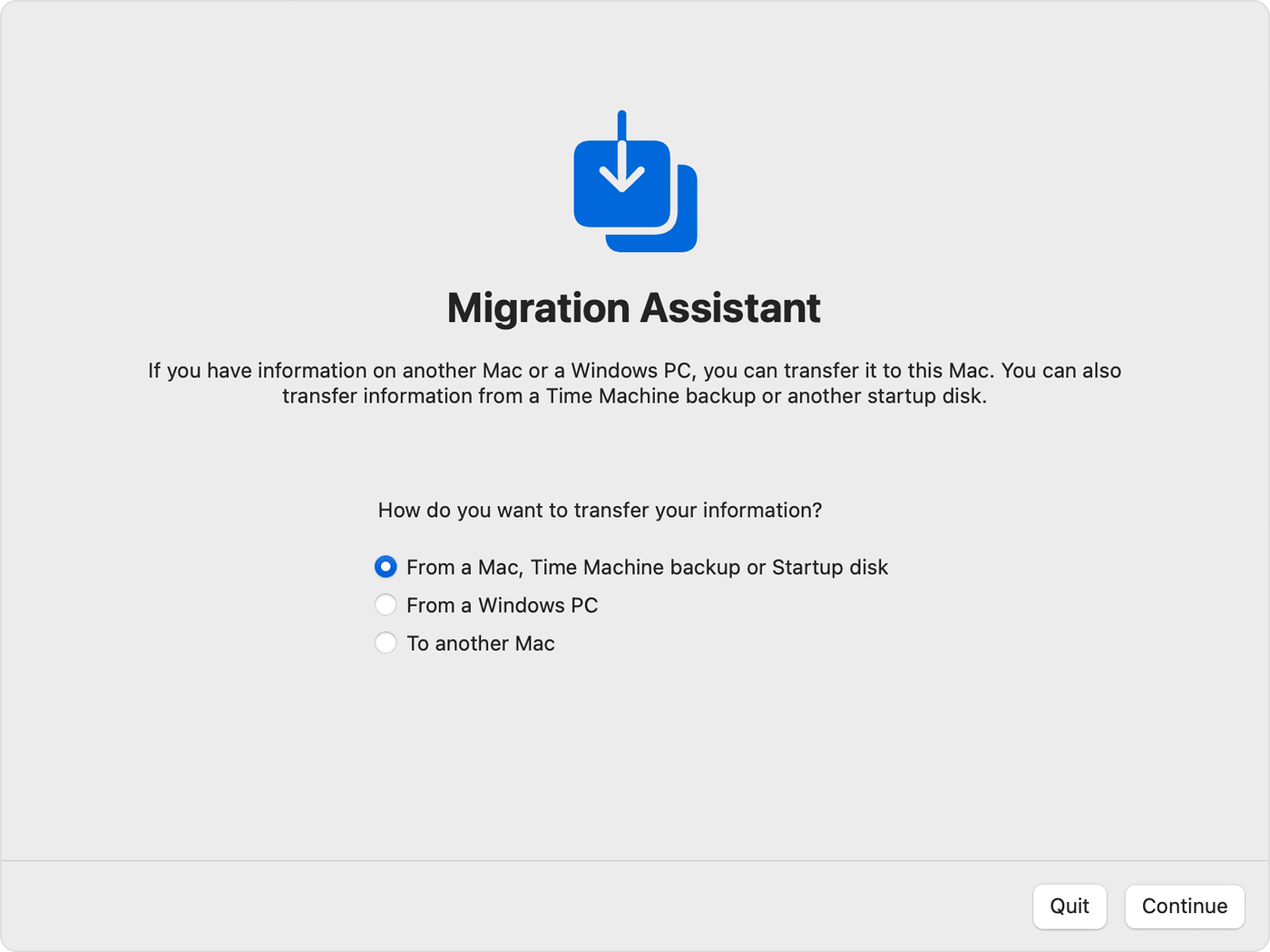
3. When asked how you want to transfer your information, select the option to transfer from a Mac, Time Machine backup, or startup disk. Then click Continue.
Migration Assistant: How do you want to transfer your information?

On your old Mac
1. Open Migration Assistant, which is in the Utilities folder of your Applications folder. Then click Continue.
2. When asked how you want to transfer your information, select the option to transfer to another Mac. Then click Continue. 

On your new Mac
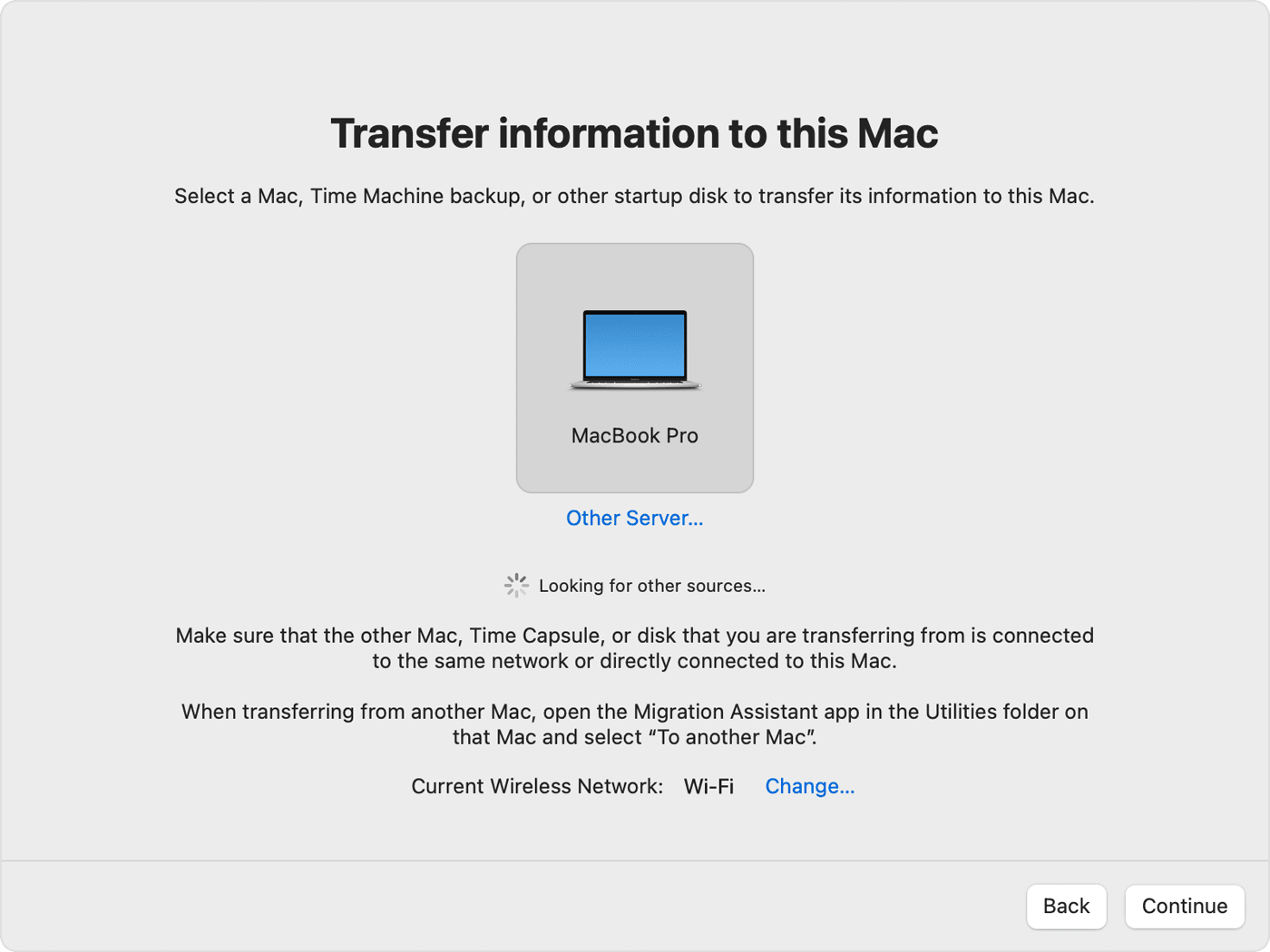
When asked to select a Mac, Time Machine backup, or other startup disk, select the other Mac. Then click Continue.
Migration Assistant: Select a transfer source

On your old Mac
If you see a security code, make sure that it's the same code shown on your new Mac. Then click Continue.

On your new Mac
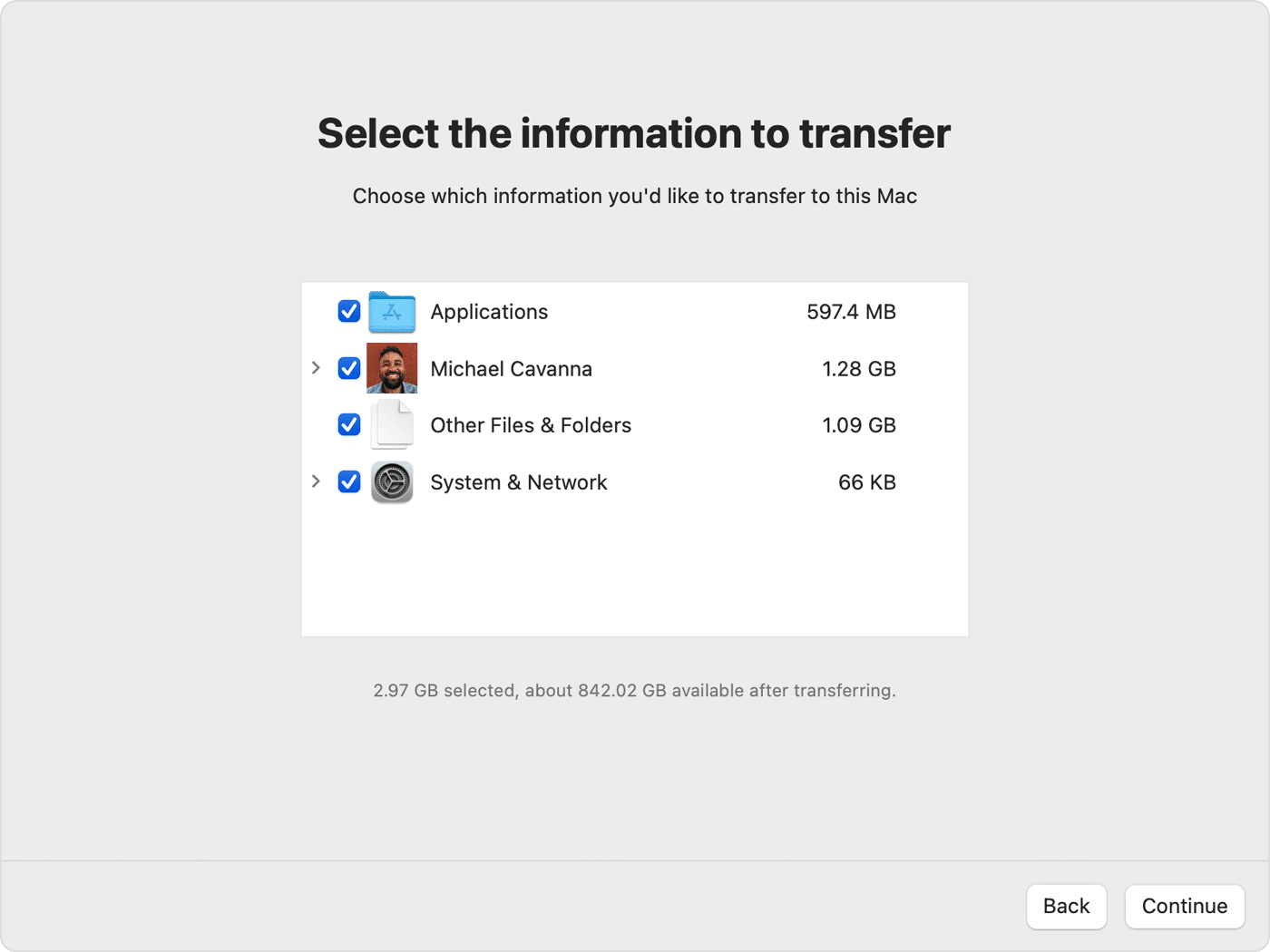
1. Select the information to transfer.

In the example shown here, Michael Cavanna is a macOS user account. If it has the same name as an account already on your new Mac, you're prompted to either rename the old account or replace the one on your new Mac. If you rename, the old account will appear as a separate user on your new Mac, with a separate home folder and login. If you replace, the old account will delete and then replace the account on your new Mac, including everything in its home folder.
Migration Assistant: Choose the info to be transferred
2. Click Continue to start the transfer. Large transfer might need hours to complete, so it might be easiest to start in the evening and allow migration to complete overnight.
3. After Migration Assistant is done, quit Migration Assistant on both computers, then log in to the migrated account on your new Mac to see its files.


This resource also covers that process: Move your content to a new Mac - Apple Support


Afterwards, you can enable iCloud on both Macs to keep your notes, photos and files synced between them:


1. Use the latest version of macOS
Update to the latest version of macOS. Choose Apple menu  > About This Mac > Software Update. If you’re using macOS Mojave or earlier, choose Apple menu  > App Store. See if there’s an update available.
 
2. Sign in to iCloud
Choose Apple menu  > System Preferences, then click Apple ID. If you’re using macOS Mojave or earlier, click iCloud. Enter your Apple ID. When you sign in, iCloud is turned on automatically.
Have questions about Apple ID?

3. Customize your iCloud settings
Choose Apple menu  > System Preferences, then click Apple ID. If you’re using macOS Mojave or earlier, click iCloud. Choose the apps—like Notes, Photos, and iCloud Drive—that you want to use with iCloud.


You can also find those details in this article: Set up iCloud on your Mac - Apple Support


If you have any further questions about either process, just let us know. We'll keep moving forward from there.

4 replies
Question marked as Top-ranking reply

Oct 12, 2022 11:35 AM in response to AmberMai23

Hello AmberMai23,


If you haven't already done so, you can use the steps below to migration the data from your MacBook Pro to your new Mac mini:


Get ready
1. Install all available software updates on both computers.
2. If both computers are using macOS Sierra or later, place them near each other with Wi-Fi  turned on. If either one is using OS X El Capitan or earlier, make sure that both are on the same network.
3. On your old Mac, choose Apple menu  > System Preferences, then click Sharing. Make sure that a name appears in the Computer Name field.
4. If you installed antivirus or firewall software on either Mac, turn that software off until after migration is complete.

Use Migration Assistant
You're now ready to use Migration Assistant to move your files from the old Mac to the new one.

On your new Mac
1. Open Migration Assistant, which is in the Utilities folder of your Applications folder. Then click Continue.
2. When Migration Assistant asks you for permission to make changes, enter your administrator password, then click OK.
3. When asked how you want to transfer your information, select the option to transfer from a Mac, Time Machine backup, or startup disk. Then click Continue.
Migration Assistant: How do you want to transfer your information?

On your old Mac
1. Open Migration Assistant, which is in the Utilities folder of your Applications folder. Then click Continue.
2. When asked how you want to transfer your information, select the option to transfer to another Mac. Then click Continue. 

On your new Mac
When asked to select a Mac, Time Machine backup, or other startup disk, select the other Mac. Then click Continue.
Migration Assistant: Select a transfer source

On your old Mac
If you see a security code, make sure that it's the same code shown on your new Mac. Then click Continue.

On your new Mac
1. Select the information to transfer.

In the example shown here, Michael Cavanna is a macOS user account. If it has the same name as an account already on your new Mac, you're prompted to either rename the old account or replace the one on your new Mac. If you rename, the old account will appear as a separate user on your new Mac, with a separate home folder and login. If you replace, the old account will delete and then replace the account on your new Mac, including everything in its home folder.
Migration Assistant: Choose the info to be transferred
2. Click Continue to start the transfer. Large transfer might need hours to complete, so it might be easiest to start in the evening and allow migration to complete overnight.
3. After Migration Assistant is done, quit Migration Assistant on both computers, then log in to the migrated account on your new Mac to see its files.


This resource also covers that process: Move your content to a new Mac - Apple Support


Afterwards, you can enable iCloud on both Macs to keep your notes, photos and files synced between them:


1. Use the latest version of macOS
Update to the latest version of macOS. Choose Apple menu  > About This Mac > Software Update. If you’re using macOS Mojave or earlier, choose Apple menu  > App Store. See if there’s an update available.
 
2. Sign in to iCloud
Choose Apple menu  > System Preferences, then click Apple ID. If you’re using macOS Mojave or earlier, click iCloud. Enter your Apple ID. When you sign in, iCloud is turned on automatically.
Have questions about Apple ID?

3. Customize your iCloud settings
Choose Apple menu  > System Preferences, then click Apple ID. If you’re using macOS Mojave or earlier, click iCloud. Choose the apps—like Notes, Photos, and iCloud Drive—that you want to use with iCloud.


You can also find those details in this article: Set up iCloud on your Mac - Apple Support


If you have any further questions about either process, just let us know. We'll keep moving forward from there.

Oct 15, 2022 12:11 PM in response to AmberMai23

AmberMai23 wrote:

Hi everyone, I have a MacBook Pro and it needs to get a battery fix. I have bought a MacMini desktop and I want to sync the two devices so that I can work with my laptop on the go but use the desktop as a primary device. Can you recommend steps to take to make the two devices as similar as possible to each other whenever I switch? Is there a how to somewhere for this? I have searched for days and no luck.

Using Migration Assistant as explained in another reply is a good way to INITIALLY synchronize everything on the two computers. Note that Migration Assistant tends to go faster and more smoothly if you perform a Time Machine backup of one machine and then migrate from that Time Machine backup to the machine you want to be close to identical. Also, things tend to go more smoothly if you migrate only users and files, and reinstall applications separately again on the other Mac. But if the two computers are running the same MacOS, migrating everything may be fine. I always do just accounts and files, then reinstall or redownload applications and software.


Once you have both machines "synchronized," keeping them that way can be challenging. One approach is to use iCloud, which can synchronize everything in your Desktop and Documents folders, which may be all you need. It can also keep Mail synchronized.


What is iCloud? - Apple Support


You can also use Dropbox or similar services like Microsoft OneDrive or Google to keep specific files or folders synchronized.

Oct 15, 2022 11:55 AM in response to AmberMai23

Thanks for getting back to us, AmberMai23.


To answer your question, apps will be copied as long as you make that selection during the migration process. Purchased apps are normally tied to your Apple ID and can always be downloaded again if applicable: Redownload apps and games from Apple - Apple Support


"How to redownload apps on Mac

  1. Open the App Store on your Mac.
  2. Click your name in the sidebar, then find the app that you want to download. If you don't see your name in the sidebar, click Sign In, sign in with your Apple ID, then click your photo in the sidebar.
  3. If you use Family Sharing, you can choose a family member's name next to "Purchased by" to see their purchases.
  4. Click the download button  for the app.

Learn what to do if you can't redownload the app."


Best regards.

This thread has been closed by the system or the community team. You may vote for any posts you find helpful, or search the Community for additional answers.

Syncing or mirroring laptop and desktop

Welcome to Apple Support Community
A forum where Apple customers help each other with their products. Get started with your Apple Account.