want to configure exchange email account on Iphone XR
want to configure exchange email account on Iphone XR
want to configure exchange email account on Iphone XR
Hi yatindra97,
Welcome to Apple Support Communities. We understand that you'd like to set up an Exchange email on your iPhone. We'd like to help.
From what you've shared, this resource may be helpful: Set up Exchange ActiveSync on your iPhone or iPad - Apple Support
Set up Exchange ActiveSync on your iPhone or iPad
When you add your Exchange ActiveSync account, you can sync your Mail, Contacts, Calendars, Reminders, and Notes with your iOS device.
1. Add your Exchange account
Tap Settings > Mail > Add Account > Microsoft Exchange.
If you're adding another account, tap Accounts > Add Account.
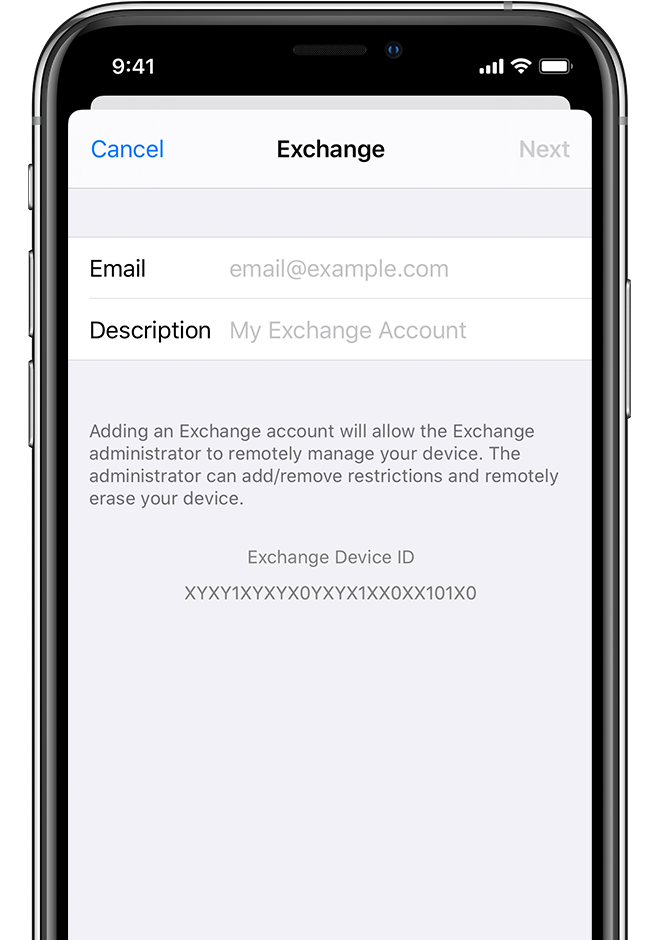
2. Enter your email address
Enter your email address, then tap Next. You can also enter an account description.
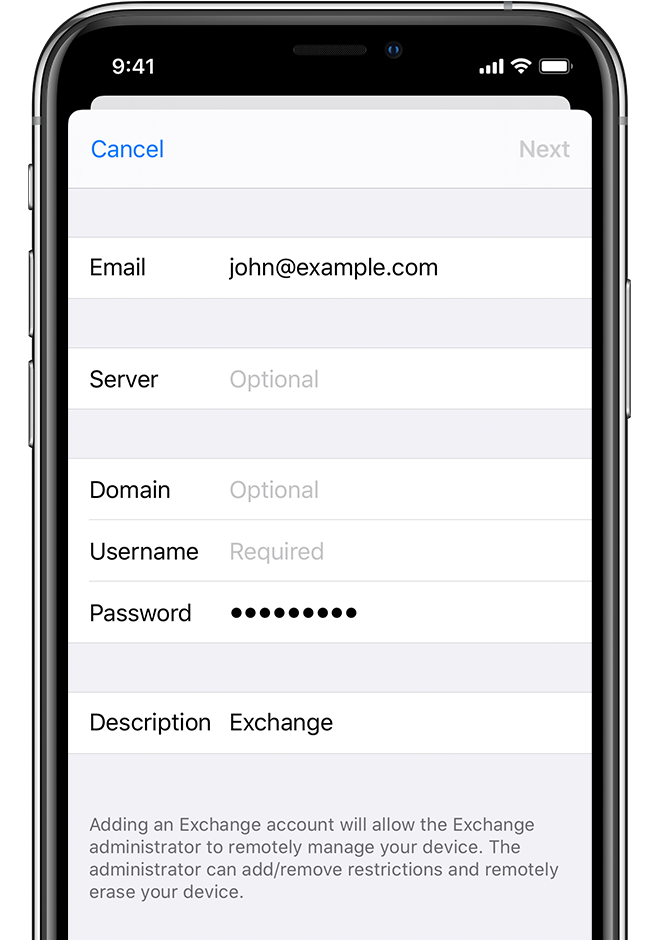
3. Connect to your Exchange Server
After you enter your email address, choose Sign In or Configure Manually.
Tap Sign In to automatically discover your Exchange account information. If your account uses modern authentication, you'll be guided through a custom authentication workflow.
Tap Configure Manually to set up your account with Basic authentication. Enter your email password, then tap Next. You might also be prompted to enter additional server information, which you can get from your Exchange Server administrator.
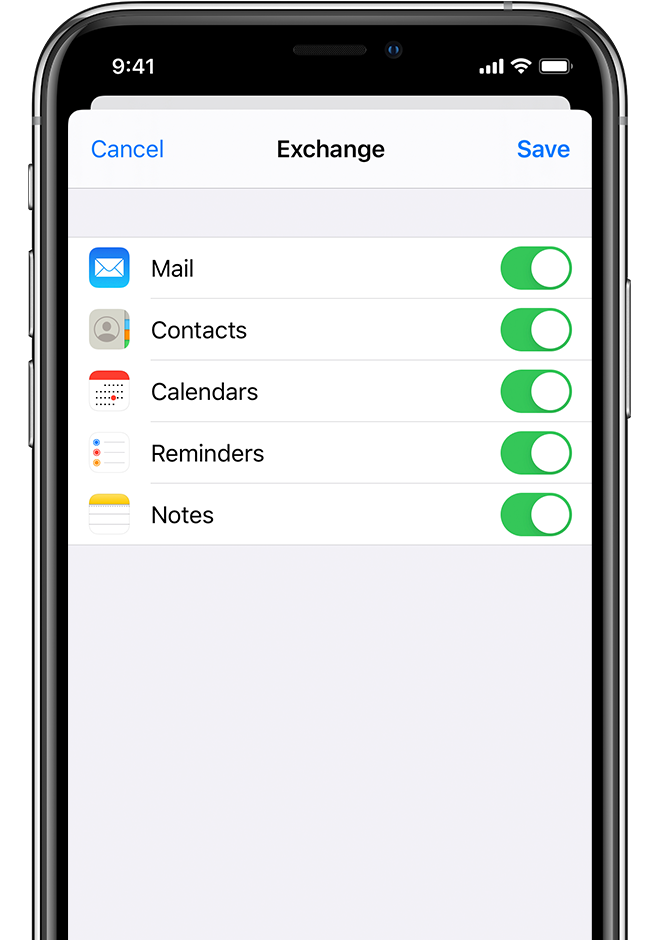
4. Sync your content
You can sync Mail, Contacts, Calendars, Reminders, and Notes. When you're finished, tap Save.
If you run into any issues, it may be helpful to reach out to Microsoft for additional tips.
Cheers!
Hi yatindra97,
Welcome to Apple Support Communities. We understand that you'd like to set up an Exchange email on your iPhone. We'd like to help.
From what you've shared, this resource may be helpful: Set up Exchange ActiveSync on your iPhone or iPad - Apple Support
Set up Exchange ActiveSync on your iPhone or iPad
When you add your Exchange ActiveSync account, you can sync your Mail, Contacts, Calendars, Reminders, and Notes with your iOS device.
1. Add your Exchange account
Tap Settings > Mail > Add Account > Microsoft Exchange.
If you're adding another account, tap Accounts > Add Account.
2. Enter your email address
Enter your email address, then tap Next. You can also enter an account description.
3. Connect to your Exchange Server
After you enter your email address, choose Sign In or Configure Manually.
Tap Sign In to automatically discover your Exchange account information. If your account uses modern authentication, you'll be guided through a custom authentication workflow.
Tap Configure Manually to set up your account with Basic authentication. Enter your email password, then tap Next. You might also be prompted to enter additional server information, which you can get from your Exchange Server administrator.
4. Sync your content
You can sync Mail, Contacts, Calendars, Reminders, and Notes. When you're finished, tap Save.
If you run into any issues, it may be helpful to reach out to Microsoft for additional tips.
Cheers!
want to configure exchange email account on Iphone XR