Messaging not working for all contacts

I just got an iPhone 14 pro and some of my message threads with some of my contacts are not working. I will get a notification that I received a text from them, with a snippet of the message, but when I open the thread it just sits there spinning. Nothing shows up, even if I text them just then, it doesn’t show up. Two of the contacts are iPhone users, and they confirm that they receive messages from me, but nothing I do changes how it looks for me. I have restarted the phone multiple times, triple checked my settings, and have deleted a bunch of old conversation threads in case it’s a storage problem… I’m so lost, help please!

iPhone 14 Pro

Posted on Oct 23, 2022 1:31 PM

Reply
Question marked as Top-ranking reply

Posted on Oct 24, 2022 6:47 PM

Hello Morgana2D,


Thank you for reaching out to Apple Support Communities, and we'll be happy to help in any way we can. We understand you're having issues with messages not loading on your iPhone. Does your iPhone need updating to iOS 16.1? Do you have a recent backup for the data in your iPhone in iCloud or your computer? If not, we recommend that you create one as described here: How to back up your iPhone, iPad, and iPod touch - Apple Support


Then update your iOS as outlined here: Update your iPhone or iPad - Apple Support


"Update your iPhone or iPad

Learn how to update your iPhone or iPad to the latest version of iOS or iPadOS.


You can update your iPhone or iPad to the latest version of iOS or iPadOS wirelessly.

If the update doesn't appear on your device, use your computer to update your device manually. Learn how to update your device manually if you're using a Mac with macOS Catalina or later, or if you're using a Mac with macOS Mojave or earlier or a Windows PC.


Update your iPhone or iPad wirelessly

  1. Back up your device using iCloud or your computer.
  2. Plug your device into power and connect to the internet with Wi-Fi.
  3. Go to Settings > General, then tap Software Update.
  4. If you see more than one software update option available, choose the one that you want to install.
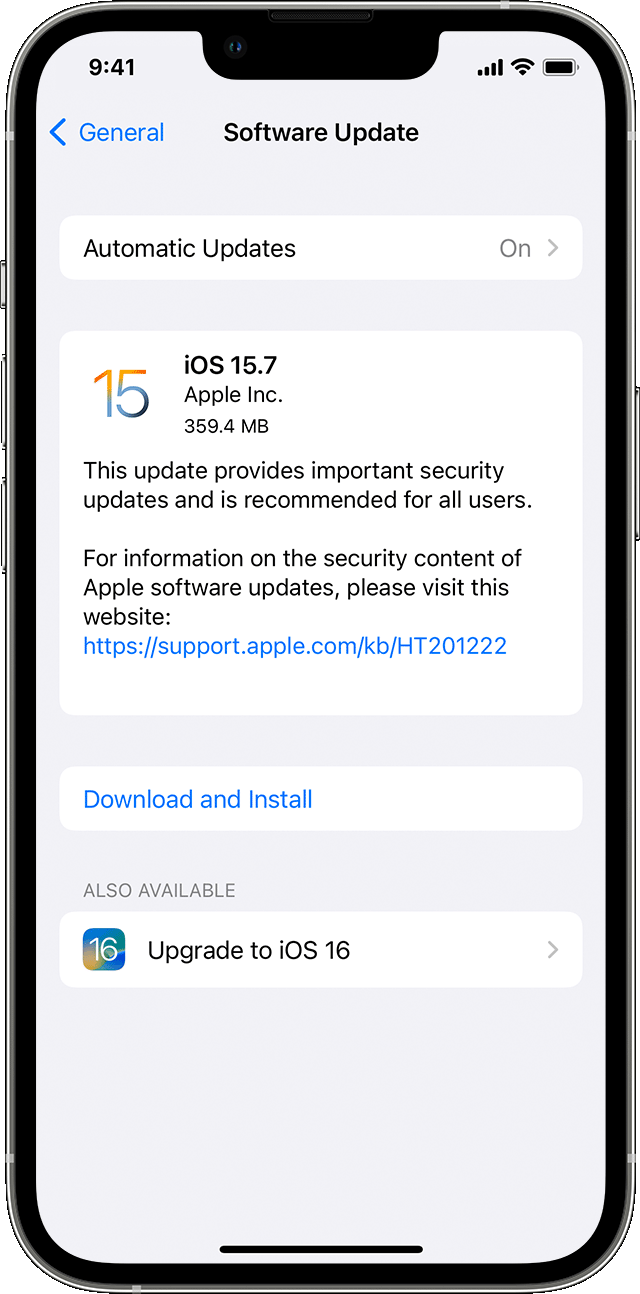
  5. The Settings app on iPhone showing options to update to iOS 15.7 or iOS 16.
  6. Tap Install Now. If you see Download and Install instead, tap it to download the update, enter your passcode, then tap Install Now. If you don't know your passcode, learn what to do.

If you get an alert when updating wirelessly

Learn what to do if you see an alert message while trying to update your device wirelessly.

Some software updates aren't available wirelessly. VPN or proxy connections might prevent your device from contacting the update servers.

If you need more space when updating wirelessly

If a message asks to temporarily remove apps because the software needs more space for the update, tap Continue to allow apps to be removed. After installation is complete, those apps are automatically reinstalled. If you tap Cancel instead, you can delete content manually from your device to add more space.


Customize automatic updates

Your device can update automatically overnight while it's charging.
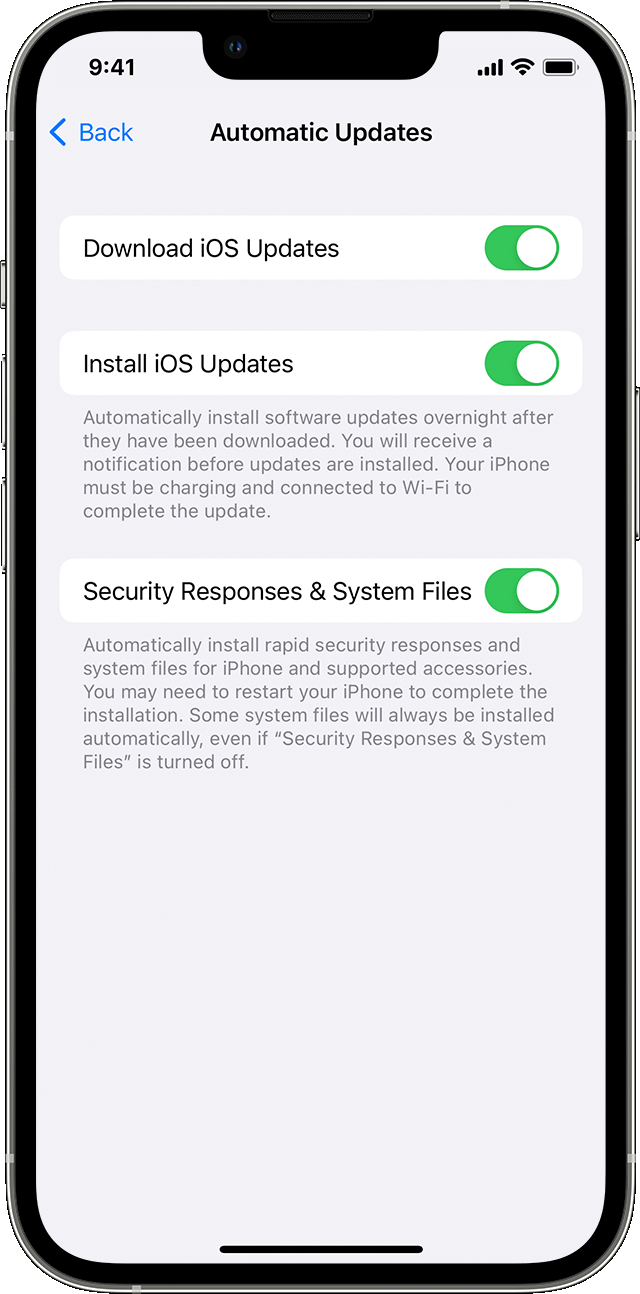
The Settings app on iPhone showing options to update your device automatically. 

Turn on automatic updates

  1. Go to Settings > General > Software Update.
  2. Tap Automatic Updates, then turn on Download iOS Updates.
  3. Turn on Install iOS Updates. Your device will automatically update to the latest version of iOS or iPadOS. Some updates might need to be installed manually."


We hope this helps.


Cheers!


Similar questions

1 reply
Question marked as Top-ranking reply

Oct 24, 2022 6:47 PM in response to Morgana2D

Hello Morgana2D,


Thank you for reaching out to Apple Support Communities, and we'll be happy to help in any way we can. We understand you're having issues with messages not loading on your iPhone. Does your iPhone need updating to iOS 16.1? Do you have a recent backup for the data in your iPhone in iCloud or your computer? If not, we recommend that you create one as described here: How to back up your iPhone, iPad, and iPod touch - Apple Support


Then update your iOS as outlined here: Update your iPhone or iPad - Apple Support


"Update your iPhone or iPad

Learn how to update your iPhone or iPad to the latest version of iOS or iPadOS.


You can update your iPhone or iPad to the latest version of iOS or iPadOS wirelessly.

If the update doesn't appear on your device, use your computer to update your device manually. Learn how to update your device manually if you're using a Mac with macOS Catalina or later, or if you're using a Mac with macOS Mojave or earlier or a Windows PC.


Update your iPhone or iPad wirelessly

  1. Back up your device using iCloud or your computer.
  2. Plug your device into power and connect to the internet with Wi-Fi.
  3. Go to Settings > General, then tap Software Update.
  4. If you see more than one software update option available, choose the one that you want to install.
  5. The Settings app on iPhone showing options to update to iOS 15.7 or iOS 16.
  6. Tap Install Now. If you see Download and Install instead, tap it to download the update, enter your passcode, then tap Install Now. If you don't know your passcode, learn what to do.

If you get an alert when updating wirelessly

Learn what to do if you see an alert message while trying to update your device wirelessly.

Some software updates aren't available wirelessly. VPN or proxy connections might prevent your device from contacting the update servers.

If you need more space when updating wirelessly

If a message asks to temporarily remove apps because the software needs more space for the update, tap Continue to allow apps to be removed. After installation is complete, those apps are automatically reinstalled. If you tap Cancel instead, you can delete content manually from your device to add more space.


Customize automatic updates

Your device can update automatically overnight while it's charging.

The Settings app on iPhone showing options to update your device automatically. 

Turn on automatic updates

  1. Go to Settings > General > Software Update.
  2. Tap Automatic Updates, then turn on Download iOS Updates.
  3. Turn on Install iOS Updates. Your device will automatically update to the latest version of iOS or iPadOS. Some updates might need to be installed manually."


We hope this helps.


Cheers!


This thread has been closed by the system or the community team. You may vote for any posts you find helpful, or search the Community for additional answers.

Messaging not working for all contacts

Welcome to Apple Support Community
A forum where Apple customers help each other with their products. Get started with your Apple Account.