Greetings Hanuman Hoffman,
Thanks for updating us with this information.
Have you confirmed that you have the latest supported macOS version installed with your MacBook Pro? If there is an update, or upgrade available, let's confirm you have backed up your Mac before installing it. For assistance with these steps, check out the following steps and more details can be located here: Update macOS on Mac - Apple Support
Use Software Update
Before installing new software, it's a good idea to back up your Mac.
1. From the Apple menu in the corner of your screen:
• Choose System Settings. Then click General in the sidebar, and Software Update on the right.
• Or choose System Preferences. Then click Software Update.
2. If Software Update finds new software, click the Update Now or Upgrade Now button to install it.
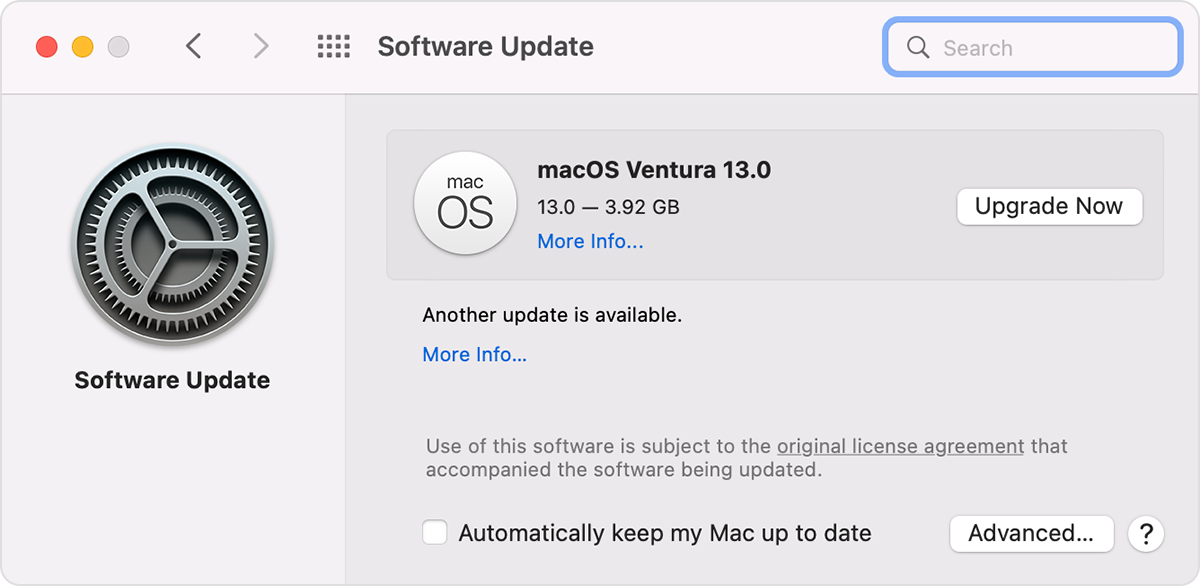
3. Enter your administrator password, if asked. During installation, your Mac might restart, and you might see a progress bar or blank screen several times.
If you have the latest macOS version installed, let us know if the same happens after restarting your MacBook Pro. If it does, see if adjusting the screen size with QuickTime Player changes the results for us. You can locate steps for this here: Choose a screen size in QuickTime Player on Mac - Apple Support
We look forward to hearing more, and let us know if you have the Finder window open or a file playing when it opens at the bottom left corner.
Take care!


