Slow internet with macOS Monterey

So, has Apple abandoned this issue? Will it be repeatable in Ventura?

Apple user since 1983..very disappointed with the tech support as of late.

Online classes, video conferencing, downloading large video, or any video file, for that matter, is a joke anymore. I might as well be on dial-up.

Ridiculous and unacceptable Apple.

Get it together.

iMac 27″, macOS 12.6

Posted on Oct 29, 2022 3:30 PM

Reply
Question marked as Top-ranking reply

Posted on Nov 4, 2022 7:58 AM

To begin fixing this problem, follow the instructions below.


First, ensure you have a reliable backup of your Mac, in case something should go wrong with continued troubleshooting. To learn how to do that, please read Back up your Mac with Time Machine.


  • A backup is a fundamental prerequisite regardless of whatever method you may choose uninstall adware, and would apply even if your Mac were running perfectly well. Do not overlook this fundamental requirement. It's important.


Next: This step will prevent the scam products from loading so that they can be removed while they are inactive. Restart your Mac in "Safe Mode", and log in: Use safe mode to isolate issues with your Mac. Starting in Safe Mode takes longer than usual so let it finish. The rogue processes affecting that Mac are inoperative in "Safe Mode".


While in that mode, navigate to the following folder, and open it:


/Library/LaunchDaemons


To open that folder, copy the entire line above and paste it in the Finder's Go menu > Go to Folder... field. Make it look exactly like this:
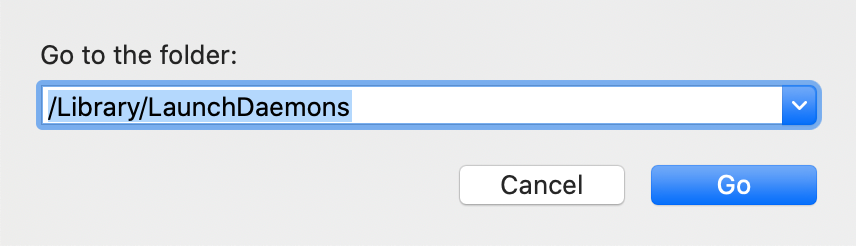


... and click the Go button.


A Finder window will open, containing many of the files you will need to remove.


Locate and drag the following files to the Trash:


com.OriginalModuled.plist
com.OriginalModule.system.plist
com.10994683933603671667.5379D676FF0339F044CEE15AC2587BC3CC8000EF00211F765C5AD38E29628C51.plist
com.10994683933603671667.5DE5EEE279B5A8747559BE09FA00362C78A7C4F85C6BDB94B49F5CE2F4680F10.plist
net.10566657613394207731.D301DD95-359B-4069-9BE9-23F32BE72500.plist
net.9347966166000225056.1A0F7A76-BBE3-4010-BE53-994B4530C53D.plist
org.3093854654172852759.5062358E-B084-40EC-8BE9-9397EDFACED3.plist


By now it should be abundantly clear all those files consisting of a bunch of apparently random numbers are malicious. If you find any similar ones in that folder trash them also.


In the same manner as the above, navigate to this next one:


~/Library/LaunchAgents


The Finder's Go menu > Go to Folder... field should look like this:


... and click the Go button.


In that second folder, locate and drag the following files to the Trash:


com.OriginalModule.service.plist
com.8250209770112325633.plist
com.372D3841.0FDE.485D.B9F7.418B1646877B.plist
com.949AE740.225F.4323.ADD7.29EE31EFA5CA.plist
org.cse1am0p6uks9nzn2a0tmttfczyr1y4pg2d.plist


  • Note: By default, both of those folders should be completely empty except for files required for programs or services that you are 100% certain you need. In your case, they may contain files for Amazon, Google, printers such as Epson or HP, and "Wibu" (whatever that is) but the point is you should have at least a passing familiarity with the contents of those folders.


Next: Open (Apple menu) > System Preferences... > Network. Select the network interface you normally use (usually, it's Wi-Fi) then the Advanced... button, and select the Proxies tab. Under Select a protocol to configure determine if any protocols are selected. Normally, none are selected, so unless you have reason to believe you require one or more of them de-select any that have been selected. Click OK then Apply then close System Preferences.


Next: Review / reset your browser preferences, such as your desired Home Page and other settings. Specific to Google Chrome assuming you use it, you may need to reset it to its defaults according to Google's instructions, here: https://support.google.com/chrome/answer/3296214?hl=en


Then: Restart your Mac normally (not "Safe Mode"), and observe. It's not necessary to empty the Trash. Additional actions may be required based upon your observations.


Be sure to create that Time Machine backup before doing any of the above. From the report you posted, it looks like you have already been using Time Machine, but the importance of that fundamental prerequisite cannot be overstated.


Please write back with your results.

Similar questions

13 replies
Question marked as Top-ranking reply

Nov 4, 2022 7:58 AM in response to stradasphereradio

To begin fixing this problem, follow the instructions below.


First, ensure you have a reliable backup of your Mac, in case something should go wrong with continued troubleshooting. To learn how to do that, please read Back up your Mac with Time Machine.


  • A backup is a fundamental prerequisite regardless of whatever method you may choose uninstall adware, and would apply even if your Mac were running perfectly well. Do not overlook this fundamental requirement. It's important.


Next: This step will prevent the scam products from loading so that they can be removed while they are inactive. Restart your Mac in "Safe Mode", and log in: Use safe mode to isolate issues with your Mac. Starting in Safe Mode takes longer than usual so let it finish. The rogue processes affecting that Mac are inoperative in "Safe Mode".


While in that mode, navigate to the following folder, and open it:


/Library/LaunchDaemons


To open that folder, copy the entire line above and paste it in the Finder's Go menu > Go to Folder... field. Make it look exactly like this:


... and click the Go button.


A Finder window will open, containing many of the files you will need to remove.


Locate and drag the following files to the Trash:


com.OriginalModuled.plist
com.OriginalModule.system.plist
com.10994683933603671667.5379D676FF0339F044CEE15AC2587BC3CC8000EF00211F765C5AD38E29628C51.plist
com.10994683933603671667.5DE5EEE279B5A8747559BE09FA00362C78A7C4F85C6BDB94B49F5CE2F4680F10.plist
net.10566657613394207731.D301DD95-359B-4069-9BE9-23F32BE72500.plist
net.9347966166000225056.1A0F7A76-BBE3-4010-BE53-994B4530C53D.plist
org.3093854654172852759.5062358E-B084-40EC-8BE9-9397EDFACED3.plist


By now it should be abundantly clear all those files consisting of a bunch of apparently random numbers are malicious. If you find any similar ones in that folder trash them also.


In the same manner as the above, navigate to this next one:


~/Library/LaunchAgents


The Finder's Go menu > Go to Folder... field should look like this:


... and click the Go button.


In that second folder, locate and drag the following files to the Trash:


com.OriginalModule.service.plist
com.8250209770112325633.plist
com.372D3841.0FDE.485D.B9F7.418B1646877B.plist
com.949AE740.225F.4323.ADD7.29EE31EFA5CA.plist
org.cse1am0p6uks9nzn2a0tmttfczyr1y4pg2d.plist


  • Note: By default, both of those folders should be completely empty except for files required for programs or services that you are 100% certain you need. In your case, they may contain files for Amazon, Google, printers such as Epson or HP, and "Wibu" (whatever that is) but the point is you should have at least a passing familiarity with the contents of those folders.


Next: Open (Apple menu) > System Preferences... > Network. Select the network interface you normally use (usually, it's Wi-Fi) then the Advanced... button, and select the Proxies tab. Under Select a protocol to configure determine if any protocols are selected. Normally, none are selected, so unless you have reason to believe you require one or more of them de-select any that have been selected. Click OK then Apply then close System Preferences.


Next: Review / reset your browser preferences, such as your desired Home Page and other settings. Specific to Google Chrome assuming you use it, you may need to reset it to its defaults according to Google's instructions, here: https://support.google.com/chrome/answer/3296214?hl=en


Then: Restart your Mac normally (not "Safe Mode"), and observe. It's not necessary to empty the Trash. Additional actions may be required based upon your observations.


Be sure to create that Time Machine backup before doing any of the above. From the report you posted, it looks like you have already been using Time Machine, but the importance of that fundamental prerequisite cannot be overstated.


Please write back with your results.

Oct 30, 2022 11:32 AM in response to stradasphereradio

I understand your Internet connection is unacceptably slow, that it affects only your iMac, and that you correlated its poor performance to upgrading macOS. That also manifested in problems such as the screen going black on occasion. You performed exhaustive, time-consuming troubleshooting on your own and with Apple's help. No resolution appears to be forthcoming, everyone appears to have given up, Apple doesn't want to know you, and you're basically stuck with no place else to go.


Given all that you've been through I need to proceed on the assumption that Apple already had you do a number of fundamental troubleshooting steps, probably many times over. In so assuming I'm going to bypass some of the more obvious ones and go directly to a couple that are more likely to suggest some actionable information.


Let's start with two simple steps.


First, restart your Mac in Recovery mode: Use macOS Recovery on an Intel-based Mac - Apple Support. Once in Recovery you will find a screen with several options, one of which is to launch the Safari app. Do that, and use it long enough to draw a conclusion about its Internet connection speed. For example you can launch Netflix (I think) and determine if its videos download at speeds comparable to your other devices. In the case of Netflix you will need to log in with your Netflix account information, so have those credentials ready ahead of time.


If using Safari in Recovery mode is every bit as slow as it has been, then there is a significant likelihood of some kind of hardware failure affecting that Mac. More information may follow from the results of this next step:


First quit Recovery and restart your Mac normally.


Please read How to use the Add Text Feature When Posting Large Amounts of Text, i.e. an Etrecheck Report - Apple Community. That User Tip describes how to download and use EtreCheck, a program that will collect a lot of basic information about your Mac and assemble it into a report form that may prove useful. Post that report in a reply to this Discussion, according to that User Tip.


EtreCheck may also reveal certain other causes Apple will be reluctant to discuss — which could explain their apparent silence on the matter. For example, if Apple were to determine you installed a non-Apple product responsible for the behavior, their interest in fixing your Mac will not only diminish, it will disappear completely. They won't want to know you. Apple fixes what they can fix, but they can't fix software that isn't theirs. They won't even implicate it as a potential cause, due to an unwillingness to "play favorites" with one product vendor vs. some other.


Let me know what you determine.

Nov 4, 2022 10:33 AM in response to stradasphereradio

In the meantime you might want to try using Safari in Recovery mode:


John Galt wrote:
First, restart your Mac in Recovery mode: Use macOS Recovery on an Intel-based Mac - Apple Support. Once in Recovery you will find a screen with several options, one of which is to launch the Safari app. Do that, and use it long enough to draw a conclusion about its Internet connection speed. For example you can launch Netflix (I think) and determine if its videos download at speeds comparable to your other devices. In the case of Netflix you will need to log in with your Netflix account information, so have those credentials ready ahead of time.


From that EtreCheck report the problems affecting that Mac are clear, and should be fixed anyway.

Oct 29, 2022 3:36 PM in response to stradasphereradio

You are not addressing Apple on this site. To contact Apple, Contact Apple.


If you have a question, please ask. I understand you are experiencing a slow Internet connection. There are a number of possible reasons for that, many of which do not involve Apple or your Mac, so more information would help.


Writing an effective Apple Support Communities Question - Apple Community

Oct 30, 2022 10:44 AM in response to John Galt

There is a whole thread on this topic. which is 6 pages long that has since been closed.

Slow internet with macOS Monterey - Apple Community

It is not simply a "slow internet connection".

When I upgraded to Monterey I expected improvements over Big Sur. In Big Sur I had blazing fast speeds..both uploads and downloads. I was able to stream Netflix, my online lessons, video conferencing was a snap. Instead I now have dial-up type speeds. Small files can take up to an hour to download.

I have tried everything suggested in the forums from creating a new network, splitting networks, going straight from my router to my i-Mac via ethernet and still nothing changes. I even requested that my ISP replace my router (which they did) and the issue still persists. I have 2 i-Pads, a Chromebook, an Acer running Linux, and a 2011 MacBook Pro that all run off the same network and there is no issue with them at all. My Android phones run off my home wi-fi perfectly. The only issue I have is with my 2020 27" i-Mac that I paid over $3k for. It takes me up to 2 hours to download my classes since Monterey when it took mere minutes in Big Sur.

Downgrading to Big Sur is not an option either. Since the issue is a slow internet connection, it will take upwards of 24 hrs to download Big Sur, reinstall, and get it up to the last version.

And there is the issue of my screen going black at random times with no way of recreating the issue. Been on the phone with Apple Tech many a time since the 1st week that I bought my iMac..and still no resolution. I have 3 yrs worth of Apple Care that I paid for and I am no closer today than I was from my 1st report to getting any resolution to the black screen issue or the slow internet. In fact the last time I spoke to Apple they said they would get back to me in 24 hours after running a remote diagnostic on my system.

That was 5 months ago.

And yes, I called them/emailed them several times...no response.

So John I know you are trying to help and I do appreciate it. In fact it's the folks in the forums that have been most helpful.

Yes, I am frustrated and disappointed. I have been an Apple loyalist since my high school days in computer lab working an an Apple II. My only Windows machine is the Acer and I installed Linux on it after about a week because I can't stand the Windows workflow, aesthetic or experience. In fact, I have customized my Linux desktop with Mac icons, Dock style bar, windows, etc., because I love Apple. But this experience has left me with a bad taste..and after my 2 year experience with Apple Care and having no answers I am rather over the whole thing.

I am hoping that Ventura will at least resolve my internet issues. Catalina, Big Sur, and Monterey have all had the same black screen issues. I am confident it is a bad video card or a cold solder at the least. But Apple doesn't think so..they keep chasing software issues and PRAM resets, disconnect this, disconnect that..the same thing over and over.

I guess I am just dismayed and losing confidence in Apple.

Give the i-Phone a rest and get back to your roots.


Dec 17, 2022 2:26 PM in response to stradasphereradio

You're welcome. The particular problem revealed in that EtreCheck report — characterized by all those strange LaunchAgents and LaunchDaemons files — is not common. I recall encountering only one other similar report. If you suspect it is not completely resolved, either now or at any time in the future, or should you encounter any other unexpected behaviour, then please run EtreCheck again and post an updated report.

Oct 30, 2022 6:30 PM in response to John Galt

Thank you John! I will give this a try!

Oh, BTW, the screen going blank started happening the 1st week that I had my iMac when I updated Catalina after 1st setting my acct up. I didn't think too much of it at the time, I simply restarted my Mac. The incident never generates a crash report. No other software had been installed other than Logic which I purchased at the time I bought the iMac. Within the coming weeks the issue would randomly occur and subsequent updates and upgrades did not fix the issue. This happens to me as infrequent as once a month to several times in a day. Apple has not been able to figure it.

Let's see what EtreCheck reveals.

Dec 17, 2022 8:36 AM in response to John Galt

Hello! Just reporting back after things have calmed down a bit here with work and recording.

So I followed the instructions you laid out for me (succinctly, I might add) just a few moments ago. I will be monitoring and updating.

I am still running Monterey and have yet to take the dive into Ventura as not all of my audio apps are supported as of this writing.

Thank you John (and everyone else who gave advice). It's folks like you who keep the MUG attitude alive and well!

This thread has been closed by the system or the community team. You may vote for any posts you find helpful, or search the Community for additional answers.

Slow internet with macOS Monterey

Welcome to Apple Support Community
A forum where Apple customers help each other with their products. Get started with your Apple Account.