iPhone Freeze Bug And Missing Keyboard in App Library

So I just got the iPhone 14 Pro Max recently and updated to iOS 16.1 but even with that, my iPhone freezes up on different screens from time to time. It’s not too concerning…yet but has made me a little uncomfortable. Up until now my iPhone 14 Pro Max has been relatively stable then the keyboard for the app library disappeared. Based on my short research, resetting my phone may temporarily resolve that issue but for a couple days at most. And I don’t want to go through the hassle of resetting all my settings.


On top of all this, my iPhone seems to overheat quite a bit as my previous iPhones didn’t have much of an overheating issue but minor. And battery life(though the best I’ve had in a phone) barely gets me through a day even with light-ish use though again, minor.


I’m mainly concerned about the occasional frozen screens and missing app library.


Even as technical as I am, I have a feeling is mostly software(internal) bugs that Apple will have to solve. I don’t expect a temporarily solution but I like to see Apple make the experience on their latest(and most expensive) phones as fluid as their previous products.

Posted on Nov 7, 2022 6:05 PM

Reply
Question marked as Top-ranking reply

Posted on Nov 9, 2022 1:43 PM

Hello VaderBoy,


If you haven't already done so, let's use the steps below to get your iPhone 14 Pro Max updated to the latest iOS 16.1.1:


1. Back up your device using iCloud or your computer.
2. Plug your device into power and connect to the internet with Wi-Fi.
3. Go to Settings > General, then tap Software Update.
4. If you see more than one software update option available, choose the one that you want to install.
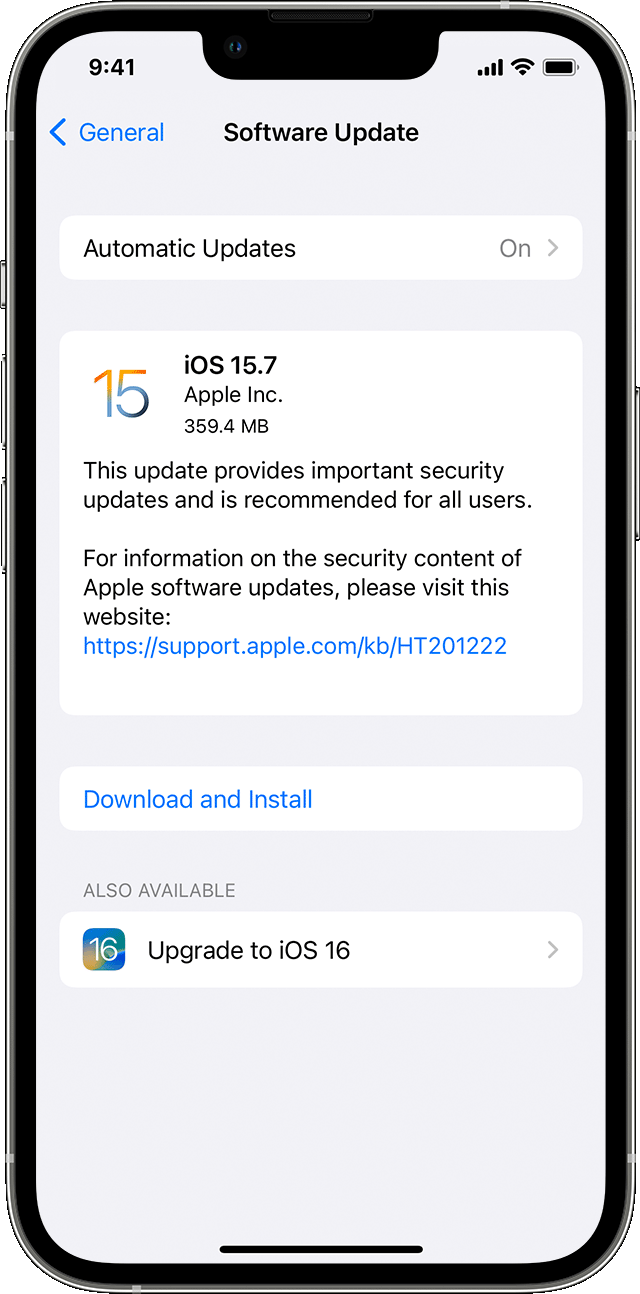
The Settings app on iPhone showing options to update to iOS 15.7 or iOS 16.

5. Tap Install Now. If you see Download and Install instead, tap it to download the update, enter your passcode, then tap Install Now. If you don't know your passcode, learn what to do.


You can also find those steps in this resource: Update your iPhone or iPad


If your iPhone is already up to date, let's also restart: Restart your iPhone


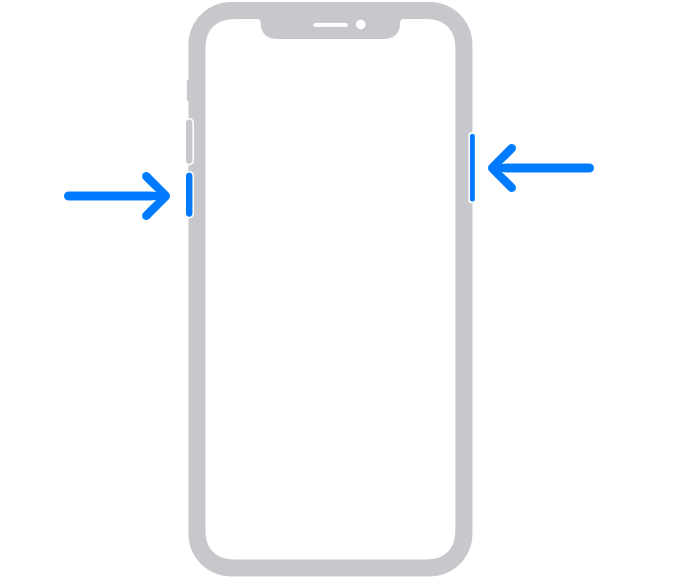
1. Press and hold either volume button and the side button until the power-off slider appears.
The volume button is located on the left side of the device, and the side button is located on the right
2. Drag the slider, then wait 30 seconds for your device to turn off. If your device is frozen or unresponsive, force restart your device.
3. To turn your device back on, press and hold the side button (on the right side of your iPhone) until you see the Apple logo.


Updating and restarting can help to further isolate potential software conflicts.


Additionally, does your iPhone show the warning screen from this resource when it gets warm? If your iPhone, iPad, or iPod touch gets too hot or too cold


Let us know, and we'll continue moving forward from there.


Take care.

Similar questions

1 reply
Question marked as Top-ranking reply

Nov 9, 2022 1:43 PM in response to VaderBoy

Hello VaderBoy,


If you haven't already done so, let's use the steps below to get your iPhone 14 Pro Max updated to the latest iOS 16.1.1:


1. Back up your device using iCloud or your computer.
2. Plug your device into power and connect to the internet with Wi-Fi.
3. Go to Settings > General, then tap Software Update.
4. If you see more than one software update option available, choose the one that you want to install.
The Settings app on iPhone showing options to update to iOS 15.7 or iOS 16.

5. Tap Install Now. If you see Download and Install instead, tap it to download the update, enter your passcode, then tap Install Now. If you don't know your passcode, learn what to do.


You can also find those steps in this resource: Update your iPhone or iPad


If your iPhone is already up to date, let's also restart: Restart your iPhone


1. Press and hold either volume button and the side button until the power-off slider appears.
The volume button is located on the left side of the device, and the side button is located on the right
2. Drag the slider, then wait 30 seconds for your device to turn off. If your device is frozen or unresponsive, force restart your device.
3. To turn your device back on, press and hold the side button (on the right side of your iPhone) until you see the Apple logo.


Updating and restarting can help to further isolate potential software conflicts.


Additionally, does your iPhone show the warning screen from this resource when it gets warm? If your iPhone, iPad, or iPod touch gets too hot or too cold


Let us know, and we'll continue moving forward from there.


Take care.

This thread has been closed by the system or the community team. You may vote for any posts you find helpful, or search the Community for additional answers.

iPhone Freeze Bug And Missing Keyboard in App Library

Welcome to Apple Support Community
A forum where Apple customers help each other with their products. Get started with your Apple Account.