Firewall settings not saving

When I try to save custom settings on Firewall to block the connection to some apps, settings are not saved, or saved for some minutes, and then automatically all permissions are enabled.

This is a very important security problem, how did you solve? Tks


MacBook Pro 16″, macOS 13.0

Posted on Nov 9, 2022 9:04 AM

Reply
Question marked as Top-ranking reply

Posted on Jan 28, 2023 7:43 PM

Same issue here. The only way I could fix it was to use the socketfilterfw executable directly, with sudo privileges, on the command line. You can check out the help information for the executable by running:


sudo /usr/libexec/ApplicationFirewall/socketfilterfw -h

which explains what options are available and their general use.


For a specific example, I was able to then use the --remove <path> option which would be the same as using the "-" button to remove something from the list of individual applications that have individual rules set on them:


sudo /usr/libexec/ApplicationFirewall/socketfilterfw --remove /Applications/Firefox.app
56 replies
Question marked as Top-ranking reply

Jan 28, 2023 7:43 PM in response to medialp

Same issue here. The only way I could fix it was to use the socketfilterfw executable directly, with sudo privileges, on the command line. You can check out the help information for the executable by running:


sudo /usr/libexec/ApplicationFirewall/socketfilterfw -h

which explains what options are available and their general use.


For a specific example, I was able to then use the --remove <path> option which would be the same as using the "-" button to remove something from the list of individual applications that have individual rules set on them:


sudo /usr/libexec/ApplicationFirewall/socketfilterfw --remove /Applications/Firefox.app

Feb 20, 2023 8:08 AM in response to medialp

I think I've found a reasonable work around... the problem is that Administrative privileges are needed to change firewall settings (hence needing "sudo" when using the command line options). For some reason the MacOS Systems Settings app does not request admin privileges when making individual changes to the firewall settings - only when turning the firewall off or on.


So the work around is, open System Settings app, after making changes to the individual firewall settings, toggle the entire firewall off and back on. This will prompt you for admin creds... after which the changes you made within the firewall settings will stick.

Nov 11, 2022 1:18 PM in response to medialp

It's a long shot but give this a try: boot into Safe Mode according to How to use safe mode on your Mac and test to see if the problem persists. Reboot normally and test again.


NOTE 1: Safe Mode boot can take up to 3 - 5 minutes as it's doing the following; 

• Verifies your startup disk and attempts to repair directory issues, if needed

• Loads only required kernel extensions (prevents 3rd party kernel/extensions from loading)

• Prevents Startup Items and Login Items from opening automatically

• Disables user-installed fonts 

• Deletes font caches, kernel cache, and other system cache files


NOTE 2: if you have a wireless keyboard with rechargeable batteries connect it with its charging cable before booting into Safe Mode. This makes it act as a wired keyboard as will insure a successful boot into Safe Mode.


Sep 20, 2023 9:52 AM in response to medialp

Same issue.


Discovered that clicking "cancel" closes the options window as you'd expect, but brings up an authorisation pane - gave it my admin account details, and then was able to save my Firewall preferences as normal. Have noticed some similar glitches elsewhere in Ventura's settings regarding the order in which authorisation requests appear. Otherwise the only way I could close the settings pane was by using Force Quit, and of course nothing saved.


Ridiculous that this is the case, but figured I'd reply here in case others are looking for a solution.

Apr 8, 2023 8:06 AM in response to medialp

Actually, Terminal is required otherwise by GUI you will lost settings after closing System Settings.


You need to use socketfilterfw command.

That is in usr/libexec/ApplicationFirewall/socketfilterfw


Example to test the socketfilterfw command.


If you are in your_user folder then paste:

sudo ../../usr/libexec/ApplicationFirewall/socketfilterfw  -h


Option to turn on firewall (this options works also by GUI).


sudo ../../usr/libexec/ApplicationFirewall/socketfilterfw --setglobalstate on


  • socketfilterfw --setglobalstate on


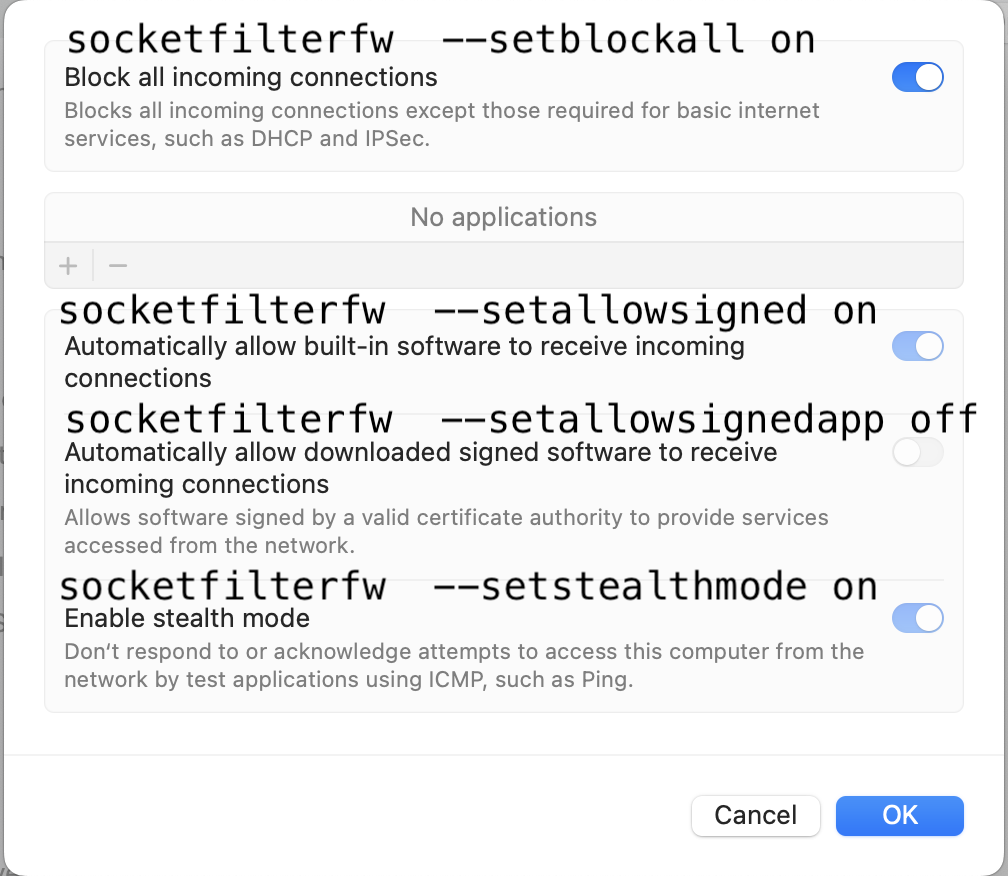
For the other options follow these commands or the attached image.


Block all incoming connections:

  • socketfilterfw  --setblockall on


Allow built-in software connections:

  • socketfilterfw  --setallowsigned on


Block downloaded app connections:

  • socketfilterfw  --setallowsignedapp off


Block acknowledge attempts (ex. ICMP):

  • socketfilterfw  --setstealthmode on



Jul 4, 2023 10:11 PM in response to medialp

I thought this was fixed but in macOS 13.4.1 it's still an issue. This is the process I have to use to make changes to the Firewall settings:


- Open System Settings.

- Choose Network => Firewall.

- Click on “Options”.

- In the following pane, choose desired changes. NOTE: there is no request to enter admin credentials.

- Click on “OK”.


Nothing happens. The pane stays open. Only way to close the pane is to click “Cancel”. Then there is a dialog for providing admin credentials.


- Click on “Options”.


NO CHANGES have been saved.


- Make desired change again.

- Click on “OK”.

- Pane closes !

- Click on “Options” to check whether changes saved.


Today, on the first occasion the changes were not saved. On the second occasion, there were saved.


I've used Feedback Assistant to advise Apple it's still an issue.

Jan 28, 2023 9:07 PM in response to Garry Brooke

UPDATE: Using socketfilterfw, changes to Firewall seems to stick. However, I am still getting the "Do you want the application "mediasharingd" to accept incoming network connections?" popup.


People have been reporting the mediasharingd popup for years. Why can't Apple fix it or release instructions on how to address it ? I spent 30 minutes in a support chat a couple of weeks ago and they suggested blocking incoming connections to mediasharingd. Later, I found that settings changed with the UI do not stick. Now I find that settings changed with socketfilterfw do stick but, don't stop the popup.


BTW, mediasharingd is located here:


/System/Library/PrivateFrameworks/AMPSharing.framework/Versions/A/Support/mediasharingd

Feb 1, 2023 12:45 AM in response to Community User

+1 on Apple not fixing bugs and even when they do they never admit a bug exists and that they have fixed it. There was an admittedly obscure bug in Pages which came and went without a single statement by Apple.


Anyway, I can confirm that using "socketfilterfw" works. Now that I've had a few cold boot cycles, it seems that it also solves the mediasharingd pop-up issue. I haven't had any for a couple of days.


However, it only worked for me when I used an administrator account. None of my standard user accounts can use sudo.

Nov 11, 2022 12:47 PM in response to medialp

Hello medialp,


Welcome to Apple Support Communities!

If we understand your post correctly, your Firewall settings are not being saved. We're here to help!


"A firewall can protect your Mac from unwanted contact initiated by other computers when you’re connected to the internet or a network. However, your Mac can still allow access through the firewall for some services and apps.

For example:

  • If you turn on a sharing service, such as file sharing, macOS opens a specific port for the service to communicate through.
  • An app or service on another system can request and be given access through the firewall, or it might have a trusted certificate and therefore be allowed access.

For greater control, you can select apps and services, and specify whether they can have access through the firewall.


Turn on firewall protection

  1. On your Mac, choose Apple menu  > System Settings, click Network  in the sidebar, then click Firewall. (You may need to scroll down.)
  2. Turn on Firewall.
  3. To specify additional security settings, click Options and do any of the following:
    • Allow only specified apps and services to connect: Click the Add button , then select the app or service in the dialog that appears.
    • Allow only essential apps and services to connect: Turn on “Block all incoming connections.”
    • Automatically allow built-in software to receive incoming connections: Turn on “Automatically allow built-in software to receive incoming connections.”
    • Automatically allow downloaded signed software to receive incoming connections: Turn on “Automatically allow downloaded signed software to receive incoming connections.”
    • Make it more difficult for hackers and malware to find your Mac: Turn on “Enable stealth mode.”


Set firewall access for services and apps

  1. On your Mac, choose Apple menu  > System Settings, click Network  in the sidebar, then click Firewall. (You may need to scroll down.)
  2. Click Options.
  3. If the Options button is disabled, first turn on Firewall.
  4. Click the Add button  under the list of services, then select the services or apps you want to add. After an app is added, click its up and down arrows  and choose whether to allow or block connections through the firewall.

  5. Blocking an app’s access through the firewall could interfere with or affect the performance of the app or other software that may depend on it.


  1. Important: Certain apps that don’t appear in the list may have access through the firewall. These can include system apps, services, and processes, as well as digitally signed apps that are opened automatically by other apps. To block access for these programs, add them to the list.
  2. When your Mac detects an attempt to connect to an app you haven’t added to the list and given access to, an alert message appears asking if you want to allow or deny the connection over the network or internet. Until you take action, the message remains, and any attempts to connect to the app are denied."


Block connections to your Mac with a firewall


Let us know if you have any questions.

Thank you for using Apple Support Communities.

Take care!


Dec 13, 2022 12:11 PM in response to medialp

Just some food for thought. First, there is no reason to ever install or run any 3rd party "cleaning", "optimizing", "speed-up", anti-virus, VPN or security apps on your Mac.  This documents describe what you need to know and do in order to protect your Mac: Effective defenses against malware and other threats - Apple Community and Recognize and avoid phishing messages, phony support calls, and other scams - Apple Support.  


There are no known viruses, i.e. self propagating, for Macs.  There are, however, adware and malware which require the user to install although unwittingly most of the time thru sneaky links, etc.   


Anti Virus developers try to group all types as viruses into their ad campaigns of fear.  They do a poor job of the detecting and isolating the adware and malware.  Since there are no viruses these apps use up a lot of system resources searching for what is non-existent and adversely affect system and app performance.


There is one app, Malwarebytes, which was developed by a long time contributor to these forums and a highly respected member of the computer security community, that is designed solely to seek out adware and known malware and remove it.  The free version is more than adequate for most users.  


Personally I wouldn't let CMM anywhere near my Macs. It may not be involved in your current problem but it certainly isn't doing you any good.


Jan 24, 2023 4:28 PM in response to Randall_2023

Thanks. I have been running LittleSnitch for many years without any problems. I will ask the developer but I doubt very much that LS has anything to do with the macOS firewall.


BTW, I have turned on "Require an administrator password to access system-wide settings". Changing the Firewall settings should cause a popup requiring admin credentials – but, instead I get no popup and the settings do not stick. I will experiment with turning off the "Require ...." setting.


UPDATE: Nope, turning off "Require an admin ..." made no difference. I also tried turning off the Firewall (admin was required); quitting System Settings; re-opening System Settings; turning on Firewall (admin required). Found that "Block all incoming connections was off. But, still, no changes to the Firewall's settings stick and admin credentials are not requested. So, for example, I cannot Block all incoming connections.

This thread has been closed by the system or the community team. You may vote for any posts you find helpful, or search the Community for additional answers.

Firewall settings not saving

Welcome to Apple Support Community
A forum where Apple customers help each other with their products. Get started with your Apple Account.