Hi nicshow,
To start, let's try to resolve the issue by restarting both of your Apple TV devices using the steps here: How to turn off or restart your Apple TV - Apple Support that are also below.
"Restart your Apple TV
If your Apple TV isn't responding, restart it with your remote:
- With your Siri Remote (2nd generation or later) or Apple TV Remote (2nd generation or later)*: Hold down the Back
 and TV/Control Center
  buttons. Let go when the light on your device flashes.
 - With your Siri Remote (1st generation) or Apple TV Remote (1st generation)*: Hold down the Menu and TV/Control Center buttons. Let go when the light on your device flashes.
- With your Apple Remote (aluminum or white): Hold down the Menu and Down buttons. Let go when the light on your device flashes."
A restart normally resolves any one-off issues occurring with the devices.
Also, let's complete the steps below that are also listed here: Use Apple TV to play audio throughout your home - Apple Support to make sure we are completing the correct steps to connect them.
- "Do either of the following:
- Press and hold the TV
 button on the Siri Remote to open Control Center, then select the Audio Controls button
  .
. - If you see the Audio Controls button in an app, select it.
A list of available audio devices appears, organized by room (as assigned in the Home app on your iOS, iPadOS, or macOS device).
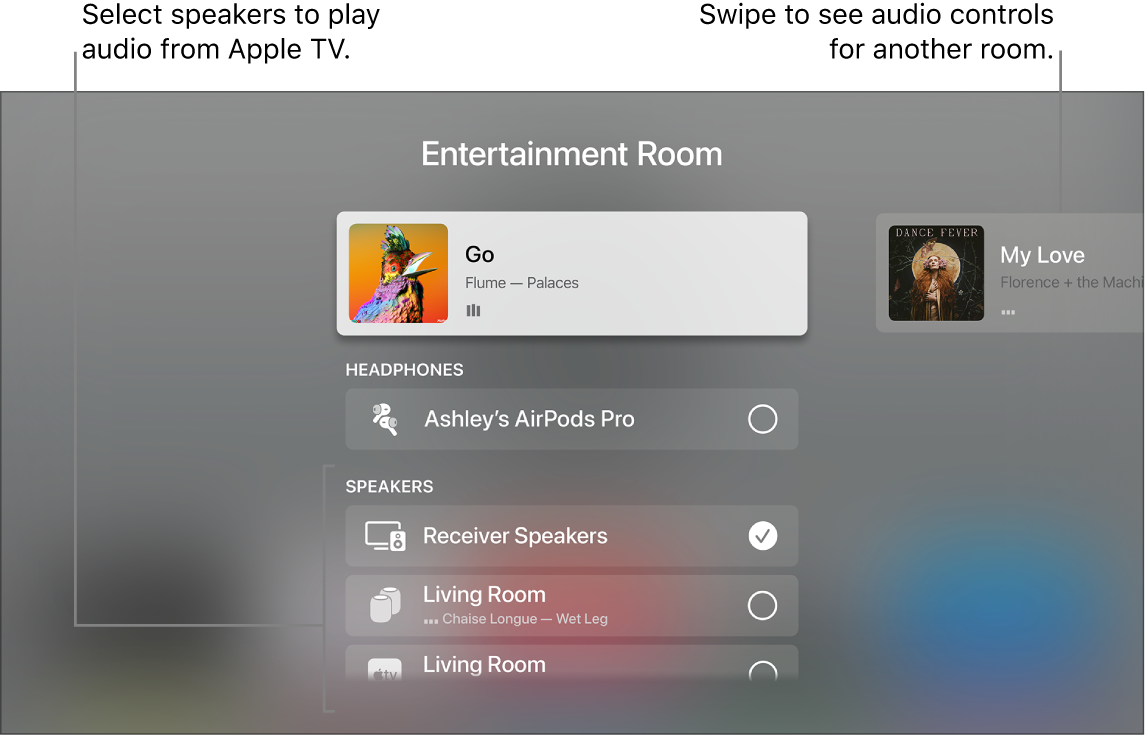
2. Do any of the following:
- Send audio from Apple TV to a speaker in another room: Navigate down, then select a device or devices. The currently playing song appears at the top of the screen under a description of the rooms you selected (for example, Living Room + Dining Room).
- Tip: If your Apple TV is connected to a home theater receiver or TV via HDMI cable (shown onscreen as Receiver Speakers), you may need to calibrate the audio signal so that the audio is in sync with wireless speakers elsewhere in your home. See “Calibrate audio between your wired and wireless speakers” below.
- Some home theater receivers and smart TVs that also support AirPlay may appear twice in the list—as Receiver Speakers (connected via HDMI) and as AirPlay speakers. For the best audio quality, choose Receiver Speakers.
- Send audio from a speaker in another room to Apple TV: Navigate up to highlight the currently playing song, navigate right to highlight another room, then navigate down and select the Apple TV. The song that was playing in the other room appears grouped with Apple TV.
- Adjust the volume of devices in another room: Navigate right in the top row to select another room, then press the
 or
or  button on the Siri Remote. "
Best regards


