
ios 16.1.1 and screen appearance
ios 16.1.1 changed the screen appearance in my wallpaper (default/blank) and screen unlock. Both now appear somewhat washed out with brightness behind the numbers. Please advise.
iPhone 11, iOS 16
ios 16.1.1 changed the screen appearance in my wallpaper (default/blank) and screen unlock. Both now appear somewhat washed out with brightness behind the numbers. Please advise.
iPhone 11, iOS 16
Hello omahauser,
Thanks for choosing the Apple Support Communities. Sometimes setting up your Lock Screen and Home Screen wallpapers again, can fix issues such as this. Let's try doing that by following the steps below:
Personalize your iPhone Lock Screen - Apple Support
"Personalize your iPhone Lock Screen
You can personalize your Lock Screen by choosing a wallpaper, customizing the colors and fonts, layering subjects of photos in front of the time, and much more. You can also add widgets with information from your favorite apps to your Lock Screen, such as today’s headlines, the weather, and calendar events.
You can create more than one Lock Screen and switch between them. Since each Lock Screen can be linked to a Focus, you can switch your Focus by switching to a different Lock Screen.
Tip: It’s easier to create a custom Lock Screen if you set up Face ID (on a model with Face ID) or Touch ID (on a model with Touch ID) first. See Set up Face ID or Touch ID.
Create a custom Lock Screen
 at the bottom of the screen.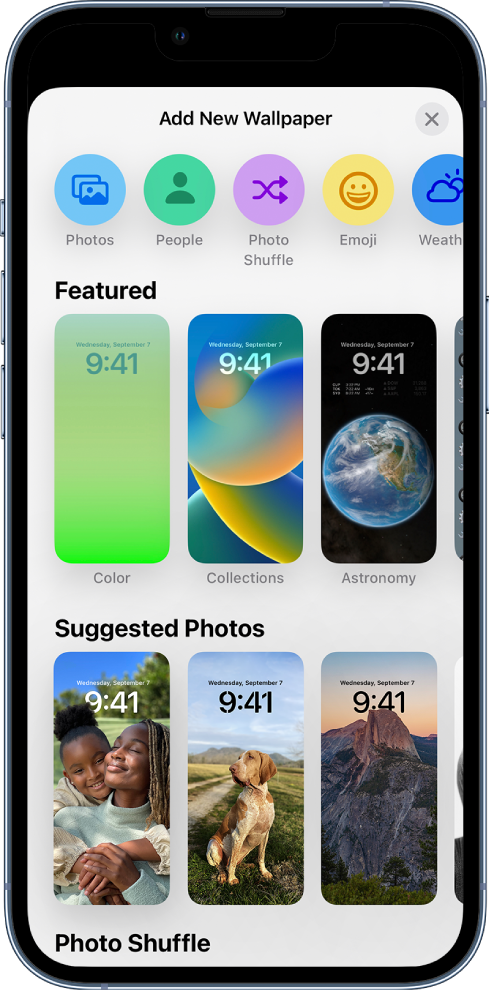
 to use a custom photo, or select Blur to blur the wallpaper so the apps stand out.
Customize your Lock Screen photo
If you choose a photo for your Lock Screen, you can reposition the photo, change the photo style, and more.
 at the bottom right, then choose Depth Effect.
 , and set the shuffle frequency by tapping , then selecting an option below Shuffle Frequency.
Tip: Alternatively, you can add a photo directly from your photo library to your Home Screen and Lock Screen. In the Photos app  , tap Library, select a photo, then tap
  . Scroll down and select Use as Wallpaper, tap Done, then choose whether to show it on both your Home Screen and Lock Screen.
Add widgets to your Lock Screen
You can add widgets to your Lock Screen to get information at a glance—for example, the temperature, battery level, or upcoming calendar events.
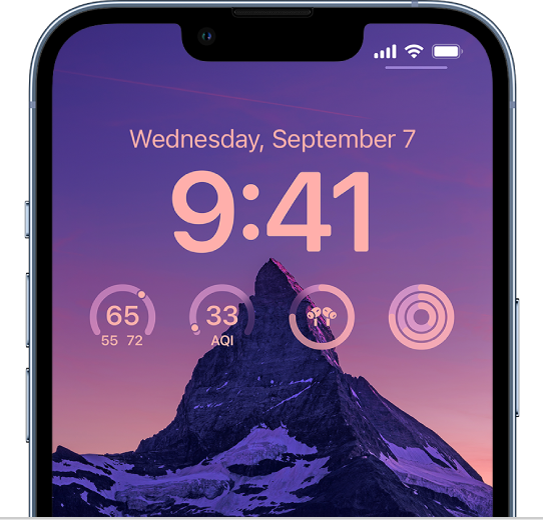
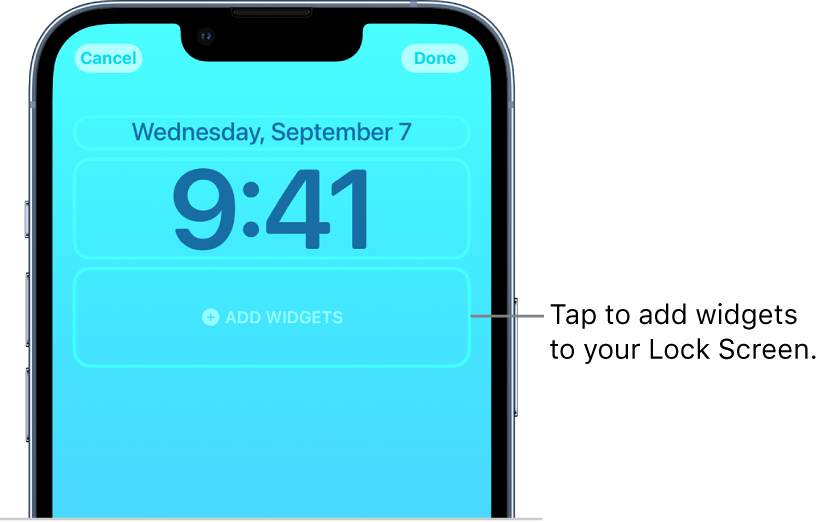
 to remove a widget and make room for a new one.
Tip: On iPhone 14 Pro and iPhone 14 Pro Max, you can set your Lock Screen to stay on so you can glance at it at any time to check the date, time, and information in your widgets. See Keep your Lock Screen visible with the Always-On setting.
Link a Focus to your Lock Screen
Focus helps you concentrate on a task by minimizing distractions. You can set up a Focus to temporarily silence all notifications, or allow only specific notifications (ones that apply to your task, for example). By linking a Focus to your Lock Screen, your Focus settings apply when you use that Lock Screen.
 .
.See Set up a Focus.
Switch between Lock Screens
You can create multiple custom Lock Screens and switch between them throughout the day. If a Lock Screen links to a specific Focus, switching from that Lock Screen to another also switches your Focus.
Edit a Lock Screen
After you create a custom Lock Screen, you can make changes to it.
. at the bottom right, then choose Depth Effect (not available for all photos). .
.Note: You can also add new wallpaper in Settings  .
.
Delete a Lock Screen
You can delete Lock Screens you no longer need.
 ."
."We hope this helps.
Cheers!
ios 16.1.1 and screen appearance

