Hello Jameshelpplease,
Thank you for reaching out to Apple Support Communities, and we'll be happy to help in any way we can. We understand you're having issues with answering calls on your watch. Follow the steps lsited here to see if they resolve the issue: Answer phone calls on Apple Watch - Apple Support
"Answer a call
When you hear or feel the call notification, raise your wrist to see who’s calling.
- Send a call to voicemail: Tap the red Decline button in the incoming call notification.
- Answer on your Apple Watch: Tap the Answer button to talk using the built-in microphone and speaker or a Bluetooth device paired with your Apple Watch.
- Answer using your iPhone or send a text message instead: Tap
 , then tap an option. If you tap Answer on iPhone, the call is placed on hold and the caller hears a repeated sound until you answer on your paired iPhone.
 - If you can’t find your iPhone, touch and hold the bottom of the screen, swipe up, then tap
 on your Apple Watch.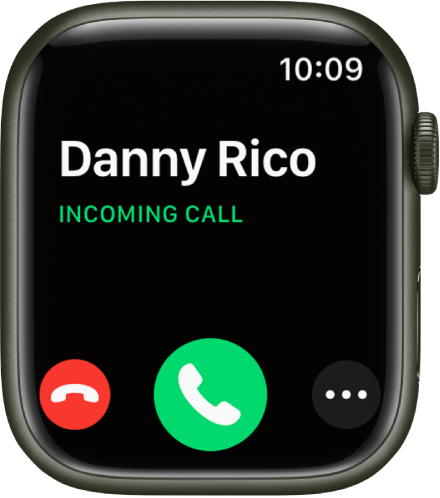
While you’re on a call
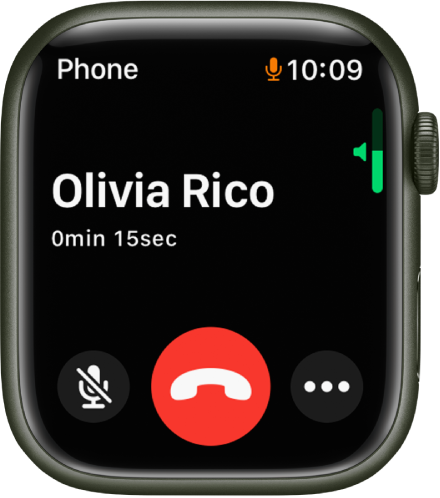
If you’re on a call that doesn’t use FaceTime audio, you can switch a call to your iPhone, adjust the call volume, enter numbers using the keypad, and switch the call to another audio device.
- Switch a call from your Apple Watch to your iPhone: While talking on your Apple Watch, unlock your iPhone, then tap the green button or bar at the top of the screen.
- You can quickly silence an incoming call by pressing the palm of your hand on the watch display for three seconds. Just make sure you have Cover to Mute turned on—open the Settings app
 on your Apple Watch, tap Sounds & Haptics, then turn on Cover to Mute.
 - Adjust call volume: Turn the Digital Crown. Tap
 to mute your end of the call (if you’re listening on a conference call, for example).
 - Enter additional digits during a call: Tap , tap Keypad, then tap the digits.
- Switch the call to an audio device: Tap , then choose a device.
During a FaceTime Audio call, you can adjust the volume, mute the call by tapping , or tap and choose an audio destination.
Listen to voicemail
If a caller leaves voicemail, you get a notification—tap the Play button in the notification to listen. To listen to voicemail later, open the Phone app  on your Apple Watch, then tap Voicemail.
On the voicemail screen you have these options:
- Adjust volume with the Digital Crown
- Start and stop playback
- Skip ahead or back five seconds
- Call back
- Delete the voicemail"
If the issue persists, are there updates for your Apple Watch? This article goes over how to check: Update your Apple Watch - Apple Support
We hope this helps.
Cheers!


