Old iPad cannot connect to the internet

I recently turned on an iPad Air that hadn’t been used for a while. It looked okay until I tried to use anything that connected to the internet then it refused to load despite being connected.


I went through every piece of advice online: resetting network settings, soft reset, hard reset, resetting all settings, and nothing changed. The wifi network definitely works because it’s the one I’m currently connected to on my phone. And I’ve tried to use another with the same issue. I decided that I would erase all content and settings and start over but whenever I try to log in to iCloud it says ‘there was an error connecting to the Apple ID server’. I can’t erase it from iCloud itself because it would only be helpful when it’s connected to the internet which the device believes is not. Just in case anyone tries to suggest it, I cannot access anything to do with iCloud on the device itself due to it needing internet. I also cannot update the software (iOS 12.5.1) for the same reason.


So I now have no ways left that I can think of that would possibly solve the issue. Does anyone have any advice?

iPad Air Wi-Fi

Posted on Dec 6, 2022 3:07 PM

Reply
Question marked as Top-ranking reply

Posted on Dec 6, 2022 3:51 PM

While it may appear counterintuitive, your WiFi Router may be unexpectedly blocking internet access for the device with which you are having difficulty - while successfully passing traffic for other devices.


A restart of your WiFi Router will likely clear the connection issue.


To restart you home router, disconnect power - then wait at least 30 seconds before restarting. When you router has rebooted (which may take several minutes), force-restart your iPad:


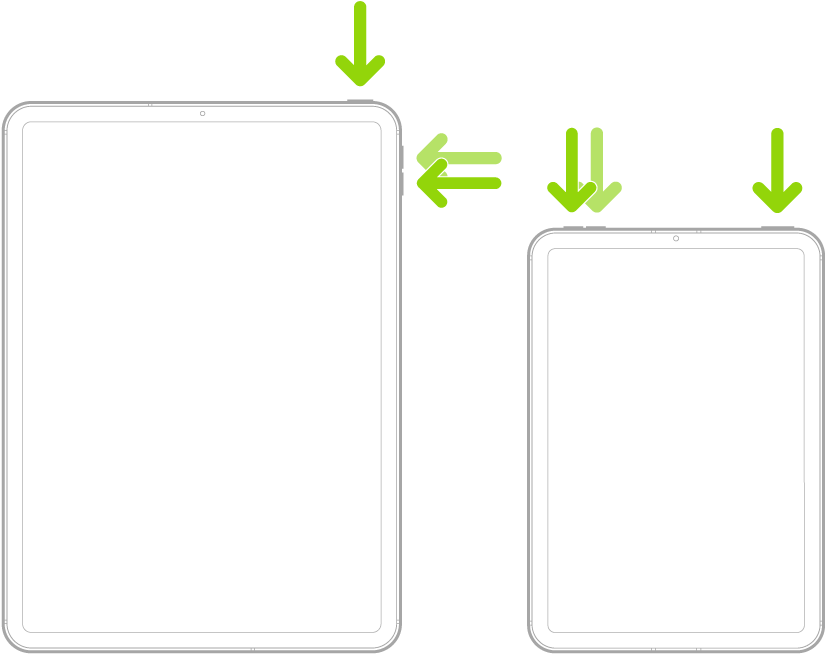
Force restart iPad (models with Face ID or with Touch ID in the top button)

If your iPad doesn’t have the Home button, do the following:

  1. Press and quickly release the volume button nearest to the top button.
  2. Press and quickly release the volume button farthest from the top button.
  3. Press and hold the top button.
  4. When the Apple logo appears, release the top button.


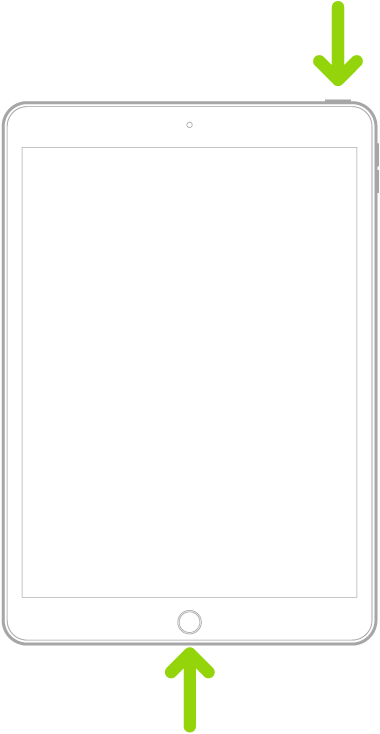
Force restart iPad (models with the Home button)

Press and hold the top button and the Home button at the same time. When the Apple logo appears, release both buttons.


1 reply
Question marked as Top-ranking reply

Dec 6, 2022 3:51 PM in response to siandsar

While it may appear counterintuitive, your WiFi Router may be unexpectedly blocking internet access for the device with which you are having difficulty - while successfully passing traffic for other devices.


A restart of your WiFi Router will likely clear the connection issue.


To restart you home router, disconnect power - then wait at least 30 seconds before restarting. When you router has rebooted (which may take several minutes), force-restart your iPad:


Force restart iPad (models with Face ID or with Touch ID in the top button)

If your iPad doesn’t have the Home button, do the following:

  1. Press and quickly release the volume button nearest to the top button.
  2. Press and quickly release the volume button farthest from the top button.
  3. Press and hold the top button.
  4. When the Apple logo appears, release the top button.


Force restart iPad (models with the Home button)

Press and hold the top button and the Home button at the same time. When the Apple logo appears, release both buttons.


This thread has been closed by the system or the community team. You may vote for any posts you find helpful, or search the Community for additional answers.

Old iPad cannot connect to the internet

Welcome to Apple Support Community
A forum where Apple customers help each other with their products. Get started with your Apple Account.