Internet connection difficulties - in particular when multiple devices are affected by the same issue - are often an indication that access to some Apple server-resources are being blocked by the network to which you are attempting to connect.
When using a domestic broadband/internet connection, a restart of the WiFi Router can often resolve the issue.
To restart you home router, disconnect power - then wait at least 30 seconds before restarting. When you router has rebooted (which may take several minutes), force-restart your iPad:
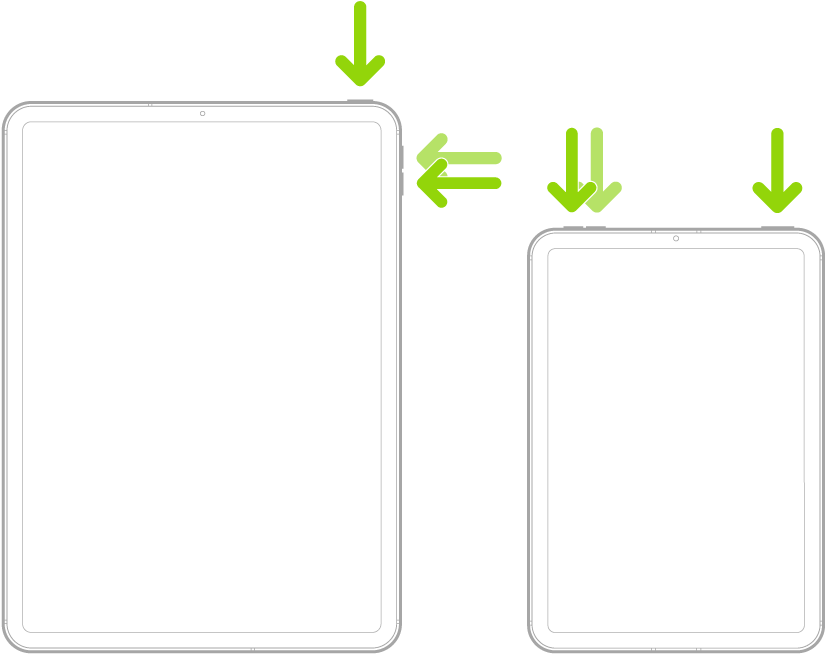
Force restart iPad (models with Face ID or with Touch ID in the top button)
If your iPad doesn’t have the Home button, do the following:
- Press and quickly release the volume button nearest to the top button.
- Press and quickly release the volume button farthest from the top button.
- Press and hold the top button.
- When the Apple logo appears, release the top button.

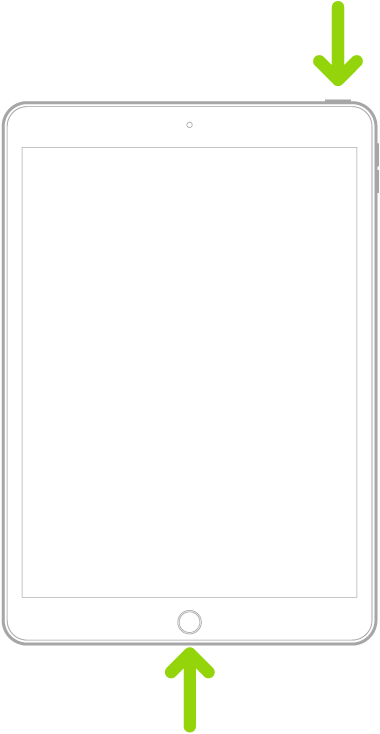
Force restart iPad (models with the Home button)
Press and hold the top button and the Home button at the same time. When the Apple logo appears, release both buttons.

If you cannot resolve the connection issue, you may need to consider performing the system software update from a computer. To do so, you will need access to either a Window PC (with iTunes for Windows installed) or a Mac (with iTunes or Finder - as appropriate for the installed version of MacOS). Ensure that your installed version of iTunes has been updated to the most recent version; the essential device drivers are included.
Download and use iTunes for Windows – Apple Support
Update to the latest version of iTunes – Apple Support
Update software on iPhone, iPad or iPod touch in iTunes on PC - Apple Support