Songs not synced in all devices, only one

So my previous phone have over 1500 songs, as I upgraded my phone, I noticed only a few songs (200-300) are synced and the same goes with my other devices, MacBook, iPad, etc., in conclusion only one device from all my devices have the songs that I need, all devices have Sync music turned on, still; I don't understand how to have those 1500 songs in all of my devices back. How's it even possible?! I'm puzzled. Please help.

Posted on Dec 21, 2022 2:26 AM

Reply
Question marked as Top-ranking reply

Posted on Dec 22, 2022 10:34 AM

Hello arinverma,


Are you an Apple Music member or iTunes Match member? If Apple Music, you're referring to Sync Library across your associated device? As mentioned here: Use Sync Library to access your music library across your devices If so, use the following to troubleshoot the issue and solve it: If songs are missing from your music library after you turn on Sync Library


If songs are missing from your music library after you turn on Sync Library

Make sure that all of your devices have Sync Library turned on and signed in with the same Apple ID that you use with Apple Music. If your music library is stored on your computer, check the cloud status of songs to find missing music and resolve issues.

Apple Music isn't a backup service. Make sure to back up your music library before you make any changes.

First, check these things

- Are all of your devices connected to the internet?

- Do you have an active subscription to Apple Music?

- Are all of your devices signed in with the same Apple ID that you use with your Apple Music subscription?

- Is Sync Library turned on for all of your devices?


Check the cloud status of songs on your Mac or PC

1. On your Mac, open the Apple Music app. On your PC, open iTunes, choose Music from the pop-up menu, then click Library.

2. In the sidebar, select Songs.

3. In the menu bar, choose View > Show View Options.

4. Select Cloud Status and Cloud Download.

Look for the following statuses next to your songs to learn what to do.
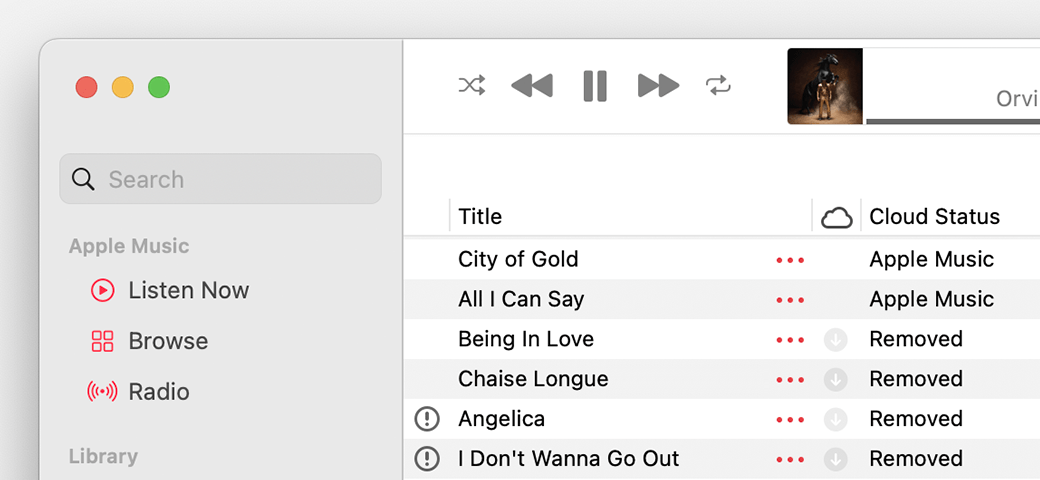
Apple Music app showing Cloud statuses next to songs

Waiting

The song won’t appear on your other devices because it’s waiting to upload. Choose File > Library > Update Cloud Library. Then check if the song appears on your other devices.

Removed

The song was deleted from another device that has Sync Library turned on. If you want the song to appear on your other devices, click the arrow Removed button next to the song, then click Add to Cloud Music Library.
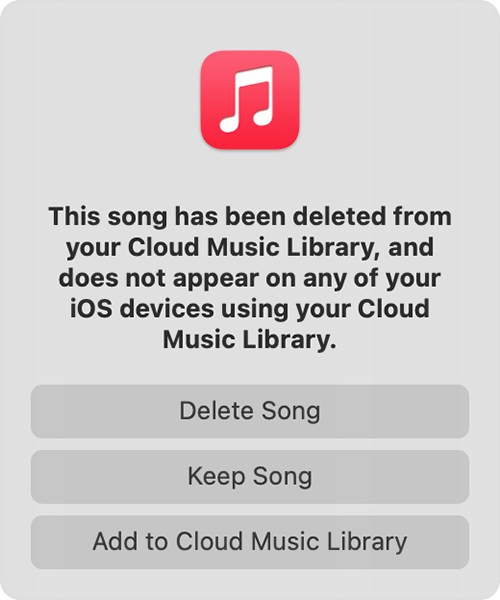
Message that says this song was deleted on another device and options to delete, keep, or add the song to Cloud Music library.

An exclamation point

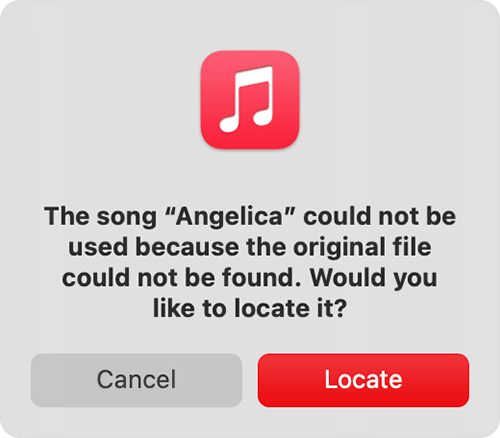
The song can't be played or synced across your devices until the original file is located. Click the exclamation point Invalid location icon, then click Locate. 

Message asking to locate a missing song.

If the song is located, you'll be asked to use the location to find other missing songs in your library. If you see this message, click Find Files.

If a song is grayed out

If you see No Longer Available next to a song that's grayed out, the song was added from Apple Music and was removed from the Apple Music catalog.

Learn what the different cloud icons and symbols next to your songs mean in the Apple Music app

Learn what the different cloud icons and symbols next to your songs mean in iTunes


Search for the missing song on your computer

1. Search your Mac or PC for the missing song.

2. If you find the missing song, drag the song to the Apple Music app or iTunes.

3. In the Apple Music app or iTunes, choose File > Library > Update Cloud Library.


If music purchased from iTunes is missing

Learn how to find and download music that you purchased from the iTunes Store


Manage your music library

- Learn how to manage your music library in the Apple Music app on your Mac

- Learn how to manage your music library in iTunes for Windows on your PC


It would be most important to enable 'Sync Library' on your device with all of your songs added to the library and that you're using the same Apple ID with the active Apple Music subscription on your other devices with an active network connection.


In case we misunderstood the issue, please reply back providing more information on what's going on. The more we can understand, the better we can assist.


Let us know if this helps out, take care.

Similar questions

1 reply
Question marked as Top-ranking reply

Dec 22, 2022 10:34 AM in response to arinverma

Hello arinverma,


Are you an Apple Music member or iTunes Match member? If Apple Music, you're referring to Sync Library across your associated device? As mentioned here: Use Sync Library to access your music library across your devices If so, use the following to troubleshoot the issue and solve it: If songs are missing from your music library after you turn on Sync Library


If songs are missing from your music library after you turn on Sync Library

Make sure that all of your devices have Sync Library turned on and signed in with the same Apple ID that you use with Apple Music. If your music library is stored on your computer, check the cloud status of songs to find missing music and resolve issues.

Apple Music isn't a backup service. Make sure to back up your music library before you make any changes.

First, check these things

- Are all of your devices connected to the internet?

- Do you have an active subscription to Apple Music?

- Are all of your devices signed in with the same Apple ID that you use with your Apple Music subscription?

- Is Sync Library turned on for all of your devices?


Check the cloud status of songs on your Mac or PC

1. On your Mac, open the Apple Music app. On your PC, open iTunes, choose Music from the pop-up menu, then click Library.

2. In the sidebar, select Songs.

3. In the menu bar, choose View > Show View Options.

4. Select Cloud Status and Cloud Download.

Look for the following statuses next to your songs to learn what to do.
Apple Music app showing Cloud statuses next to songs

Waiting

The song won’t appear on your other devices because it’s waiting to upload. Choose File > Library > Update Cloud Library. Then check if the song appears on your other devices.

Removed

The song was deleted from another device that has Sync Library turned on. If you want the song to appear on your other devices, click the arrow Removed button next to the song, then click Add to Cloud Music Library.

Message that says this song was deleted on another device and options to delete, keep, or add the song to Cloud Music library.

An exclamation point

The song can't be played or synced across your devices until the original file is located. Click the exclamation point Invalid location icon, then click Locate. 

Message asking to locate a missing song.

If the song is located, you'll be asked to use the location to find other missing songs in your library. If you see this message, click Find Files.

If a song is grayed out

If you see No Longer Available next to a song that's grayed out, the song was added from Apple Music and was removed from the Apple Music catalog.

Learn what the different cloud icons and symbols next to your songs mean in the Apple Music app

Learn what the different cloud icons and symbols next to your songs mean in iTunes


Search for the missing song on your computer

1. Search your Mac or PC for the missing song.

2. If you find the missing song, drag the song to the Apple Music app or iTunes.

3. In the Apple Music app or iTunes, choose File > Library > Update Cloud Library.


If music purchased from iTunes is missing

Learn how to find and download music that you purchased from the iTunes Store


Manage your music library

- Learn how to manage your music library in the Apple Music app on your Mac

- Learn how to manage your music library in iTunes for Windows on your PC


It would be most important to enable 'Sync Library' on your device with all of your songs added to the library and that you're using the same Apple ID with the active Apple Music subscription on your other devices with an active network connection.


In case we misunderstood the issue, please reply back providing more information on what's going on. The more we can understand, the better we can assist.


Let us know if this helps out, take care.

This thread has been closed by the system or the community team. You may vote for any posts you find helpful, or search the Community for additional answers.

Songs not synced in all devices, only one

Welcome to Apple Support Community
A forum where Apple customers help each other with their products. Get started with your Apple Account.