Ihave aHP laptop and new i pad.I am tryimg to transfer photos from my laptop to i pad.They are both on the same network.I have i cloud photos and i cloud drive on my laptop.I cannot get the two machines talking to each I open up i cloud photos,right

i cannot transfer photos from my laptop to new oi pad.They areboth on the same network.I have i cloud photos and i cloud drive on my laptop,Exactly what settings do I need.I can right click on an albumin i cloud photos and send to and to i pad.I have c usb connected to both machines and send to ipad appears but it won't work.Can anyone help please?

Windows, Windows 10

Posted on Dec 23, 2022 11:35 AM

Reply
Question marked as Top-ranking reply

Posted on Dec 26, 2022 11:53 AM

Hello DerekHampson,


You're in the right place for help.


Let's follow the steps below for help transferring your photos on your laptop to your iPad.


"Turn on iCloud Photos


Make sure that you set up iCloud on your iPhone, iPad, or iPod touch or Mac, that you turned on iCloud Photos, and that you're signed in with your Apple ID.

  1. Download iCloud for Windows.
  2. Open iCloud for Windows. Make sure you're signed in with your Apple ID. 
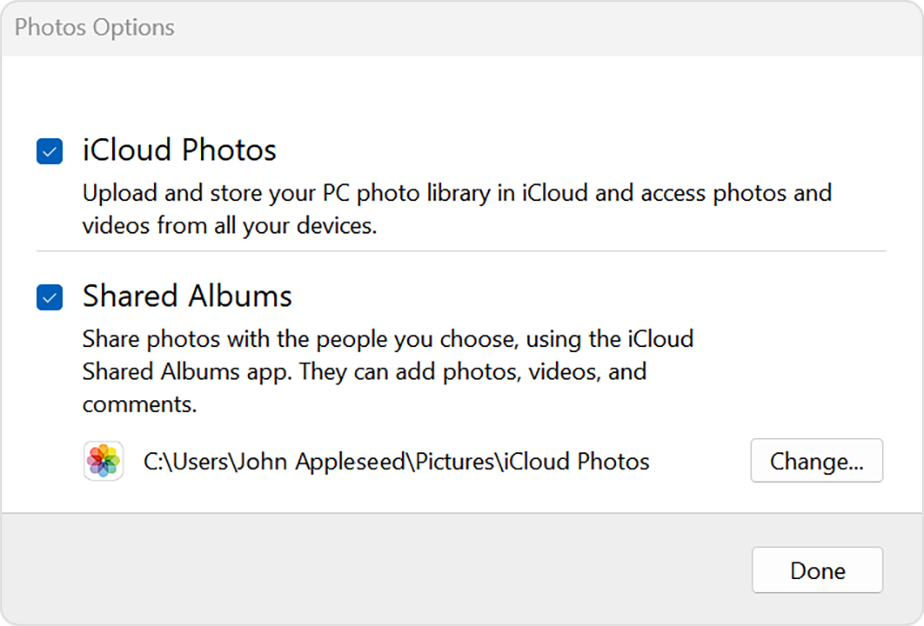
  3. Next to Photos, click Options.
  4. Select iCloud Photos.
  5. Click Done, then click Apply.
  6. Turn on iCloud Photos on all of your Apple devices.

In iCloud for Windows 10 or later, you can also choose to use Shared Albums, and customize the location of your Shared Albums folders.


Find your photos on your PC


To find your photos, follow the steps for the version of Windows you use on your PC. 

In Windows 11


  1. Open Microsoft Photos.
  2. Select iCloud Photos in the pane on the left.

In Windows 10 or later


  1. Open File Explorer.
  2. Click iCloud Photos from the Navigation pane. 

In Windows 8

  1. Go to the Start screen. If you use Windows 8.1, click the down arrow in the bottom-left corner. 
  2. Select iCloud Photos.


Download your photos and videos from iCloud Photos

In iCloud for Windows 11.1 or later


New photos and videos you add to iCloud Photos are shown on your PC automatically. To download the file from iCloud when you view it, double-click its thumbnail. You can also keep your photos downloaded on your PC with these steps: 

  1. Open File Explorer.
  2. In the Navigation pane, click iCloud Photos. 
  3. Select the images you want to keep on your PC.
  4. Right-click the selection and choose "Always keep on this device."

If you change a photo or video on another device or on iCloud.com, it updates automatically on your PC. 

In older versions of iCloud for Windows


New photos and videos you add to iCloud Photos will automatically download to your PC. You can also download older photos and videos with these steps: 

  1. Open File Explorer.
  2. Click iCloud Photos in the Navigation pane. If you don’t see iCloud Photos, click Pictures in the Navigation pane, then double-click iCloud Photos.
  3. Click the Notification area in the taskbar, then click Download Photos in the iCloud Photos notification. Choose the photos and videos you want to download by year.

Your photos and videos download to the location you set in iCloud Photos Options.

In iCloud for Windows 10 or later, if you change a photo or video on another device or on iCloud.com, it updates automatically on your PC.


Upload your photos and videos to iCloud Photos

You can upload your photos and videos from your PC to iCloud Photos when you follow these steps:

In iCloud for Windows 10 or later


  1. Open a File Explorer window.
  2. In the Navigation pane, click iCloud Photos.
  3. In another window, open the folder where you currently store the photos that you want to add to iCloud Photos.
  4. Select the photos that you want to add.
  5. Drag them into the iCloud Photos folder.

You can view the photos and videos you uploaded in the Photos app on iCloud.com and on all your Apple devices.

In older versions of iCloud for Windows

  1. Open a File Explorer window.
  2. Under Favorites, click iCloud Photos.
  3. Click Upload photos and videos.
  4. Choose the photos and videos you want to upload and click Open.

You can view the photos and videos you uploaded in the Photos app on iCloud.com and on all your Apple devices."


Set up and use iCloud Photos on your Windows PC


Let us know if you have any questions.

Thank you for using Apple Support Communities.

Take care!



5 replies
Question marked as Top-ranking reply

Dec 26, 2022 11:53 AM in response to DerekHampson

Hello DerekHampson,


You're in the right place for help.


Let's follow the steps below for help transferring your photos on your laptop to your iPad.


"Turn on iCloud Photos


Make sure that you set up iCloud on your iPhone, iPad, or iPod touch or Mac, that you turned on iCloud Photos, and that you're signed in with your Apple ID.

  1. Download iCloud for Windows.
  2. Open iCloud for Windows. Make sure you're signed in with your Apple ID. 
  3. Next to Photos, click Options.
  4. Select iCloud Photos.
  5. Click Done, then click Apply.
  6. Turn on iCloud Photos on all of your Apple devices.

In iCloud for Windows 10 or later, you can also choose to use Shared Albums, and customize the location of your Shared Albums folders.


Find your photos on your PC


To find your photos, follow the steps for the version of Windows you use on your PC. 

In Windows 11


  1. Open Microsoft Photos.
  2. Select iCloud Photos in the pane on the left.

In Windows 10 or later


  1. Open File Explorer.
  2. Click iCloud Photos from the Navigation pane. 

In Windows 8

  1. Go to the Start screen. If you use Windows 8.1, click the down arrow in the bottom-left corner. 
  2. Select iCloud Photos.


Download your photos and videos from iCloud Photos

In iCloud for Windows 11.1 or later


New photos and videos you add to iCloud Photos are shown on your PC automatically. To download the file from iCloud when you view it, double-click its thumbnail. You can also keep your photos downloaded on your PC with these steps: 

  1. Open File Explorer.
  2. In the Navigation pane, click iCloud Photos. 
  3. Select the images you want to keep on your PC.
  4. Right-click the selection and choose "Always keep on this device."

If you change a photo or video on another device or on iCloud.com, it updates automatically on your PC. 

In older versions of iCloud for Windows


New photos and videos you add to iCloud Photos will automatically download to your PC. You can also download older photos and videos with these steps: 

  1. Open File Explorer.
  2. Click iCloud Photos in the Navigation pane. If you don’t see iCloud Photos, click Pictures in the Navigation pane, then double-click iCloud Photos.
  3. Click the Notification area in the taskbar, then click Download Photos in the iCloud Photos notification. Choose the photos and videos you want to download by year.

Your photos and videos download to the location you set in iCloud Photos Options.

In iCloud for Windows 10 or later, if you change a photo or video on another device or on iCloud.com, it updates automatically on your PC.


Upload your photos and videos to iCloud Photos

You can upload your photos and videos from your PC to iCloud Photos when you follow these steps:

In iCloud for Windows 10 or later


  1. Open a File Explorer window.
  2. In the Navigation pane, click iCloud Photos.
  3. In another window, open the folder where you currently store the photos that you want to add to iCloud Photos.
  4. Select the photos that you want to add.
  5. Drag them into the iCloud Photos folder.

You can view the photos and videos you uploaded in the Photos app on iCloud.com and on all your Apple devices.

In older versions of iCloud for Windows

  1. Open a File Explorer window.
  2. Under Favorites, click iCloud Photos.
  3. Click Upload photos and videos.
  4. Choose the photos and videos you want to upload and click Open.

You can view the photos and videos you uploaded in the Photos app on iCloud.com and on all your Apple devices."


Set up and use iCloud Photos on your Windows PC


Let us know if you have any questions.

Thank you for using Apple Support Communities.

Take care!



Jan 1, 2023 2:32 PM in response to DerekHampson

Greetings DerekHampson,


Since it sounds like you’re using iCloud Photos on your Windows PC, you won’t be able to sync from your computer to your iPad. When you sync most things with iCloud, it stops physical syncing between devices.


You can turn on iCloud Photos on your iPad and allow your entire photo library to sync with it: Set up and use iCloud Photos - Apple Support If you’re concerned about storage space on your iPad, you can turn on Optimize iPad Storage which will leave the original full-size photo in iCloud and place a smaller version on your device.


Or, you can turn off iCloud Photos on your Windows PC and start syncing directly from your computer again: Set up and use iCloud Photos on your Windows PC - Apple Support. Open iCloud for Windows, next to Photos, click Options and deselect iCloud Photos.


Feel free to get back to us with any questions or problems you may have.


All the best.


This thread has been closed by the system or the community team. You may vote for any posts you find helpful, or search the Community for additional answers.

Ihave aHP laptop and new i pad.I am tryimg to transfer photos from my laptop to i pad.They are both on the same network.I have i cloud photos and i cloud drive on my laptop.I cannot get the two machines talking to each I open up i cloud photos,right

Welcome to Apple Support Community
A forum where Apple customers help each other with their products. Get started with your Apple Account.