Hello LMR05,
Thank you for reaching out to Apple Support Communities, and we'll be happy to help in any way we can. We understand you're having issues with haptics when using Do Not Disturb on the Apple Watch. Check out the information here to see if they resolve the issue: Change the audio and notification settings on your Apple Watch
"How to manage Apple Watch Haptic Alerts
- Open the Settings app.
- Scroll down and tap Sounds & Haptics.
- Turn Haptic Alerts on or off.
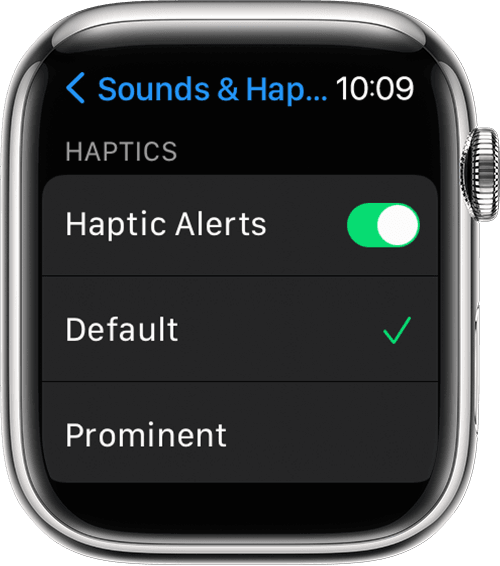
- To add extra emphasis to haptic alerts, tap Prominent. This feature adds an additional haptic tap that pre-announces some of your other haptic alerts.
You can also change the settings for specific apps from your iPhone. On your iPhone, open the Apple Watch app, go to the My Watch tab, and tap Sounds & Haptics.
If you're wearing your Apple Watch and you don't feel a tap as you adjust the slider, contact Apple Support. For the best haptic results, the back of your Apple Watch needs skin contact. Use a snug, but comfortable fit.

How to turn haptic settings for the Apple Watch Digital Crown on or off
- On your Apple Watch, open the Settings app.
- Tap Sound & Haptics, then turn Crown Haptics on or off.
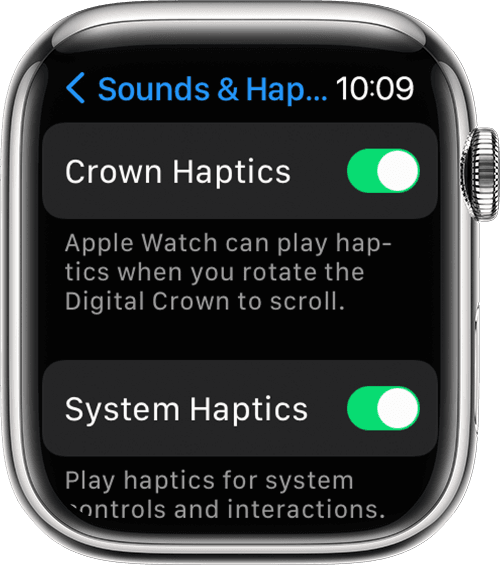
The Haptic Crown is available only on Apple Watch Series 4 or later.
Turn on Taptic Chimes
Your Apple Watch can chime at different intervals, making it easy to track time without looking.
- Open the Settings app.
- Scroll down and tap Accessibility.
- Scroll down and tap Chimes.
- Turn Chimes on.
- Tap Schedule and set the chimes to play on the hour or every 30 or 15 minutes.
- Tap Sounds and change the chime to Birds or Bells.
You can also adjust these settings from your iPhone. On your iPhone, open the Apple Watch app, go to the My Watch tab, tap Accessibility, then tap Chimes.
How to turn on Do Not Disturb on your Apple Watch
- Touch and hold the bottom of the watch face. Wait for Control Center to show, then swipe up.
- Tap the Do Not Disturb button
 , then choose an option. You can manually turn off Do Not Disturb or set it for a period of time, so it automatically turns off.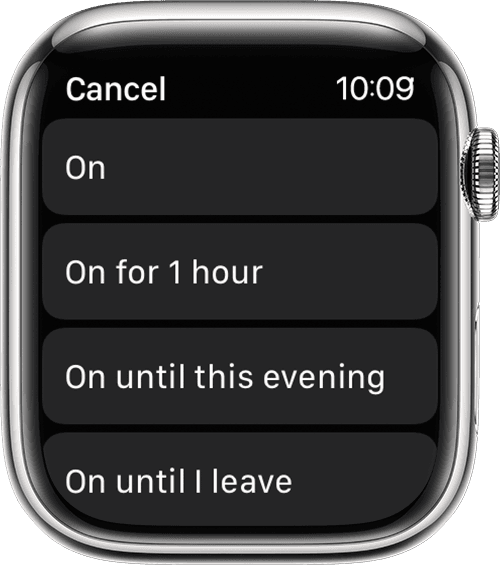
Do Not Disturb keeps calls and alerts (except for alarms) from sounding or lighting up the screen. When enabled, the Do Not Disturb icon  appears at the top of the screen.
Change settings from your iPhone
On your iPhone, open the Apple Watch app, go to the My Watch tab, and tap Sounds & Haptics."
We hope this helps.
Cheers!



