Problem setting up new MacBook Air

I'm trying to log onto my new MacBook Air - it recognises my Apple ID and verification code (see successful log in on my phone) but then I get connection error unknown error code 10002 and can't proceed to the next step.

MacBook Air 13″, macOS 11.7

Posted on Jan 16, 2023 7:34 AM

Reply
Question marked as Top-ranking reply

Posted on Jan 17, 2023 3:36 PM

Hi Squires Misses,


Congratulations on your new MacBook Air. For help with signing in to your Apple ID, test the sign in on a different Wi-Fi network. If your Mac isn't connecting to the internet over Wi-Fi


If the issue continues, ensure your macOS software is up to date. The steps here can assist: Update macOS on Mac


Once updated, test the sign in once again with the steps below found in the article here: Sign in with your Apple ID - Apple Support


"Sign in on your Mac

  1. Choose Apple menu  > System Settings. In earlier versions of macOS, choose Apple menu  > System Preferences.
  2. From the sidebar, click Sign In with your Apple ID. In earlier versions of macOS, click Sign In.
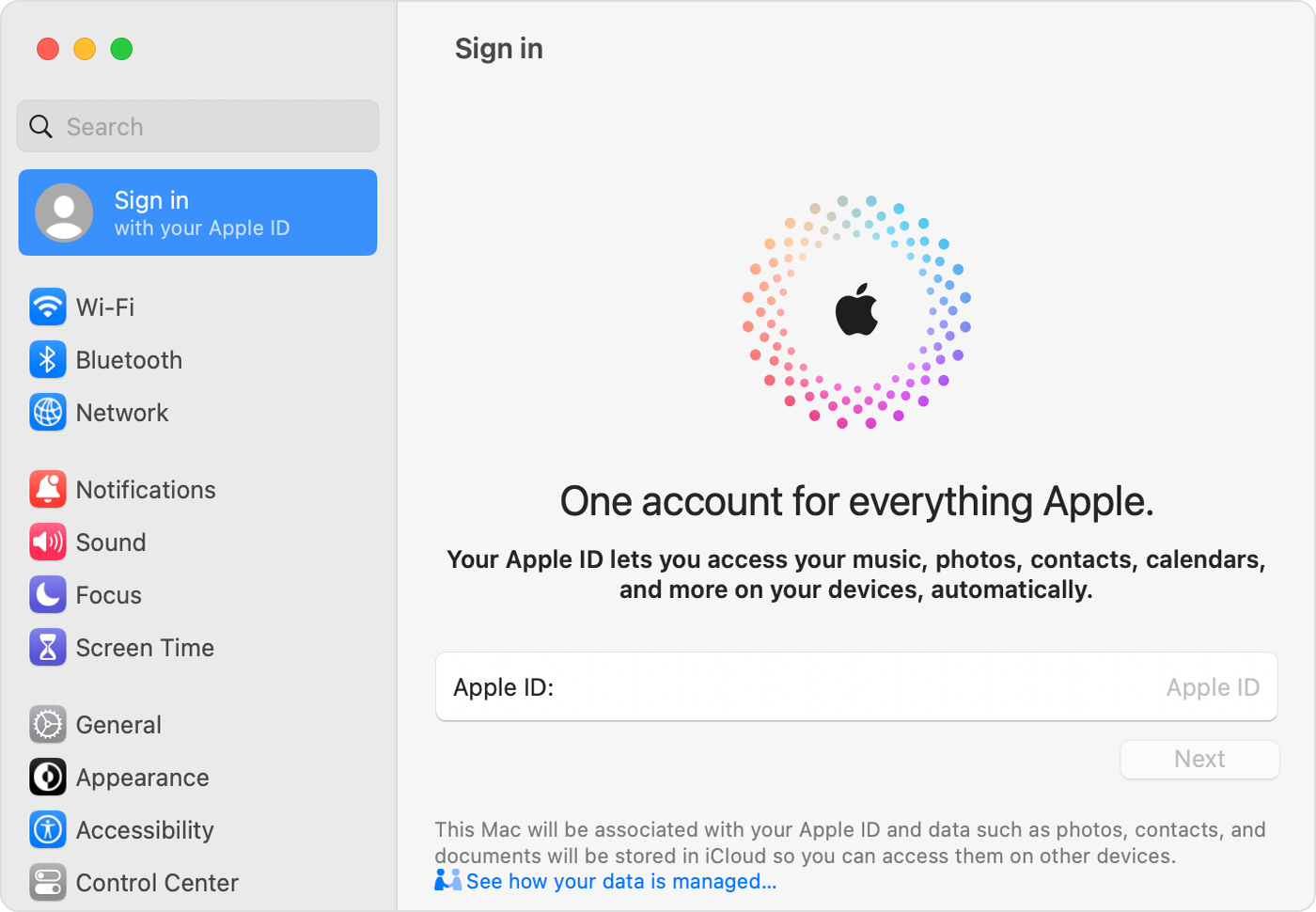
  3. On Mac, sign in to your Apple ID in System Settings
  4. Enter your Apple ID and password. 
  5. If prompted, enter the six-digit verification code sent to your trusted device or phone number and complete sign in."


If the issue remains, reach out to Apple Support directly to ensure you can sign in on your new MacBook Air.


Contact - Official Apple Support


Contact Apple for support and service - Apple Support


Best.



1 reply
Question marked as Top-ranking reply

Jan 17, 2023 3:36 PM in response to Squires Misses

Hi Squires Misses,


Congratulations on your new MacBook Air. For help with signing in to your Apple ID, test the sign in on a different Wi-Fi network. If your Mac isn't connecting to the internet over Wi-Fi


If the issue continues, ensure your macOS software is up to date. The steps here can assist: Update macOS on Mac


Once updated, test the sign in once again with the steps below found in the article here: Sign in with your Apple ID - Apple Support


"Sign in on your Mac

  1. Choose Apple menu  > System Settings. In earlier versions of macOS, choose Apple menu  > System Preferences.
  2. From the sidebar, click Sign In with your Apple ID. In earlier versions of macOS, click Sign In.
  3. On Mac, sign in to your Apple ID in System Settings
  4. Enter your Apple ID and password. 
  5. If prompted, enter the six-digit verification code sent to your trusted device or phone number and complete sign in."


If the issue remains, reach out to Apple Support directly to ensure you can sign in on your new MacBook Air.


Contact - Official Apple Support


Contact Apple for support and service - Apple Support


Best.


This thread has been closed by the system or the community team. You may vote for any posts you find helpful, or search the Community for additional answers.

Problem setting up new MacBook Air

Welcome to Apple Support Community
A forum where Apple customers help each other with their products. Get started with your Apple Account.