Hello rayfromsperryville,
To help us better assist you, can you let us know more about the situation? For example, is your current Mac not working at all? That information will help us proceed.
In order to restore files with Time Machine, they would need to have been backed up successfully. This link outlines options to backup files, and may help: Ways to back up or protect your files
If content was backed up with Time Machine, and you want to restore that backup onto your new Mac when you get it, please check out this link, which outlines options, and will guide you through that process: Restore your Mac from a backup
Use Migration Assistant
1. If you need to reinstall macOS, do that before continuing. For example, if your Mac starts up to a flashing question mark, you need to first reinstall macOS.
2. Make sure that your Time Machine backup disk is connected to your Mac and turned on.
3. Open Migration Assistant on your Mac. It's in the Utilities folder of your Applications folder.
If your Mac starts up to a setup assistant, which asks for details like your country and network, continue to the next step, because the setup assistant includes a migration assistant.
4. When asked how you want to transfer your information, select the option to transfer from a Mac, Time Machine backup, or startup disk. Then click Continue.
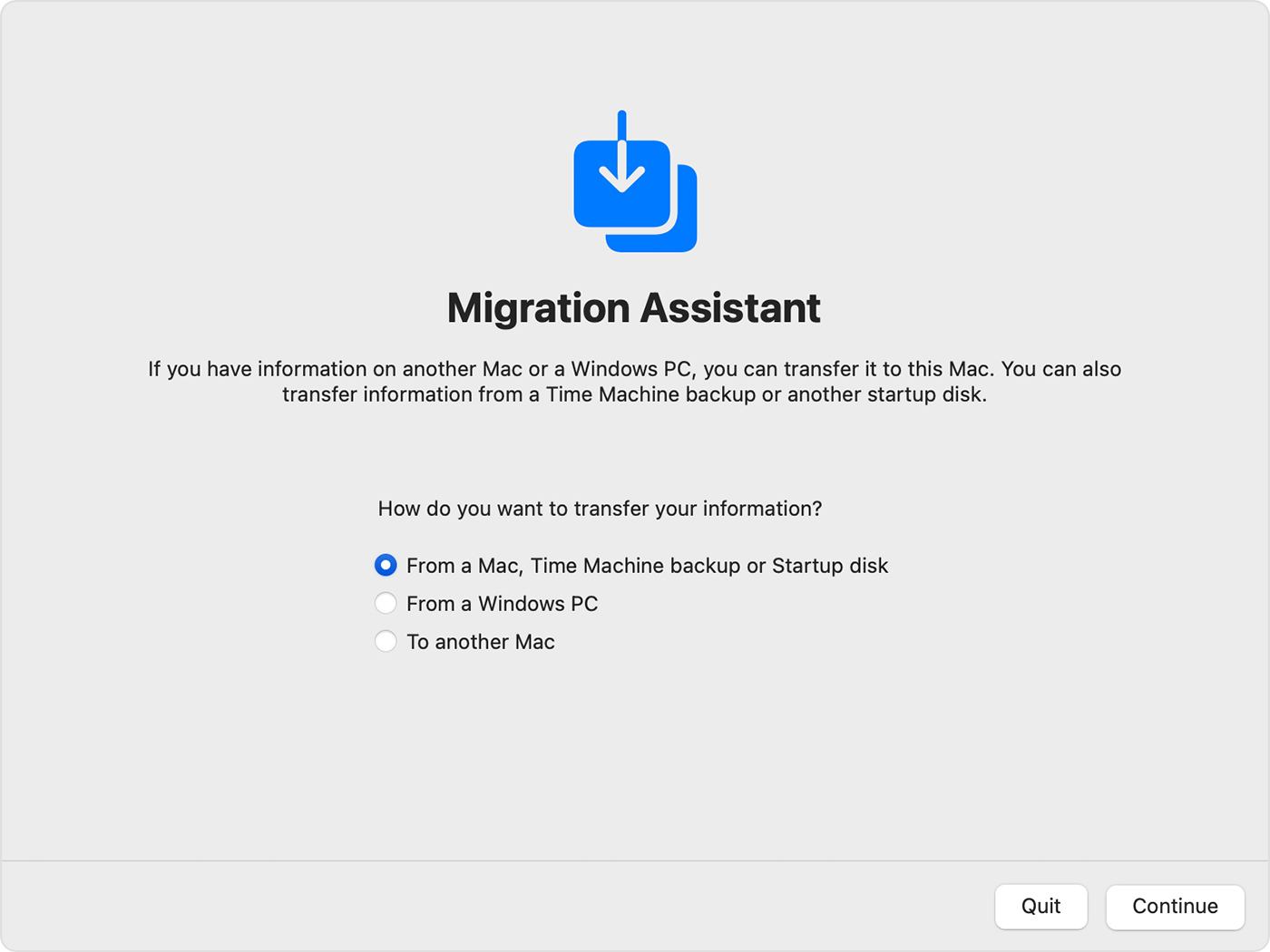
5. Select your Time Machine backup, then click Continue.
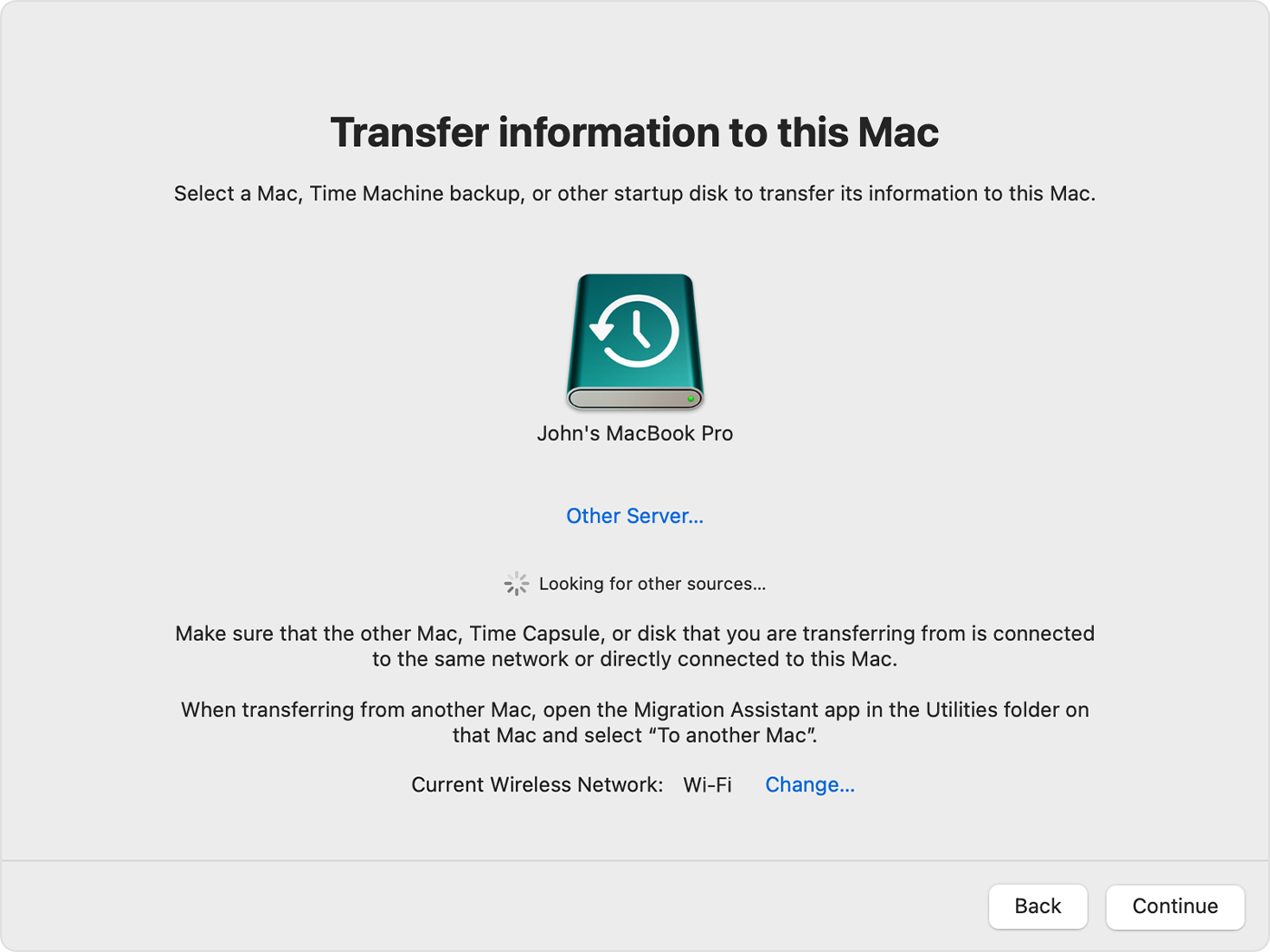
6. Choose a backup and click Continue.
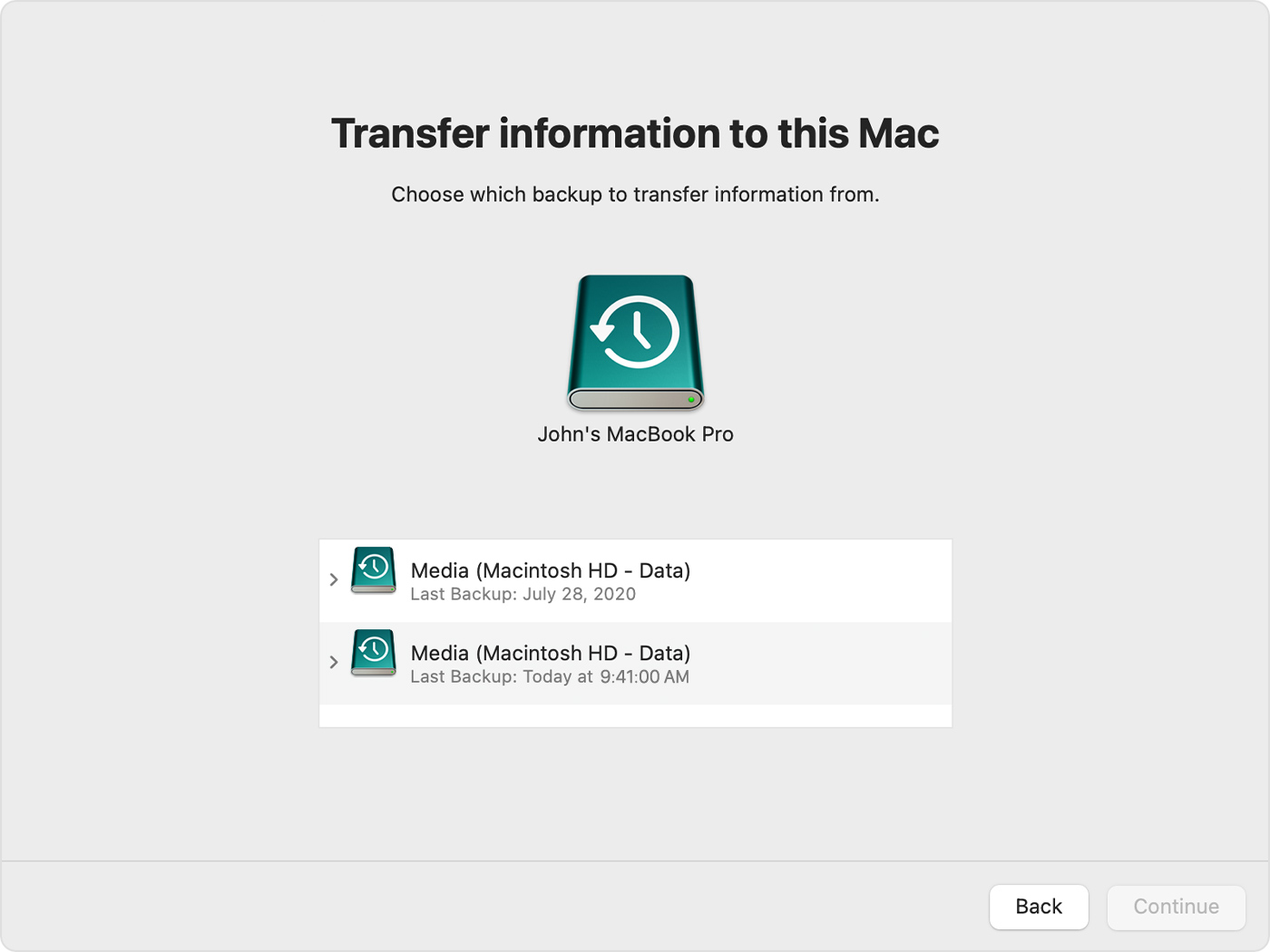
7. Select the information to transfer.
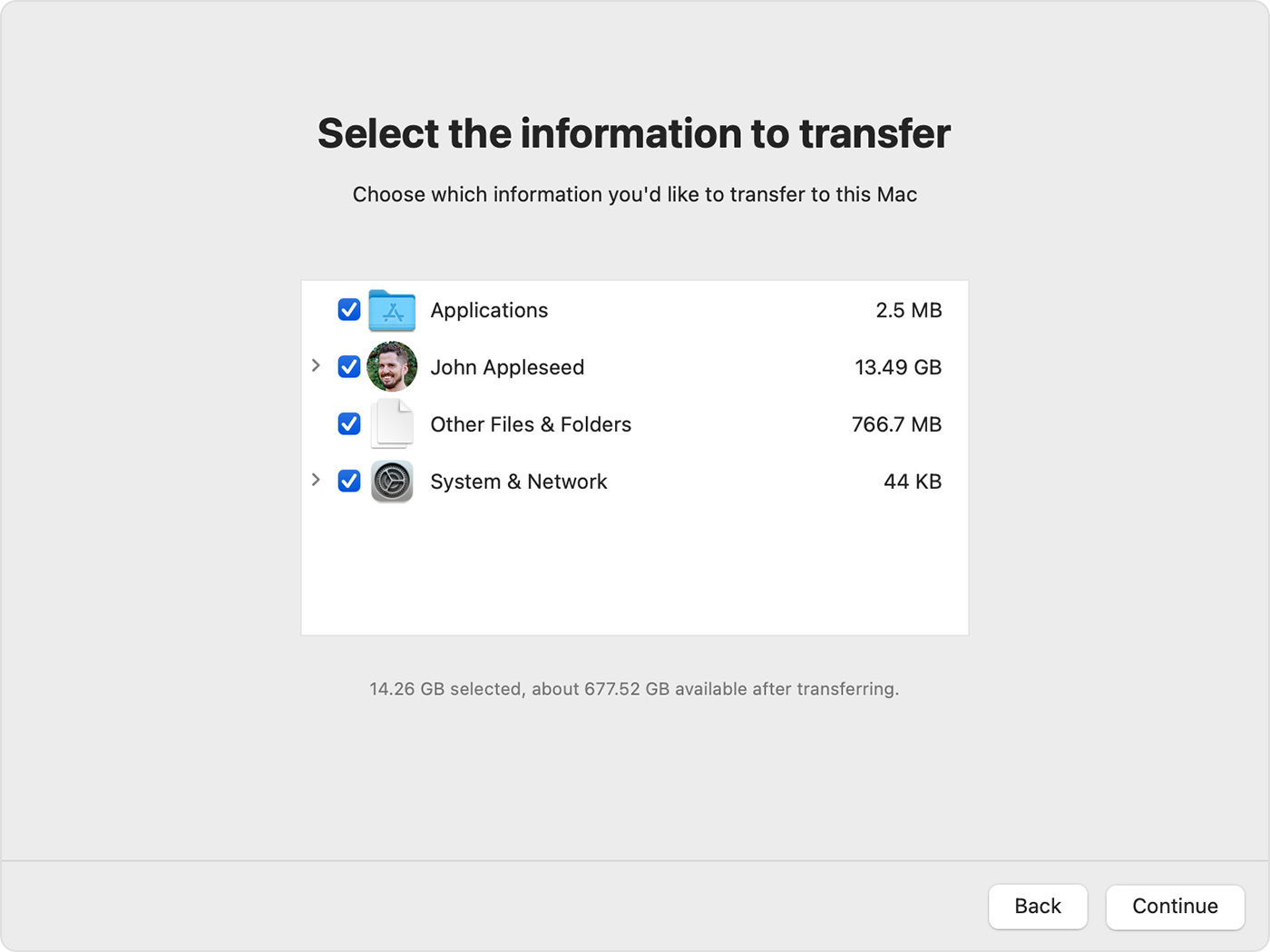
8. Before clicking Continue, learn what it means to transfer a user account. In the example pictured here, John Appleseed is a user account. If an account on the your Mac has the same name, Migration Assistant asks whether to rename or replace:
• Rename: The account on your old Mac will appear as an additional user on your Mac, with a separate login and home folder.
• Replace: The account on your old Mac will replace the identically named account on your Mac.
9. Large transfers might need hours to complete, and might seem to pause occasionally. You might want to start in the evening and allow migration to complete overnight. Click Continue to start the transfer.
10. After Migration Assistant is done, quit Migration Assistant, then log in to the migrated account on your Mac to see its files.
If you need help, please contact Apple Support.
Thanks!

