Watch and Phone data is not in Sync

Hi,


My apple watch Ultra Watch face Modular Duo is not in sync with my Iphone 12 promax.

The weather details on my phone are different whereas on my watch they are not in accordance to my phone tried each and eveything to get them sync but it didnot work.

simikar is the case with number of steps and calories burnt in modular duo...

Could you please advice what needa to be done next?

Apple Watch Ultra

Posted on Mar 11, 2023 9:46 AM

Reply
Question marked as Top-ranking reply

Posted on Mar 13, 2023 9:23 AM

Hi NPI_NOKIA,


Since your Apple Watch and iPhone are not in sync, try restarting both to see if that helps.


Restart Apple Watch Ultra - Apple Support


Restart Apple Watch Ultra
* Turn off your Apple Watch Ultra: Press and hold the side button until the sliders appear, tap the Power Button, then drag the Power Off slider to the right.

* Turn on your Apple Watch Ultra: Hold down the side button until the Apple logo appears.

Note: You can’t restart your Apple Watch Ultra while it’s charging.

Restart the paired iPhone

* Turn off your iPhone: For models with Face ID, press and hold the side button and a volume button, then drag the slider to the right. For models without Face ID, press and hold the side or top button until the slider appears, then drag the slider to the right. With any model, you can also go to Settings > General > Shut Down.

* Turn on your iPhone: Hold down the side or top button until the Apple logo appears.

Force Apple Watch Ultra to restart

If you can’t turn off your Apple Watch Ultra or if the problem continues, you may need to force your Apple Watch Ultra to restart. Do this only if you’re unable to restart your Apple Watch Ultra.

To force restart, hold down the side button and the Digital Crown at the same time for at least ten seconds, until the Apple logo appears.


We recommend the steps above because while a restart can seem unimportant, it can resolve many minor issues with the device.


As for steps and calories not being reported accurately, we recommend you try the steps in the link below in the sections titled "Calibrate your Apple Watch" and "Improve your Workout and Activity accuracy."


Calibrate your Apple Watch for improved Workout and Activity accuracy - Apple Support


Calibrate your Apple Watch
1. While wearing your Apple Watch, go to a flat, open outdoor area that offers good GPS reception and clear skies.
2. If you have Apple Watch Series 2 or later, you just need your Apple Watch.* If you have Apple Watch Series 1 or earlier, bring your iPhone for GPS. Hold your iPhone in your hand, or wear it on an armband or waistband.
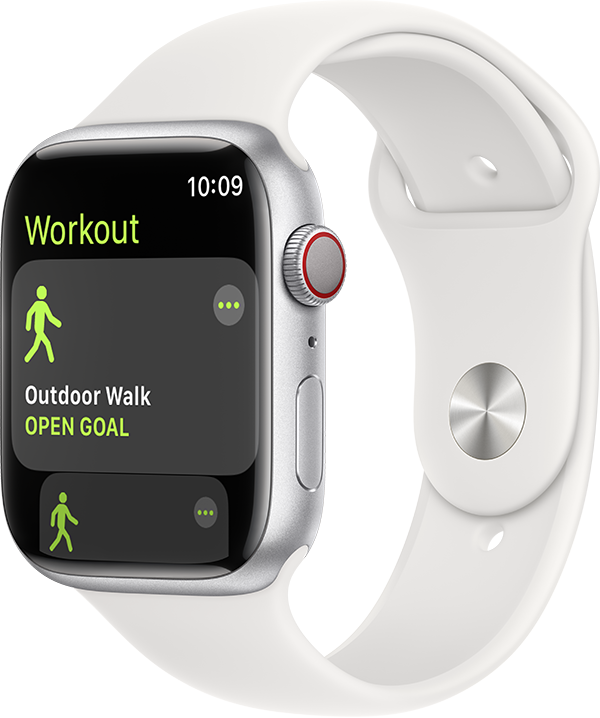
3. Open the Workout app, then tap Outdoor Walk or Outdoor Run. To set a goal before starting, tap the ... icon.
Outdoor Walk workout on watch with white band.
4. Walk or run at your normal pace for about 20 minutes.

If you don't have time to finish the workout, you can complete 20 minutes over multiple outdoor Workout sessions. If you work out at different speeds, you should also calibrate for 20 minutes at each of the speeds that you walk or run.

Whenever you walk or run outside using the above steps, your Apple Watch continues to calibrate the accelerometer by learning your stride length at different speeds. Calibration can also improve the accuracy of your calorie calculations in the Workout app, and the calorie, distance, Move, and Exercise calculations in the Activity app. 


Improve your Workout and Activity accuracy
Your personal information, such as your height, weight, gender, and age, is one of the things your Apple Watch uses to calculate how many calories you burn and more. Learn how to update your personal information.


Please let us know the outcome after giving the above steps a try.


Thanks for using the Apple Support Communities.


Cheers!


Similar questions

5 replies
Question marked as Top-ranking reply

Mar 13, 2023 9:23 AM in response to NPI_NOKIA

Hi NPI_NOKIA,


Since your Apple Watch and iPhone are not in sync, try restarting both to see if that helps.


Restart Apple Watch Ultra - Apple Support


Restart Apple Watch Ultra
* Turn off your Apple Watch Ultra: Press and hold the side button until the sliders appear, tap the Power Button, then drag the Power Off slider to the right.

* Turn on your Apple Watch Ultra: Hold down the side button until the Apple logo appears.

Note: You can’t restart your Apple Watch Ultra while it’s charging.

Restart the paired iPhone

* Turn off your iPhone: For models with Face ID, press and hold the side button and a volume button, then drag the slider to the right. For models without Face ID, press and hold the side or top button until the slider appears, then drag the slider to the right. With any model, you can also go to Settings > General > Shut Down.

* Turn on your iPhone: Hold down the side or top button until the Apple logo appears.

Force Apple Watch Ultra to restart

If you can’t turn off your Apple Watch Ultra or if the problem continues, you may need to force your Apple Watch Ultra to restart. Do this only if you’re unable to restart your Apple Watch Ultra.

To force restart, hold down the side button and the Digital Crown at the same time for at least ten seconds, until the Apple logo appears.


We recommend the steps above because while a restart can seem unimportant, it can resolve many minor issues with the device.


As for steps and calories not being reported accurately, we recommend you try the steps in the link below in the sections titled "Calibrate your Apple Watch" and "Improve your Workout and Activity accuracy."


Calibrate your Apple Watch for improved Workout and Activity accuracy - Apple Support


Calibrate your Apple Watch
1. While wearing your Apple Watch, go to a flat, open outdoor area that offers good GPS reception and clear skies.
2. If you have Apple Watch Series 2 or later, you just need your Apple Watch.* If you have Apple Watch Series 1 or earlier, bring your iPhone for GPS. Hold your iPhone in your hand, or wear it on an armband or waistband.
3. Open the Workout app, then tap Outdoor Walk or Outdoor Run. To set a goal before starting, tap the ... icon.
Outdoor Walk workout on watch with white band.
4. Walk or run at your normal pace for about 20 minutes.

If you don't have time to finish the workout, you can complete 20 minutes over multiple outdoor Workout sessions. If you work out at different speeds, you should also calibrate for 20 minutes at each of the speeds that you walk or run.

Whenever you walk or run outside using the above steps, your Apple Watch continues to calibrate the accelerometer by learning your stride length at different speeds. Calibration can also improve the accuracy of your calorie calculations in the Workout app, and the calorie, distance, Move, and Exercise calculations in the Activity app. 


Improve your Workout and Activity accuracy
Your personal information, such as your height, weight, gender, and age, is one of the things your Apple Watch uses to calculate how many calories you burn and more. Learn how to update your personal information.


Please let us know the outcome after giving the above steps a try.


Thanks for using the Apple Support Communities.


Cheers!


Mar 13, 2023 10:59 AM in response to NPI_NOKIA

Thanks for giving those steps a try NPI_NOKIA,


We suggest unpairing and erasing your Apple Watch then pairing it back up and testing again. Below are steps on how to do that.


Unpair and erase your Apple Watch - Apple Support


"Before you start

  • If you have the iPhone that your Apple Watch is paired with, you should follow the steps to unpair your Apple Watch. This removes Activation Lock from your Apple Watch as well as erasing all its content and settings. If you don't have the paired iPhone, you can erase your Apple Watch, but Activation Lock will remain.
  • If you're using your Apple Watch with a transit card in the Wallet app, remove your transit card from your Apple Watch before you unpair.
  • Apple Watch doesn't have a physical SIM slot or reset button — the holes in your Apple Watch case are there to allow sound to and from the microphone and speakers, and to allow water-depth measurement on Apple Watch Ultra. To avoid damage, don't insert any object into the holes in your Apple Watch case.


How to unpair and erase your Apple Watch if you have your iPhone

  1. Keep your Apple Watch and iPhone close together as you unpair them.
  2. Open the Apple Watch app on your iPhone.
  3. Go to the My Watch tab and tap All Watches.
  4. Tap the info button  next to the watch that you want to unpair. 
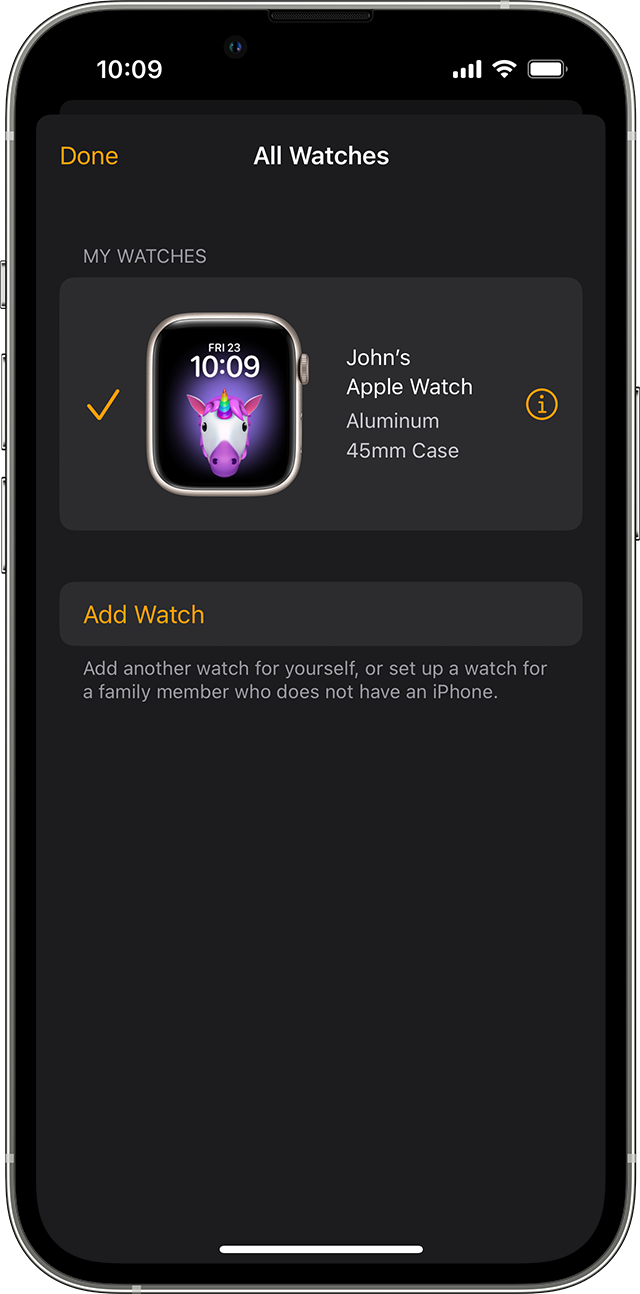
5. Tap Unpair Apple Watch.
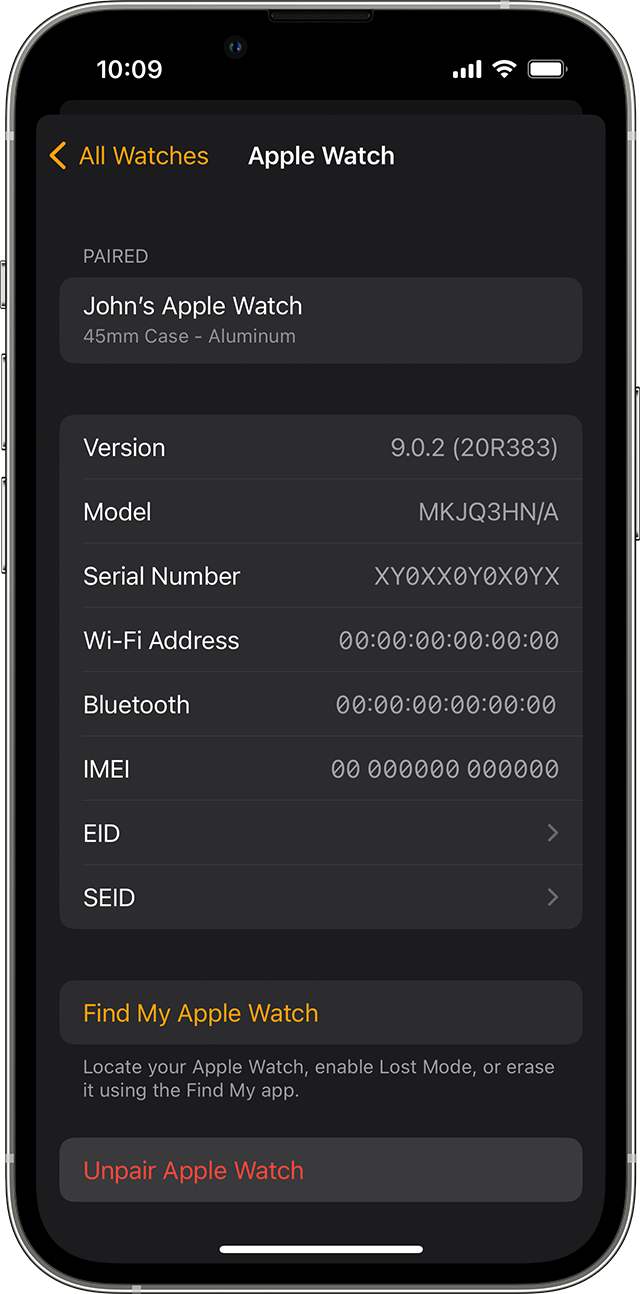

6. Tap Unpair [your Apple Watch name].

7. For GPS + Cellular models, choose whether to keep or remove your cellular plan. 

    • If you want to pair your Apple Watch and iPhone again, keep your plan. 
    • If you don't want to pair your Apple Watch and iPhone again, remove your plan. If you aren't going to pair with a different watch or iPhone, you might need to contact your carrier to cancel your cellular subscription. 

8. Type your Apple ID password to disable Activation Lock, then tap Unpair. 

Before erasing all content and settings on your Apple Watch, your iPhone creates a new backup of your Apple Watch. You can use the backup to restore a new Apple Watch. After your Apple Watch unpairs, you'll see the Start Pairing message.

Now you can set up your Apple Watch again or turn it off if you're selling it or giving it away."


We hope this helps.


Cheers!


This thread has been closed by the system or the community team. You may vote for any posts you find helpful, or search the Community for additional answers.

Watch and Phone data is not in Sync

Welcome to Apple Support Community
A forum where Apple customers help each other with their products. Get started with your Apple Account.