
apple tv stopped connecting with 2 year old lg
Afte the last TV OS upgrade, the Apple TV remote stopped controling anything on the TV. All was working fine before the upgrade. Any ideas?
Apple TV 4K
Afte the last TV OS upgrade, the Apple TV remote stopped controling anything on the TV. All was working fine before the upgrade. Any ideas?
Apple TV 4K
Hello Larry Zinn1,
Thank you for reaching out to Apple Support Communities, and we'll be happy to help in any way we can. We understand you're having issues with your Apple TV remote. Try the steps here to see if they resolve the issue: If your Siri Remote or Apple TV Remote isn't working - Apple Support
"If your remote isn't working as expected, learn what to do.
Try these steps first
If the volume buttons on your Apple TV remote stop working, learn what to do.

Restart your remote
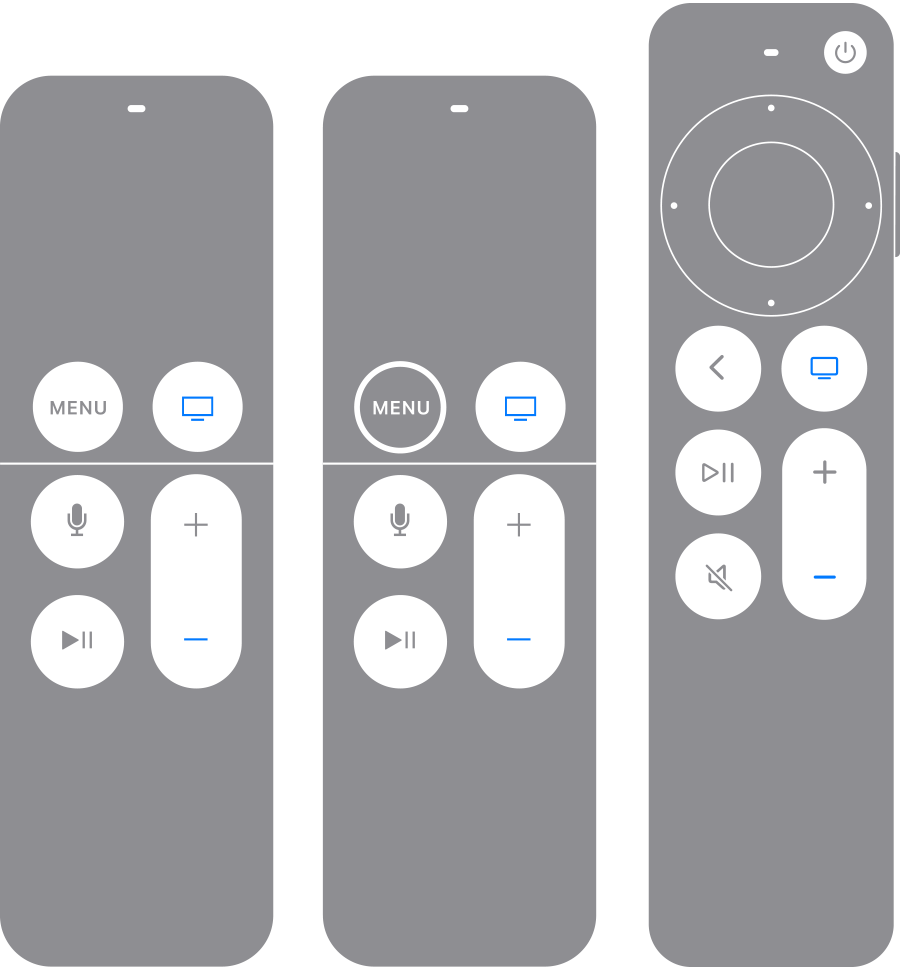
If your remote still isn't working as expected, try restarting your remote.
 and the Volume Down button
  at the same time. Hold the buttons down for about 5 seconds, or until the status light on your Apple TV turns off and on again.
Pair your remote
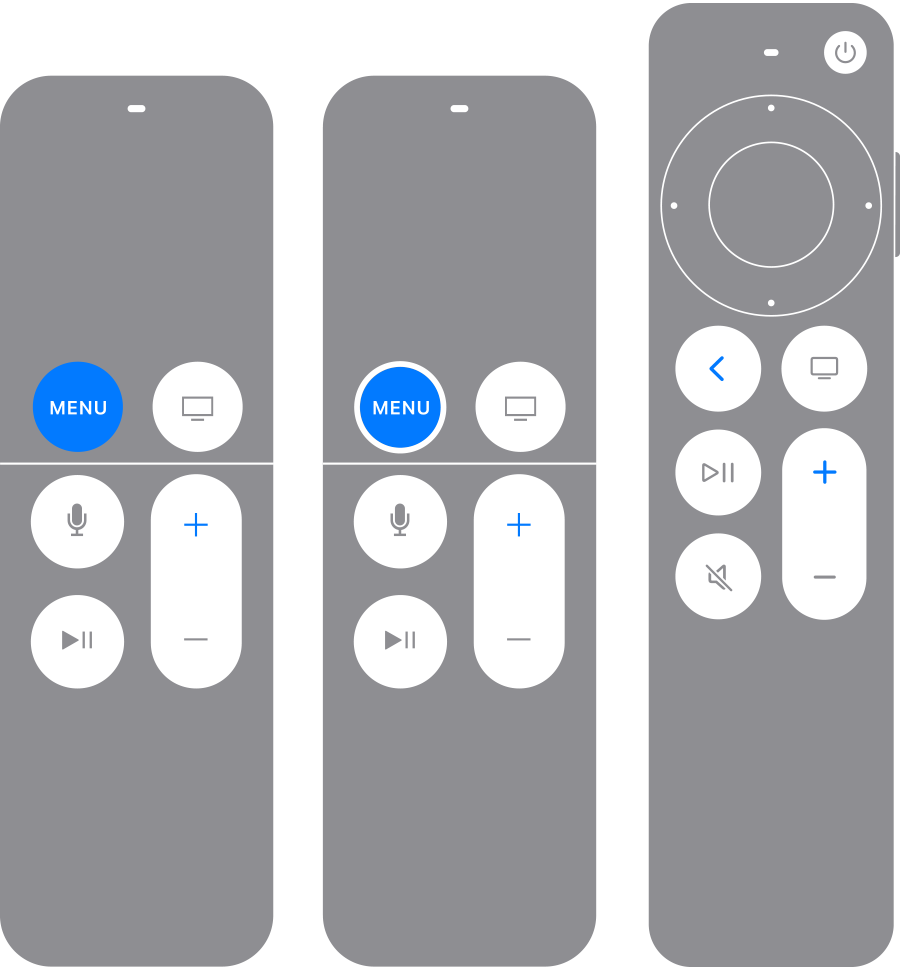
If your remote still isn't working as expected, try pairing your remote to your Apple TV again.
 (or Menu) and Volume Up
  for five seconds.
If you can't pair your remote, make sure that your Apple TV is updated to the latest version of tvOS. You can use the Apple TV Remote on your iPhone or iPad to navigate your Apple TV to check which version of tvOS you have.
If you still need help, contact Apple Support."
We hope this helps.
Cheers!
Hello Larry Zinn1,
Thank you for reaching out to Apple Support Communities, and we'll be happy to help in any way we can. We understand you're having issues with your Apple TV remote. Try the steps here to see if they resolve the issue: If your Siri Remote or Apple TV Remote isn't working - Apple Support
"If your remote isn't working as expected, learn what to do.
Try these steps first
If the volume buttons on your Apple TV remote stop working, learn what to do.
Restart your remote
If your remote still isn't working as expected, try restarting your remote.
and the Volume Down button at the same time. Hold the buttons down for about 5 seconds, or until the status light on your Apple TV turns off and on again.
Pair your remote
If your remote still isn't working as expected, try pairing your remote to your Apple TV again.
(or Menu) and Volume Up for five seconds.If you can't pair your remote, make sure that your Apple TV is updated to the latest version of tvOS. You can use the Apple TV Remote on your iPhone or iPad to navigate your Apple TV to check which version of tvOS you have.
If you still need help, contact Apple Support."
We hope this helps.
Cheers!
apple tv stopped connecting with 2 year old lg

