kt208,
To create a CardDAV account, we recommend that you follow the steps here: Use other contact accounts on iPhone - Apple Support
To perform the recommended troubleshooting steps via the link above, complete the steps in the section titled "Set up an LDAP or CardDAV account to access business or school directories."
1. Go to Settings  > Contacts > Accounts > Add Account, then tap Other.
2. Tap Add LDAP Account or Add CardDAV Account, then enter the account information.
We recommend the steps above because they will show you how to create a CardDAV account on your iPhone.
Please remember that you'll need to know the login credentials to set up the account successfully. If you don't have this information, you can reach out to the person that initially set up the account for you, or your can see if you can locate the password by following the steps in the link below in the section titled "View saved passwords and passkeys in Settings."
How to find saved passwords and passkeys on your iPhone - Apple Support
1. Tap Settings, then select Passwords. In iOS 13 or earlier, select Passwords & Accounts, then tap Website & App Passwords.
2. Use Face ID or Touch ID when prompted, or enter your passcode.
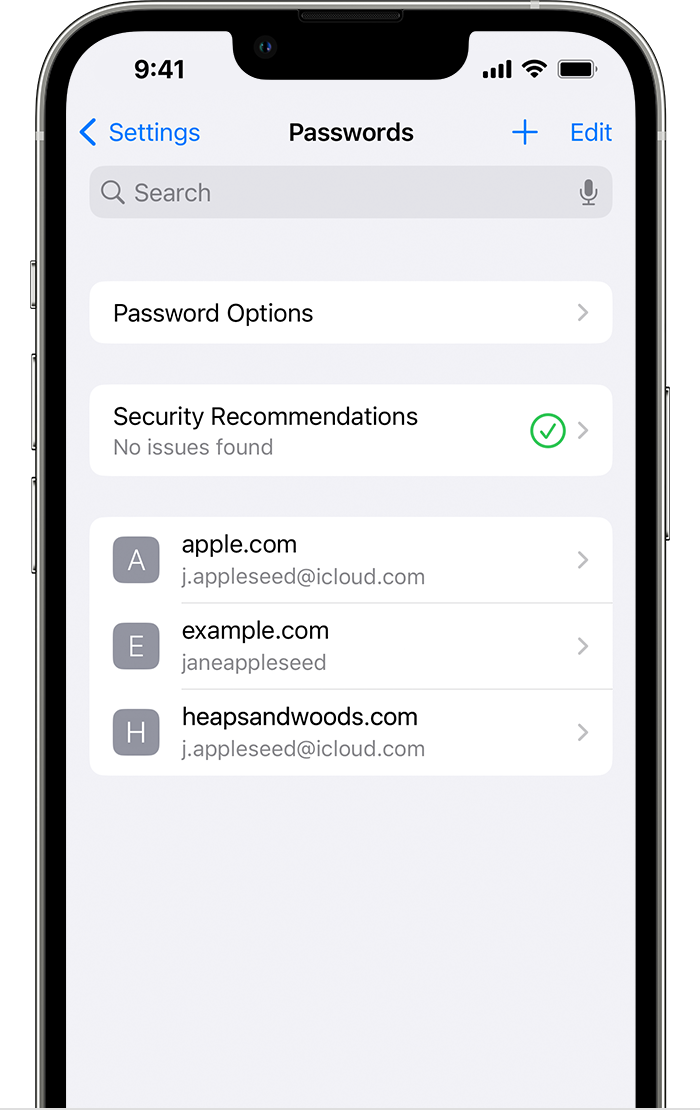
3. To see a password or passkey, select a website or app. 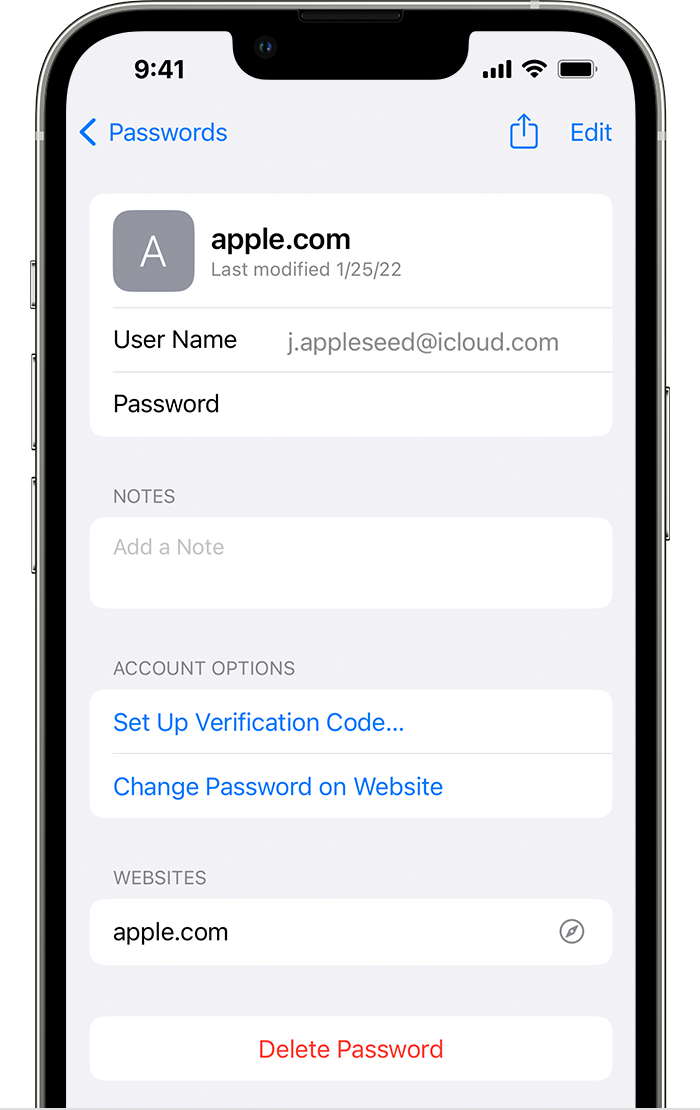
* To delete a saved password or passkey, tap Delete Password or Delete Passkey.
* To update a password or passkey, tap Edit.
Please let us know the outcome after giving the above steps a try.
Thanks for using the Apple Support Communities.
Cheers!


