Cover art for mp3 missing in iOS Files app

I recently did a fresh install of Mac OS on an old Mac Mini (from Mojave to Monterey)

I have many ripped CDs tagged with metadata and Cover art by iTunes or MP3TAG app and copy these files in iCloud to be accessed later from an iOS device. No other change in process required after the upgrade to Monterey except that Music app replaced iTunes


To date, everything has worked without any problems and all mp3 cover art is displayed correctly in Finder.

However the same is not well in the iOS Files app after the upgrade


All the mp3 created in Mojave display correctly in Finder and Files app

All the mp3 created in Monterey display correctly in Finder but not in Files app - only display a white icon with grey music symbol.


Please help


Mac mini, 12.6

Posted on Mar 20, 2023 10:44 PM

Reply

Similar questions

3 replies

Mar 22, 2023 9:37 AM in response to CraigMau

Hello CraigMau,


Thanks for reaching out to Apple Support Communities. We see you have some questions about your cover art not showing, and we'd like to help. As we see you synced with the Apple Music app, we'd recommend trying to sync with Finder, and let us know if the issue remains: Use the Finder to sync your iPhone, iPad, or iPod with your computer - Apple Support


Sync or remove content using the Finder
1. Open a Finder window and connect your device to your computer using a USB cable. Learn what to do if you don't see your device listed in Finder.
2. After your device appears in the sidebar of the Finder window, click the device to select it.
3. If prompted, trust your device. You might be asked to update to the latest version of iOS or iPadOS.
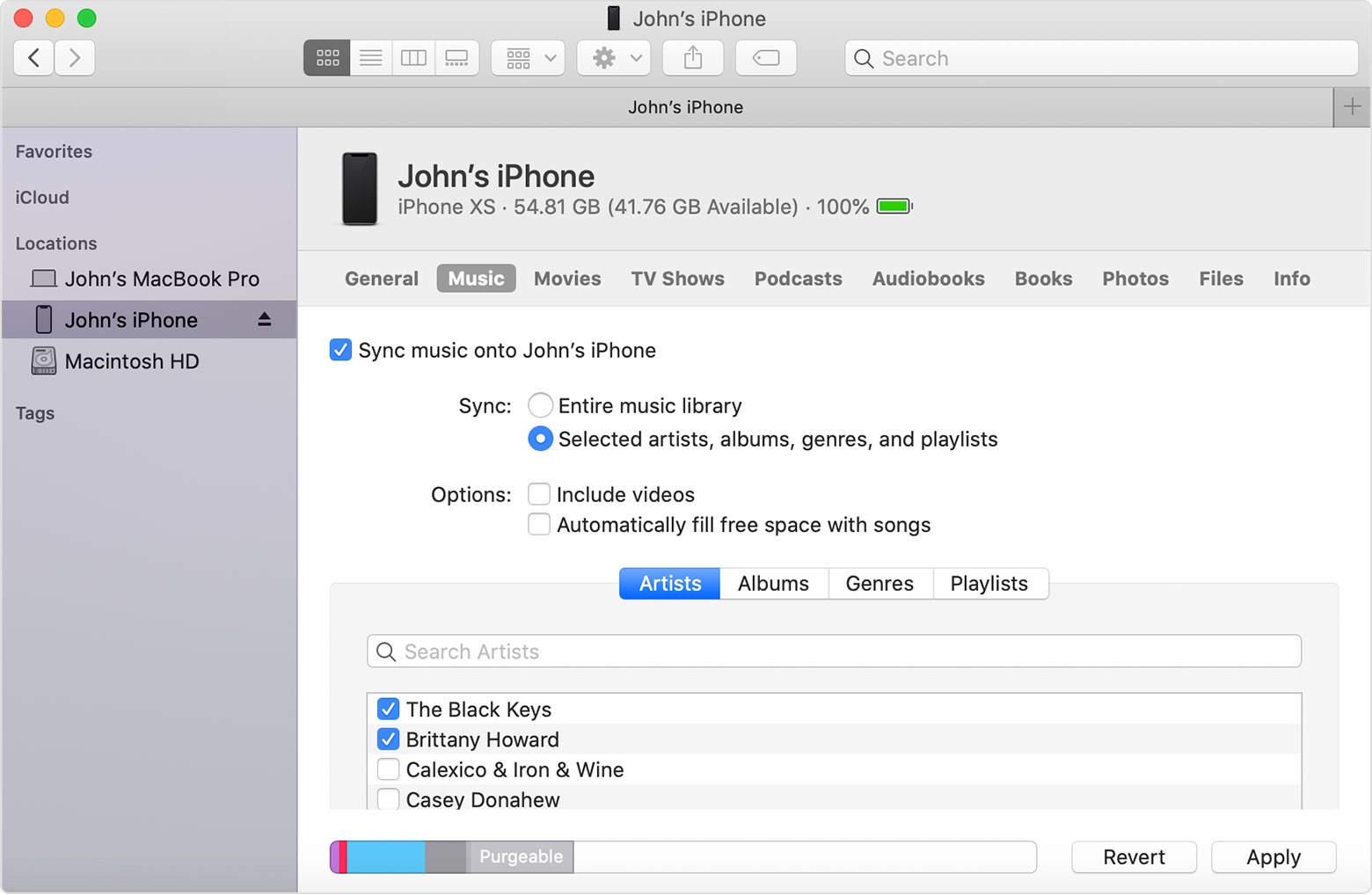
4. Select the type of content that you want to sync or remove from the horizontal list. To turn syncing on for a content type, select the checkbox next to “Sync [content] onto [user’s] iPhone.” More syncing options will now be available.
5. Select the checkbox next to each item that you want to sync.
A Finder window shows the options for syncing music with a connected iPhone
6. Click the Apply button in the lower-right corner of the window. If syncing doesn't start automatically, click the Sync button. You may also be prompted to authorize your computer to complete the sync.


Let us know if this helps.


Regards.

This thread has been closed by the system or the community team. You may vote for any posts you find helpful, or search the Community for additional answers.

Cover art for mp3 missing in iOS Files app

Welcome to Apple Support Community
A forum where Apple customers help each other with their products. Get started with your Apple Account.