
battery
why my MacBook Air battery is reducing fast it's like a new MacBook Air only it's not been a month since I purchase it
MacBook Air, macOS 13.2
why my MacBook Air battery is reducing fast it's like a new MacBook Air only it's not been a month since I purchase it
MacBook Air, macOS 13.2
Hello Mr-sha,
We understand that the battery is draining rapidly on your new MacBook Air. We'd like to provide you with a few steps that can help optimizing your battery life and diagnose the issue:
"Use settings that optimize battery life
Laptop battery life is affected by how your Mac is configured and how you're using it, but you can improve battery life by using settings that help conserve energy.
Check Battery settings
From the Apple menu in the menu bar, choose System Settings (or System Preferences), then click Battery. To see additional settings when using macOS Ventura or later, click Options.
Battery settings related to power modes or energy modes affect energy use, as do settings that enable your Mac to wake for network access or optimize video streaming while on battery. Availability of these and other settings varies by Mac.
Learn more about Battery settings
Check Displays settings
Choose Apple menu > System Settings (or System Preferences), then click Displays. To see additional settings, click Advanced.
Displays settings related to brightness affect energy use, including settings that enable your Mac to automatically adjust brightness, compensate for ambient light, or slightly dim the display while on battery. Availability of these and other settings varies by Mac.
Learn more about Displays settings
Diagnose battery issues
To help diagnose battery issues, check the health and charging status of your battery.
Check Battery Health
Choose Apple menu > System Preferences (or System Settings), then click Battery. The Battery information shown here includes Battery Health:
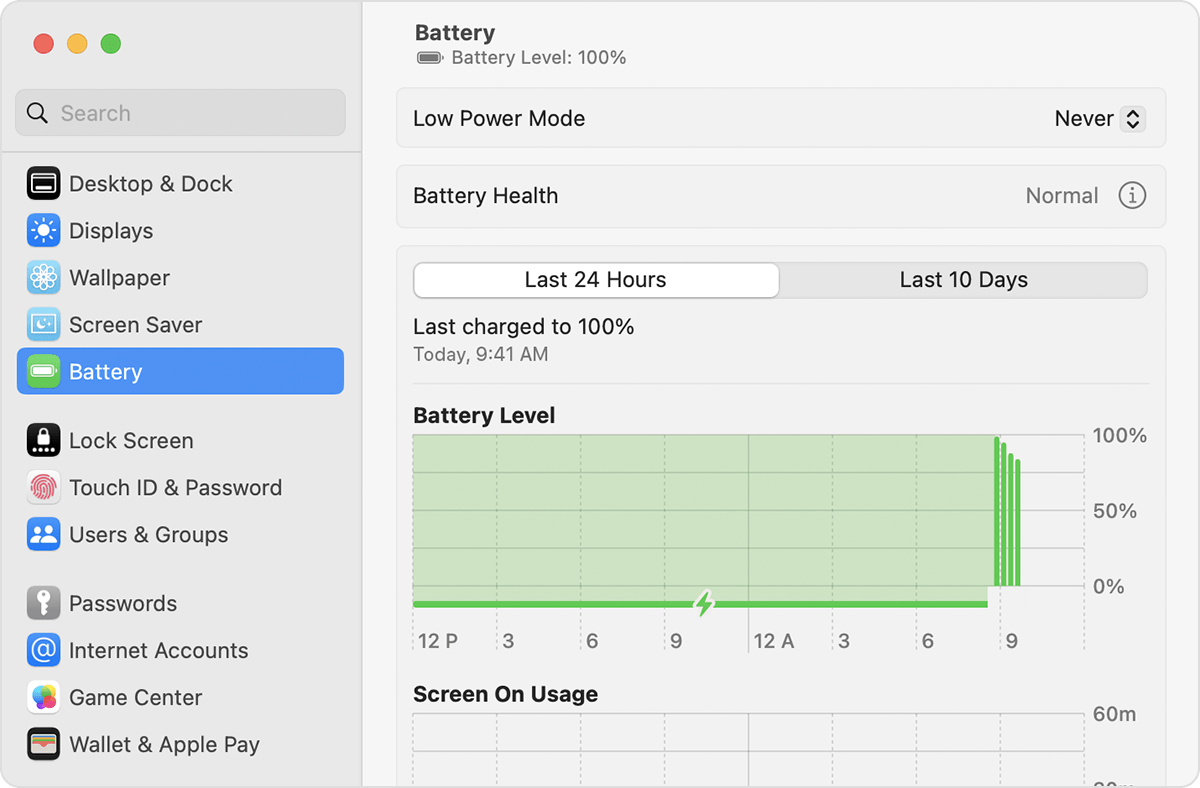
In some earlier versions of macOS, battery health might be reported as Replace Soon, Replace Now, or Service Battery, and might appear in the battery status menu instead of Battery settings: Press and hold the Option (or Alt) key while clicking the battery status menu  in the menu bar.
Some third-party apps also report battery health conditions, but the data they report might not be accurate or conclusively indicate diminished system runtime. It's best to rely on the battery-health information reported by macOS.
Resolve battery-charging issues
The battery status menu in the menu bar shows how much charge your battery has, whether it's currently charging, and whether your display or any apps are using significant energy. When your Mac is connected to power and using optimized battery charging in macOS Big Sur or later, this menu also shows information such as whether charging is paused and when your battery will be fully charged.
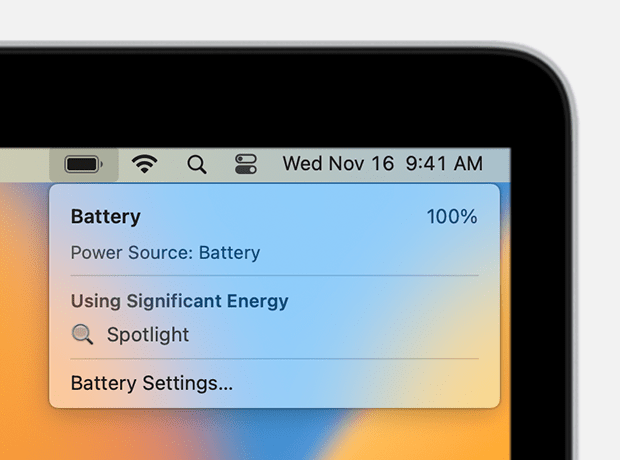
Occasionally your battery might not show a full charge (100%), even after the power adapter has been connected for a long time. This is optimized battery charging, which helps prolong the overall life of the battery. If charging is on hold and you need your battery to be fully charged sooner, choose Charge To Full Now from the battery status menu .
If your battery isn't charging, make sure that you're using the correct power adapter for your Mac. If the power adapter isn't rated for at least the wattage that your Mac requires, it might not charge your Mac reliably. If you're using the correct power adapter, make sure that the power adapter isn't at fault:
If your battery still doesn't charge:
Use Apple Diagnostics
The tests performed by Apple Diagnostics include tests for battery issues.
Learn how to use Apple Diagnostics"
More details here: Get help with your Mac laptop battery
Best wishes!
Hello Mr-sha,
We understand that the battery is draining rapidly on your new MacBook Air. We'd like to provide you with a few steps that can help optimizing your battery life and diagnose the issue:
"Use settings that optimize battery life
Laptop battery life is affected by how your Mac is configured and how you're using it, but you can improve battery life by using settings that help conserve energy.
Check Battery settings
From the Apple menu in the menu bar, choose System Settings (or System Preferences), then click Battery. To see additional settings when using macOS Ventura or later, click Options.
Battery settings related to power modes or energy modes affect energy use, as do settings that enable your Mac to wake for network access or optimize video streaming while on battery. Availability of these and other settings varies by Mac.
Learn more about Battery settings
Check Displays settings
Choose Apple menu > System Settings (or System Preferences), then click Displays. To see additional settings, click Advanced.
Displays settings related to brightness affect energy use, including settings that enable your Mac to automatically adjust brightness, compensate for ambient light, or slightly dim the display while on battery. Availability of these and other settings varies by Mac.
Learn more about Displays settings
Diagnose battery issues
To help diagnose battery issues, check the health and charging status of your battery.
Check Battery Health
Choose Apple menu > System Preferences (or System Settings), then click Battery. The Battery information shown here includes Battery Health:
In some earlier versions of macOS, battery health might be reported as Replace Soon, Replace Now, or Service Battery, and might appear in the battery status menu instead of Battery settings: Press and hold the Option (or Alt) key while clicking the battery status menu in the menu bar.
Some third-party apps also report battery health conditions, but the data they report might not be accurate or conclusively indicate diminished system runtime. It's best to rely on the battery-health information reported by macOS.
Resolve battery-charging issues
The battery status menu in the menu bar shows how much charge your battery has, whether it's currently charging, and whether your display or any apps are using significant energy. When your Mac is connected to power and using optimized battery charging in macOS Big Sur or later, this menu also shows information such as whether charging is paused and when your battery will be fully charged.
Occasionally your battery might not show a full charge (100%), even after the power adapter has been connected for a long time. This is optimized battery charging, which helps prolong the overall life of the battery. If charging is on hold and you need your battery to be fully charged sooner, choose Charge To Full Now from the battery status menu .
If your battery isn't charging, make sure that you're using the correct power adapter for your Mac. If the power adapter isn't rated for at least the wattage that your Mac requires, it might not charge your Mac reliably. If you're using the correct power adapter, make sure that the power adapter isn't at fault:
If your battery still doesn't charge:
Use Apple Diagnostics
The tests performed by Apple Diagnostics include tests for battery issues.
Learn how to use Apple Diagnostics"
More details here: Get help with your Mac laptop battery
Best wishes!
battery

