iOS taking up more than half my iPhone 14 pro storage

Does anyone know what is taking up so much storage?

iPhone 14 Pro

Posted on Mar 21, 2023 11:43 PM

Reply
Question marked as Top-ranking reply

Posted on Mar 22, 2023 5:48 PM

Hey kaashir,


We'd recommend reviewing the information in this article as it provides steps to help manage iPhone storage: How to check the storage on your iPhone and iPad - Apple Support


"Use recommendations to optimize storage

In the Storage section of Settings, your device might offer recommendations for optimizing your storage. To optimize your storage:

  1. Tap Show All to see all the recommendations for your device.
  2. Read the description of each recommendation, then tap Enable to turn it on or tap the recommendation to review the contents you can delete.


Use the Finder or iTunes to check the storage on your iOS device
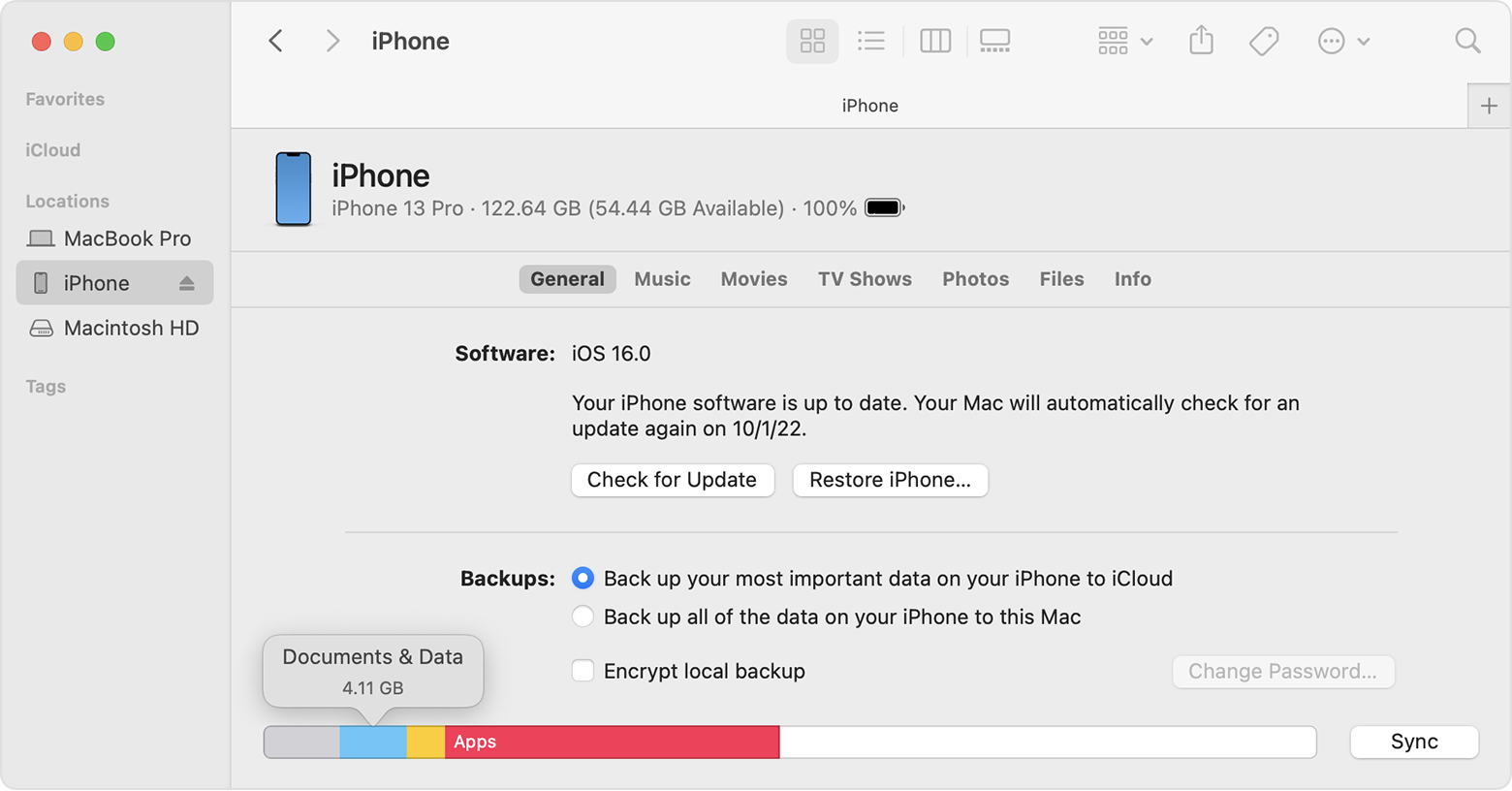
  1. On a Mac with macOS Catalina 10.15 or later, open the Finder. On a Mac with macOS Mojave 10.14 or earlier, or on a PC, open iTunes.
  2. Connect your device to your computer.
  3. Select your device in the Finder or in iTunes. You'll see a bar that shows how much storage your content uses, divided by content type. 
  4. Move your mouse over the bar to see how much storage each content type is using.
  5. Mac screen showing how to use Finder to check the storage on your iOS device

Content categories

Here's a list of the types of content on your device, and what each type includes:

  • Audio: Songs, audio podcasts, audiobooks, voice memos, and ringtones.
  • Video: Movies, music videos, and TV shows.
  • Photos: Content in your Photo Library, Camera Roll, and Photo Stream.
  • Apps: Installed apps. The content of the apps is listed under Documents & Data.
  • Books: iBooks books, audio books, and PDF files.
  • Documents & Data: Safari Offline Reading List, files stored within installed apps, and app content like contacts, calendars, messages, and emails (and their attachments).
  • Other: Settings, Siri voices, system data, and cached files.

About cached files in "Other"

The Finder and iTunes categorize cached music, videos, and photos as Other instead of actual songs, videos, or photos. Cached files are created when you stream or view content like music, videos, and photos. When you stream music or video, that content is stored as cached files on your device so you can quickly access it again.

Your device automatically removes cached files and temporary files when your device needs more space."


Thanks!

1 reply
Question marked as Top-ranking reply

Mar 22, 2023 5:48 PM in response to kaashir

Hey kaashir,


We'd recommend reviewing the information in this article as it provides steps to help manage iPhone storage: How to check the storage on your iPhone and iPad - Apple Support


"Use recommendations to optimize storage

In the Storage section of Settings, your device might offer recommendations for optimizing your storage. To optimize your storage:

  1. Tap Show All to see all the recommendations for your device.
  2. Read the description of each recommendation, then tap Enable to turn it on or tap the recommendation to review the contents you can delete.


Use the Finder or iTunes to check the storage on your iOS device

  1. On a Mac with macOS Catalina 10.15 or later, open the Finder. On a Mac with macOS Mojave 10.14 or earlier, or on a PC, open iTunes.
  2. Connect your device to your computer.
  3. Select your device in the Finder or in iTunes. You'll see a bar that shows how much storage your content uses, divided by content type. 
  4. Move your mouse over the bar to see how much storage each content type is using.
  5. Mac screen showing how to use Finder to check the storage on your iOS device

Content categories

Here's a list of the types of content on your device, and what each type includes:

  • Audio: Songs, audio podcasts, audiobooks, voice memos, and ringtones.
  • Video: Movies, music videos, and TV shows.
  • Photos: Content in your Photo Library, Camera Roll, and Photo Stream.
  • Apps: Installed apps. The content of the apps is listed under Documents & Data.
  • Books: iBooks books, audio books, and PDF files.
  • Documents & Data: Safari Offline Reading List, files stored within installed apps, and app content like contacts, calendars, messages, and emails (and their attachments).
  • Other: Settings, Siri voices, system data, and cached files.

About cached files in "Other"

The Finder and iTunes categorize cached music, videos, and photos as Other instead of actual songs, videos, or photos. Cached files are created when you stream or view content like music, videos, and photos. When you stream music or video, that content is stored as cached files on your device so you can quickly access it again.

Your device automatically removes cached files and temporary files when your device needs more space."


Thanks!

This thread has been closed by the system or the community team. You may vote for any posts you find helpful, or search the Community for additional answers.

iOS taking up more than half my iPhone 14 pro storage

Welcome to Apple Support Community
A forum where Apple customers help each other with their products. Get started with your Apple Account.