Iphone 14 pro glitching with airpods 1st generation
My Iphone 14 pro when connecting with airpods glitches and becomes a black screen. Turns on only when holding power button for almost 20-30seconds. How to fix this?
iPhone 14 Pro
My Iphone 14 pro when connecting with airpods glitches and becomes a black screen. Turns on only when holding power button for almost 20-30seconds. How to fix this?
iPhone 14 Pro
Hi annija291,
If you're experiencing issues when you connect your AirPods to your iPhone, some basic troubleshooting to confirm both devices are operating at their best capacity may help.
First, restart your iPhone and reset your AirPods. This article will show you how to reset your AirPods:
1. Put your AirPods in their charging case, and close the lid.
2. Wait 30 seconds.
3. Open the lid of your charging case, and put your AirPods in your ears.
4. Go to Settings > Bluetooth. Or go to Settings > [your AirPods].
• If your AirPods appear there as connected, tap the More Info buttonnext to your AirPods, tap Forget This Device, then tap again to confirm.
• If your AirPods don't appear there, continue to the next step.
5. Put your AirPods in their charging case, and keep the lid open.
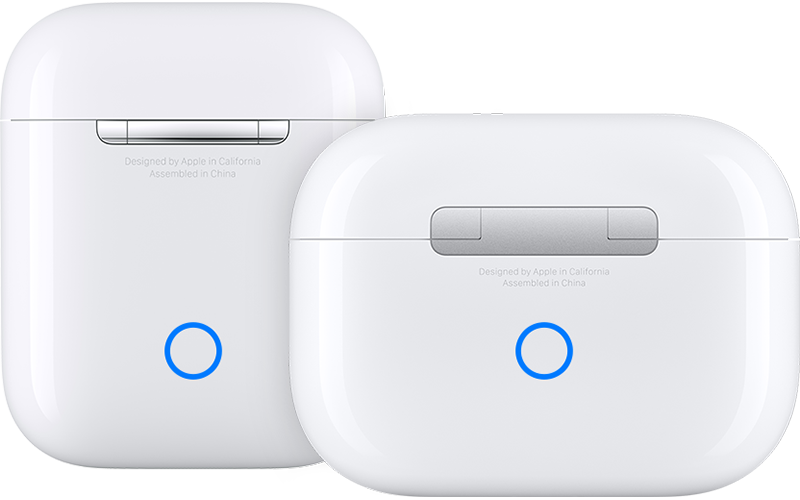
6. Press and hold the setup button on the back of the case for about 15 seconds, until the status light on the front of the case flashes amber, then white.*
7. Reconnect your AirPods: With your AirPods in their charging case and the lid open, place your AirPods close to your iPhone or iPad. Follow the steps on your device's screen.
Then, check to see if your iPhone needs an update. Your AirPods firmware stays updated as they are connected to your iPhone. This article will show you the different ways to update:
Thank you for being part of the Apple Support Communities.
Kindest Regards.
Hi annija291,
If you're experiencing issues when you connect your AirPods to your iPhone, some basic troubleshooting to confirm both devices are operating at their best capacity may help.
First, restart your iPhone and reset your AirPods. This article will show you how to reset your AirPods:
1. Put your AirPods in their charging case, and close the lid.
2. Wait 30 seconds.
3. Open the lid of your charging case, and put your AirPods in your ears.
4. Go to Settings > Bluetooth. Or go to Settings > [your AirPods].
• If your AirPods appear there as connected, tap the More Info button
• If your AirPods don't appear there, continue to the next step.
5. Put your AirPods in their charging case, and keep the lid open.
6. Press and hold the setup button on the back of the case for about 15 seconds, until the status light on the front of the case flashes amber, then white.*
7. Reconnect your AirPods: With your AirPods in their charging case and the lid open, place your AirPods close to your iPhone or iPad. Follow the steps on your device's screen.
Then, check to see if your iPhone needs an update. Your AirPods firmware stays updated as they are connected to your iPhone. This article will show you the different ways to update:
Thank you for being part of the Apple Support Communities.
Kindest Regards.
Iphone 14 pro glitching with airpods 1st generation